Lettering with varied line weight
If you draw letters by hand and want to create thick and thin strokes using pressure or a suitable calligraphy tool, your tablet, stylus and drawing app must all support these features.


First, check your exact tablet model and the stylus’s compatibility: a precise tip alone isn’t enough. For pressure-sensitive lettering, the stylus, tablet and drawing app must all support this input. For consistent outlines, a compatible stylus without pressure sensitivity may be enough. At a shared desk, palm rejection, storage, charging and replacement tips are also worth considering.
If you draw letters by hand and want to create thick and thin strokes using pressure or a suitable calligraphy tool, your tablet, stylus and drawing app must all support these features.
If several people use the space or you often need to clear it, palm rejection, straightforward setup, charging and a dedicated place to store the stylus are all important considerations.
If you mainly draw consistent lines or adjust line weight in the app, pressure sensitivity isn’t essential.
First, check that the stylus is compatible with your tablet, then decide whether you need pressure sensitivity. Finally, consider how easy it is to use and store the stylus at your shared workspace.
| What matters | What to check before buying | Who it matters most to |
|---|---|---|
| Tablet compatibility | Check the exact tablet model and stylus version; you may also need to check the operating system version. | If I want to keep using my current tablet, the stylus must be the right one for it. Compatibility is the top priority for around 36% of consumers. |
| Line control | Check pressure and tilt sensitivity separately, and make sure the app has the lettering tool you want to use. | If I want pressure to create varied thick and thin strokes in my letters, the whole device set-up must support it. Around 29% of consumers prioritise line control. |
| Working at a shared desk | Check that the app supports palm rejection and that you have a suitable place to store the stylus. | If I share my desk and rest my hand on the screen while drawing, I look for a smooth, uninterrupted experience and a dedicated place for the stylus. Around 21% of consumers put shared-workspace needs first. |
| Charging and maintenance | Check the charging port on the specific version and whether compatible replacement tips are available. | If I don’t want charging or a worn tip to interrupt a drawing session, I check the ongoing maintenance involved in advance. For around 14% of consumers, this is their main concern. |
Compatibility can depend on the exact device model and display technology. Apple Support lists the iPad models compatible with Apple Pencil Pro, while STAEDTLER’s Noris digital requires an EMR digitiser.
Before ordering, check the full device name, display technology and exact stylus version.
According to Logitech, tilting the Logitech Crayon (Lightning) changes the line weight; this version isn’t pressure-sensitive. That matters if you want your letters to vary depending on how firmly you press.
First decide which type of line control your lettering brush needs, then check that the stylus, tablet and app all support it.
According to STAEDTLER, the Noris digital doesn’t need charging. The documented Crayon version with a Lightning connector needs to be charged; Logitech also explains how to replace worn tips.
Check the charging port, what’s included and which replacement tips fit the specific version.
Apple Pencil Pro is an option for specifically compatible iPads if pressure-sensitive lettering and supported calligraphy tools are important to you.
Model-specific S Pens can be used as replacement or drawing styluses for the Galaxy Tabs they’re designed to work with.
The Crayon is an option for compatible iPads if precise input and easy set-up matter more to you than pressure-sensitive strokes.
The Noris digital is a battery-free alternative for tablets with an EMR digitiser.
The Note+ is another option for the iPad models individually listed by the manufacturer if you want pressure-sensitive input and customisable buttons.
The styluses below are described for specific iPads, Android or HarmonyOS touchscreens, and reMarkable and Kindle Scribe devices. Before buying, check compatibility and the line control you need against your exact tablet and app.
 Image unavailable
For compatible iPads if you want to control line weight by tilting rather than pressing; the product information says the stylus isn’t pressure-sensitive.
The product name specifies USB-C fast charging.
 Image unavailable
For drawing on supported Android or HarmonyOS touchscreens. The product information says it isn’t suitable for iPad, Microsoft devices or some Lenovo tablets.
 Image unavailable
For the iPad models listed in the product name; the description mentions tilt sensitivity and palm rejection.
The product name specifies magnetic charging. Check compatibility with your exact iPad model.
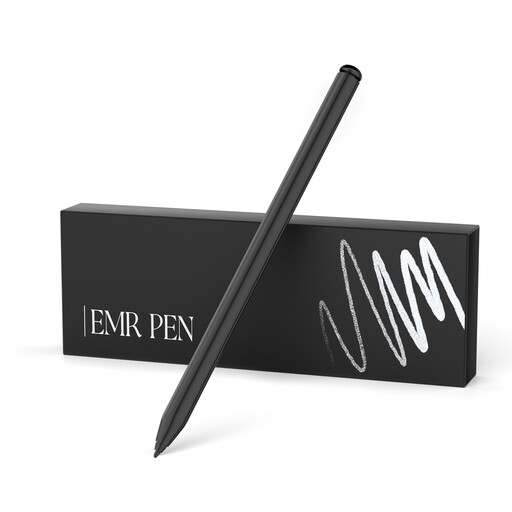 Image unavailable
For sketching on the reMarkable and Kindle Scribe devices listed, provided your specific model is supported; the product name specifies 4,096 pressure levels and palm rejection.
The product information says the stylus isn’t compatible with reMarkable PAPER PRO or other devices. The name also specifies magnetic attachment and no need for charging.
 Image unavailable
For the iPads listed in the description, which mentions drawing, tilt sensitivity and palm rejection.
The product name specifies USB-C fast charging. Check that your exact iPad model is supported.
Tilt sensitivity may be enough for consistent outlines. If you want line width to respond directly to how firmly you press, the stylus, tablet and app must support pressure sensitivity. Logitech specifically describes the Crayon (Lightning) as not pressure-sensitive.
Check that your tablet and app are compatible, test palm rejection and choose a dedicated place to store the stylus. If an Apple Pencil was previously paired with the iPad, Logitech’s instructions say to disconnect it before using the Crayon.
For the documented Logitech Crayon version, the manufacturer’s instructions recommend replacing the tip if it’s worn or damaged in a fall, to protect the display. Check which replacement tips fit your specific stylus version.