Before buying, check the exact tablet model and stylus version: a stylus that looks similar is no proof of compatibility, as the device-specific lists from Apple Support Germany, Samsung Germany and STAEDTLER show. For hand-drawn lettering with varying line widths, you need a compatible stylus whose pressure or tilt detection is also supported by your drawing app. For consistent lines or typed text, a simpler compatible stylus may be enough.
Which stylus is right for you?
Lettering on the tablet you already own
You want to buy a stylus without replacing your tablet. The exact device model and the stylus version designed for it are what matter. Apple Support Germany, Samsung Germany and STAEDTLER list compatibility information to help you check.
Hand lettering with variable strokes
If you draw the letters and outlines yourself, check whether the stylus and drawing app support pressure or tilt input to create the strokes you want. Apple Germany and STAEDTLER describe these features for specific styluses, while CLIP STUDIO PAINT offers its own text and speech bubble tools.
Comic layouts on a small desk
When switching between sketches, speech bubbles and typed text, charging, storage and your app all matter too. CLIP STUDIO PAINT describes features for text, letter spacing and speech bubbles; the stylus input itself still depends on your device and stylus.
What should you look for when buying?
First, make sure the stylus version matches your tablet. Then decide whether you need pressure or tilt detection, or mainly want to use text tools in your app.
| Priority |
What to check before buying |
Who is it important to? |
| Compatibility |
Check the tablet model and, where applicable, the operating system version against the full stylus name in the manufacturer's list. For the Noris digital, also check that the display has an EMR digitiser. |
If you want to keep using your current tablet, the stylus needs to be an exact match. Around 33% of consumers rank compatibility as their top priority. |
| Variable strokes |
Check whether the specific stylus supports pressure or tilt detection, and whether the drawing app supports the tool you want to use. |
If you want your hand-drawn lettering to vary from stroke to stroke, the stylus and app need to support the input you want. Around 27% of consumers say variable strokes are their main priority. |
| Text and speech bubbles |
Look for text editing, letter spacing and speech bubble tools in the app. For consistent lines, check whether a compatible stylus without pressure detection will do the job. |
If you want to create layouts with typed text and speech bubbles, rather than relying solely on pressure-sensitive handwriting, the app's tools matter too. Around 20% of consumers prioritise a clean layout. |
| Charging and accessories |
Check the charging method, what's included and which replacement nibs fit. Also take the app features you need into account when choosing. |
If you need your stylus ready to use between study sessions and drawing, pay attention to charging and accessories. Around 20% of consumers prioritise being ready to use and keeping potential ongoing costs in mind. |
Common buying mistakes
-
Assuming “for tablets” means compatible
Some stylus versions only work with specific tablet models. The Noris digital specifically requires a display with an EMR digitiser.
Before ordering, check your exact tablet model and the full stylus name against the manufacturer's list.
-
Confusing precise input with pressure sensitivity
Not every precise stylus detects pressure. Apple lists the Pencil (USB-C) as not pressure-sensitive; Logitech says the Crayon varies line width through tilt rather than pressure.
If you want line thickness to respond to how firmly you press, check that the specific stylus and app you use support this feature.
-
Expecting the stylus alone to create finished comic lettering
Letter spacing, speech bubbles and text editing also depend on the app. App support matters for the Noris digital's digital eraser, too.
Check that your app supports the workflow you have in mind, from handwriting and typed text to speech bubbles.
Brands to consider
Apple
The Apple Pencil Pro and Apple Pencil (USB-C) are options for the iPads they support. Compatibility varies, according to Apple Support Germany.
- Apple Germany lists pressure sensitivity and rotation for the Pencil Pro. The Pencil (USB-C) supports tilt, but not pressure sensitivity.
- Check the list of supported iPads and the software requirements for the specific Pencil version.
Samsung
Samsung offers S Pen versions for specific Galaxy Tab models, including the Tab S9 FE and S10 FE series.
- Samsung Germany lists pressure and tilt detection for the S Pen models in these series.
- This information applies to the specified stylus and tablet series, not to every S Pen or tablet.
STAEDTLER
The Noris digital and Noris digital Jumbo are designed for devices with a compatible EMR display.
- STAEDTLER describes the Noris digital as battery-free and lists 4,096 pressure levels. The Jumbo is listed with a digital eraser.
- The stylus will not work without an EMR digitiser. The eraser function also depends on the app you use.
Logitech
The Logitech Crayon (USB-C) is an option for drawing and writing on iPad.
- Logitech says tilt changes the line width and that the stylus can be used without Bluetooth pairing.
- According to Logitech, the Crayon is not pressure-sensitive. Before buying, check that the exact version is compatible with your iPad.
Lenovo
According to Lenovo, the Tab Pen Plus is designed for compatible Lenovo tablets.
- Lenovo lists 4,096 pressure levels, tilt detection and an additional nib included in the box.
- Check that it works with your exact tablet model. Lenovo also specifies Bluetooth pairing and charging.
Joybuy styluses for different devices
The Joybuy styluses below are designed for different devices, from iPad and selected Android tablets to specific reMarkable, Kindle Scribe and Surface models. Check compatibility with your exact device in each case.
 No image available
Stylus for iPad (2018–2026), USB-C
For sketches and line variation using tilt; the product details explicitly state that it is not pressure-sensitive.
The product name specifies USB-C charging and compatibility with iPad models from 2018–2026. Check that it works with your exact model.
View at Joybuy
 No image available
Stylus for Android touchscreens
The product name specifies drawing on compatible Android touchscreens and gives Samsung, Huawei and Xiaomi as examples.
According to the product details, this stylus is not designed for iPad, Microsoft devices or some Lenovo tablets. Check your exact model before buying.
View at Joybuy
 No image available
ZSPEED Wireless Charging Stylus Pen for iPad (White)
For sketches and shading; the product name specifies tilt detection and magnetic charging.
The stated compatibility includes iPad Pro 11" (4th/3rd/2nd/1st generation), Pro 12.9" (6th/5th/4th/3rd generation), Air 4/5 and Mini. Magnetic attachment and charging are only available with compatible models.
View at Joybuy
 No image available
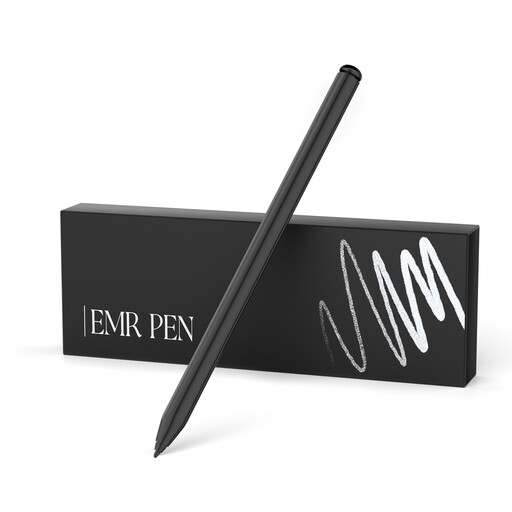
EMR stylus for reMarkable 1/2 and Kindle Scribe
For pressure-sensitive strokes on the specified devices; the product name lists 4,096 pressure levels and five replacement nibs.
According to the product details, this stylus is not compatible with reMarkable PAPER PRO or other devices.
View at Joybuy
 No image available
Stylus for Microsoft Surface, 4,096 pressure levels
For pressure-sensitive lettering on compatible Surface devices; the product name specifies pressure and tilt detection.
According to the product details, it is not compatible with Surface Laptop Go 1/2/3 or Surface Laptop SE. Check compatibility with your exact model.
View at Joybuy
Frequently asked questions
Is a stylus without pressure detection enough for comic lettering?
A compatible stylus without pressure detection may be enough for consistent hand-drawn lines or for using text and speech bubble tools. If you want line width to respond to how firmly you press, you need a compatible pressure-sensitive stylus and a suitable tool in the app.
What can I check if my Apple Pencil won't connect?
First, check that your specific Pencil version is compatible with your iPad and its software version. Pairing steps vary by version. For some iPads, you may need a USB-C to Apple Pencil Adapter to pair the first-generation Apple Pencil.
What should I look for in replacement nibs?
Use replacement nibs that fit your exact stylus version, and check whether one is included in the box. Lenovo lists an additional nib with the Tab Pen Plus; for other products, check what's included with each one.
What are my rights in Germany when I buy a stylus online?
Consumers generally have a 14-day right to cancel an online purchase; for goods, the period usually starts when you receive them. The Baden-Württemberg consumer portal states that, for faulty goods, the limitation period for statutory warranty claims is generally two years from receipt. This is separate from any voluntary manufacturer's guarantee.


