Students who already own a tablet
You want to check whether a new stylus will work with your specific iPad, Galaxy Tab or stylus-compatible Windows device.


First, choose a stylus that works with your exact tablet model and drawing app. If you want to vary line weight and shading, check pressure and tilt sensitivity separately. For quick idea sketches, a stylus without pressure sensitivity may be enough, as long as its charging and storage options suit your small workspace.
You want to check whether a new stylus will work with your specific iPad, Galaxy Tab or stylus-compatible Windows device.
You draw a range of outlines and shades, and want to know whether the stylus, device and app support pressure or tilt input.
You want to capture ideas as they come to you, and are thinking about how the stylus charges, where to keep it close at hand and whether replacement nibs are available.
First check compatibility with your existing device, then the drawing features you want, followed by charging, storage and accessories.
| What matters | What to check before buying | Who should pay particular attention? |
|---|---|---|
| Compatibility | Check the full tablet and stylus model names against each other; if necessary, check the operating system and display technology too. | If you want to keep using your current device and avoid buying the wrong stylus, matching the models is the first priority. Compatibility is the main concern for around 36% of consumers. |
| Outlines and shading | Check pressure and tilt sensitivity separately; support in your drawing app matters too. | For consumers who want to vary lines and shading deliberately, control while drawing is crucial. This is the main concern for around 29%. |
| Ready to use at a moment’s notice | Compare pairing, charging and attachment options; magnetic attachment doesn’t necessarily mean magnetic charging. | If you want to sketch spontaneously at a small desk and put the stylus away easily afterwards, keeping it close to hand is important. Around 21% of consumers put this first. |
| Cost and accessories | Check what’s included, whether replacement nibs are supplied and what charging accessories are needed for the stylus version you’re considering. | Consumers looking to avoid unnecessary extra purchases pay particular attention to accessories and ongoing costs. Around 14% name these as their main concern. |
Styluses may be designed for specific device models or display technologies. A similar screen size or product name isn’t enough to make the right choice.
Check the full names of your tablet and stylus against the manufacturer’s compatibility list. If you’re considering an EMR stylus, also check that your display supports the technology.
Choosing an incompatible stylus could mean having to buy another one.
A stylus may change how it works depending on its angle, without responding to how firmly you press.
If you want to control outlines by varying pressure, check pressure sensitivity separately for the stylus, device and drawing app.
Apple says that the magnetic attachment on Apple Pencil (USB-C) is for storage; pairing and charging are done via USB-C.
Check the charging method, attachment and items included for the exact stylus version. Make sure you have a suitable cable if you’ll need one.
Apple Pencil (USB-C) and Pencil Pro are options for the iPads they support.
S Pens are tied to specific models of Galaxy Tab, including EJ-PT730 for Tab S7 FE and EJ-PX510 for Tab S9 FE or Tab S10 FE.
The Noris digital classic 180 22 is designed for devices with a compatible EMR display.
Crayon models are an option for quick, straightforward sketches on supported iPads.
Bamboo Ink Plus is designed for compatible Windows devices with Wacom Active ES or Microsoft Pen Protocol.
Surface Pen and Surface Slim Pen are designed for the Surface devices they support.
The products below include styluses for selected capacitive Android and iOS devices, as well as specific iPad, reMarkable and Kindle Scribe models. Check the full compatibility details for each stylus before making your choice.
 No image available
An option for sketching on compatible capacitive touchscreens; according to the product details, it isn’t designed for iPad or Microsoft devices.
 No image available
For sketching on the iPad models listed in the product name, if tilt input and palm rejection work with your app.
The product name lists tilt sensitivity and magnetic charging. According to the product details, the magnetic features only work with compatible iPads.
 No image available
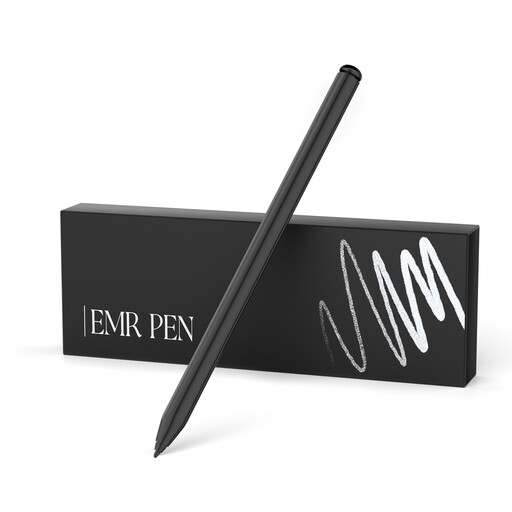
For sketching on the reMarkable and Kindle Scribe devices specifically listed, if you’re looking for an EMR stylus with an eraser.
The product name lists 4,096 pressure levels and palm rejection. According to the product details, reMarkable PAPER PRO and other unlisted devices aren’t compatible.
 No image available
For sketching on one of the selected iPad models listed in the compatibility details.
The product name lists USB-C fast charging. According to the product details, the magnetic attachment is for storage, not charging.
 No image available
For drawing and sketching on compatible capacitive touchscreens.
The product name lists fast charging, an LED indicator and magnetic attachment. According to the product details, the attachment is only for compatible iPads and isn’t for charging.
First, identify the exact tablet and stylus models. According to Apple, Apple Pencil (USB-C) pairs using a USB-C cable; STAEDTLER says the Noris digital needs neither pairing nor charging when used with a compatible EMR device. Then check whether your app supports the pressure or tilt effects you want.
Not necessarily: tilt sensitivity and pressure sensitivity are different features. Apple lists tilt sensitivity, but not pressure sensitivity, for Apple Pencil (USB-C); Logitech describes Crayon as not pressure-sensitive. To control lines with pressure, the stylus, device and app all need to support the feature.
Check whether the nibs can be replaced and whether any are included. STAEDTLER lists five replacement nibs for the Noris digital classic. Logitech advises replacing a damaged or worn Crayon tip to help prevent damage to the display.
In most cases, consumers buying at a distance have a 14-day right to cancel, although exceptions and the details of the specific contract should be considered. Statutory liability for defects rests with the seller and is separate from a voluntary manufacturer’s guarantee. The Verbraucherzentrale states that the standard period for goods is two years.