Sketchers with a tablet already
If you’re looking for a compatible replacement stylus, check the full model name and, where relevant, the software version. Apple, Samsung and Lenovo provide device-specific compatibility information.


First, choose a stylus that the manufacturer explicitly lists as compatible with your tablet model and its software version. For pressure-sensitive outlines and shading, both the stylus and the brush you use in your drawing app need to support the relevant input. For quick concept sketches, tilt support and easy charging may matter more. Also check separately how the stylus attaches, pairs and charges: magnetic storage does not automatically mean magnetic charging.
If you’re looking for a compatible replacement stylus, check the full model name and, where relevant, the software version. Apple, Samsung and Lenovo provide device-specific compatibility information.
For outlines, fabric folds and shading, it matters whether the stylus and app brush use pressure or tilt to create the effect you want. Apple, Samsung and Procreate each describe these features for specific devices, styluses or brushes.
If you want to store your stylus and tablet neatly after drawing, check attachment and charging separately. Apple and Logitech describe different charging and storage methods for their respective models.
First check that the stylus is compatible with your tablet, then consider the line effects you need, followed by storage and charging. For a fair comparison, also factor in the accessories you’ll need for the complete setup you can actually use.
| Consideration | What to check before buying | Who is this most important for? |
|---|---|---|
| Compatibility | Check your tablet model, generation and, where relevant, operating system version against the manufacturer’s list. | If I’m looking for a stylus for a tablet I already own, I want to make sure the model and software version are compatible. For around 36% of consumers, this is the top priority. |
| Outlines and shading | Check pressure sensitivity and tilt support separately; the brush you want to use in your app must also support the input. | If I want to vary line weight or shading in costume designs, the stylus and drawing app need to have the right features. Around 29% of consumers prioritise this control over line quality. |
| Storage and charging | Check how the exact model attaches and charges, including the charging port, cable required and pairing method. | If I want to keep clutter to a minimum on my small desk, I need to be able to store and charge the stylus easily. For around 21% of consumers, ease of use in a limited space is the main consideration. |
| Accessories you’ll need | Check what’s included, which devices you already own and whether you’ll need charging accessories or replacement nibs. | If I’m putting together a complete sketching setup, I want to know which parts I already have and what else I need. Around 14% of consumers pay particular attention to what the full setup requires. |
Apple matches Pencil models to specific iPads and software versions; Samsung also lists device-specific S Pen compatibility. A general product description alone doesn’t confirm that a stylus will work with your tablet.
Before buying, check the full model names of both devices against the manufacturer’s current compatibility list.
Buying the wrong stylus could mean having to place another order.
Apple says the Pencil (USB-C) attaches magnetically for storage, but pairs and charges via a USB-C cable. The Pencil Pro, on the other hand, supports magnetic pairing and charging.
Compare attachment and charging as separate features.
You’ll need a USB-C cable to pair and charge the Apple Pencil (USB-C).
Apple’s comparison shows that pressure sensitivity differs between the Pencil Pro and Pencil (USB-C). The effect you get also depends on whether the brush in your drawing app uses that input.
If you want pressure to change the outline or opacity, check both the stylus features and the settings for the brush you want to use in the app.
The Apple Pencil Pro and Apple Pencil (USB-C) are options for iPads that are explicitly listed as compatible.
The S Pen for the Galaxy Tab S9 FE and Tab S10 FE series is a device-specific option for these tablets.
The Precision Pen 3 is a specific option for the Tab P12 Pro, as listed by Lenovo.
According to Logitech, the Crayon (USB-C) is designed for simple sketches and notes on compatible iPads.
Wacom One is a different kind of device to consider if you’re looking for a graphics tablet or pen display rather than a replacement stylus.
This selection includes styluses for a range of tablet and touchscreen uses. Before buying, check compatibility with your specific device, especially if you need a particular drawing feature.
 Image unavailable
May be suitable for sketching on a compatible Android tablet; check your exact device model before buying.
According to the product description, it isn’t designed for iPad, Microsoft devices or some Lenovo tablets.
 Image unavailable
May be suitable for sketching on the iPads listed in the product name; check your device’s exact generation.
The product name lists palm rejection, tilt sensitivity and magnetic charging. Stated variants: iPad Pro 11″ (1st–4th generation), iPad Pro 12.9″ (3rd–6th generation), iPad Air 4/5 and iPad mini.
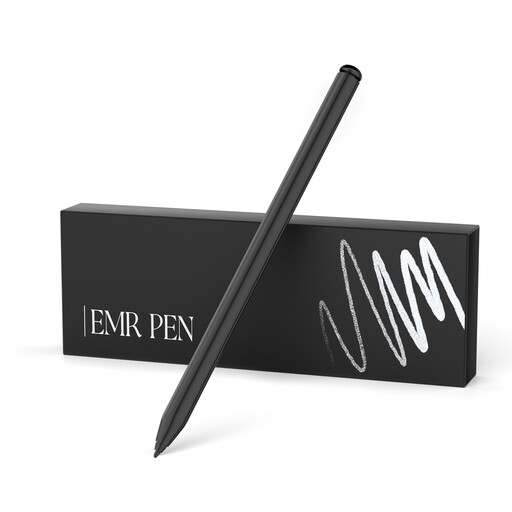 Image unavailable
May be suitable for pressure-sensitive sketching on the devices specifically listed; check that your model is included.
The product name lists 4,096 pressure levels and palm rejection. According to the product description, it isn’t designed for reMarkable PAPER PRO or other devices.
 Image unavailable
May be suitable for sketching on the iPad models covered by the product name; check your exact model before buying.
The product name lists USB-C charging and iPad models from 2018 to 2025. According to the product description, the magnetic attachment is for storage and doesn’t support wireless charging.
 Image unavailable
May be suitable for sketching on compatible touchscreens; check that it works with your specific device.
The product name lists fast charging, an LED indicator and magnetic attachment. According to the product description, the attachment is for storage only and applies to iPads with the 2nd-generation Apple Pencil design.
Find your iPad model name under “Settings > General > About” and check it against Apple’s compatibility list. Apple requires at least iPadOS 17.5 for the Pencil Pro and at least iPadOS 17.1.1 for the Pencil (USB-C). The Pencil (USB-C) connects via a USB-C cable for pairing and charging.
First check whether your specific stylus supports pressure or tilt, then check the brush you’ve selected in the app. Procreate describes pressure-sensitive brushes and their pressure settings; simply connecting a stylus doesn’t guarantee a particular brush effect.
First check whether replacement nibs are available for your model. If the stylus is faulty, distinguish your statutory rights against the seller from any voluntary guarantee. The Verbraucherzentrale lists repair or replacement as possible remedies.
According to the Verbraucherzentrale, consumers buying online generally have a 14-day right to cancel after receiving the goods; you must notify the other party to the contract that you wish to cancel. Whether an exception applies depends on the contract.
No, if the stylus is classed as waste electrical equipment. The Federal Ministry for the Environment lists authorised collection points, manufacturers and retailers as possible return options; size limits and take-back conditions apply to retailers. Your local council collection point is another option.