Sketchers with a tablet already
You want to find a stylus that works with your specific iPad, Galaxy Tab or Windows device. Apple Germany, Samsung Germany and Microsoft Support list compatibility by model or stylus technology.


Start by choosing a stylus that’s compatible with your exact device model and the stylus technology it supports. Sticks for iPad, Galaxy Tab, EMR displays and Windows devices aren’t interchangeable. Pressure and tilt functions are only relevant for varying costume outlines and shading if the stylus, tablet and drawing app all support them. At a shared desk, storage, charging and replacement nibs also matter. Apple, Samsung, STAEDTLER and Microsoft all highlight limitations that depend on the device or protocol.
You want to find a stylus that works with your specific iPad, Galaxy Tab or Windows device. Apple Germany, Samsung Germany and Microsoft Support list compatibility by model or stylus technology.
For costume outlines and shading, the key is whether the stylus, device and drawing app all support the pressure or tilt functions you need. Apple, Samsung Germany, STAEDTLER and Wacom describe features available on specific stylus models.
You want to be able to find your stylus and have it ready to use between short work sessions. Apple describes magnetic attachment and charging for Pencil Pro, while STAEDTLER says the Noris digital works without charging.
Check compatibility first, then the features you need for your drawings, followed by ease of use and accessories.
| What matters | What to check before buying | Who is it important to? |
|---|---|---|
| Compatibility | Check the exact tablet and stylus model numbers and, where relevant, whether they use EMR, AES or MPP. | If you want to use the stylus with your existing iPad, Galaxy Tab or Windows device, checking the model is essential. Around 36% of consumers say compatibility is their main concern. |
| Outlines and shading | Check pressure sensitivity, tilt and, where relevant, the eraser for the stylus, device and drawing app. | If you want to draw costume outlines and shading with varied linework, the features you need must work together. Around 29% of consumers say drawing control is their main concern. |
| Ready to use and easy to keep track of | Check how it charges, what accessories are needed and whether it attaches to your device. Set aside a shared place to store it. | At a shared desk, you’ll want to put the stylus down and find it again quickly after a short sketching break. Around 21% of consumers say being ready to use and easy to keep track of are their top priorities. |
| Nibs and accessories | Check what’s included, which replacement nibs are compatible and whether a separate charger is needed. | If you want to know in advance whether you’ll need accessories or replacement nibs, check what’s included with the exact model. Around 14% of consumers say ongoing costs are their main concern. |
EMR, AES and MPP, as well as device-specific styluses, all require the right kind of support. A touchscreen alone doesn’t confirm that a stylus will work with your device.
Check the full model names and, for Windows devices, the required protocol version against the manufacturer’s information.
An incompatible stylus could mean you have to buy another one.
A line that changes when you tilt the stylus doesn’t mean its thickness will also change when you press harder or more lightly.
If you need pressure-sensitive costume outlines, check that this feature is supported by the specific stylus, tablet and drawing app.
Magnetic attachment, USB-C charging and a battery-free EMR stylus are different solutions, and not every model offers them.
Check how it charges and what’s included, and choose a designated place for the stylus at your shared desk.
Apple Pencil Pro is worth considering for explicitly compatible iPads if drawing features and magnetic attachment and charging are important to you.
S Pen variants are suitable for certain Galaxy Tab models, particularly if you already use a compatible Samsung tablet.
The Noris digital jumbo is an option for a confirmed EMR display if you want a stylus that doesn’t need charging.
The Bamboo Ink Plus is an AES and MPP option for compatible Windows devices.
Surface Pen and Surface Slim Pen are designed for their respective supported Surface models. Surface Pen may also be suitable for certain other Windows devices.
Crayon (USB-C) is an option for compatible iPads if you want a straightforward stylus for sketching with tilt functionality.
This selection includes styluses for a range of existing tablets and devices. The key is whether each stylus works with your exact model and the drawing app you use.
 No image available
The description says it can be used for drawing on Android and HarmonyOS devices. Check the exact device model before buying.
Features listed include a 1.5 mm copper tip, USB-C charging and magnetic attachment to compatible tablets.
According to the description, it isn’t compatible with iPad, Microsoft devices or some Lenovo tablets.
 No image available
The description says it can be used for writing, drawing and sketching on capacitive touchscreens, including Android and iOS devices.
According to the description, two replacement tips are included. The stylus charges via USB-C.
The description says magnetic storage is intended for certain iPads and isn’t for charging.
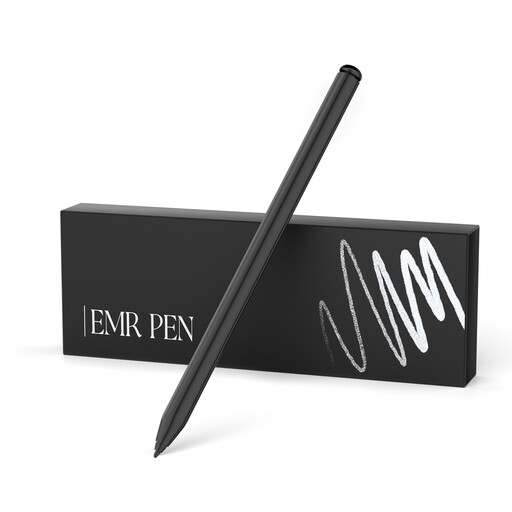 No image available
According to the description, this stylus is an option for sketching on reMarkable 1 or 2 and Kindle Scribe. Check compatibility with your exact device.
Features listed include 4,096 pressure levels, palm rejection, a digital eraser, five replacement tips and no charging required.
According to the title, it isn’t compatible with reMarkable PAPER PRO or other devices.
 No image available
For costume outlines and shading on a compatible Surface, the description lists pressure sensitivity and tilt recognition.
Features listed include MPP 2.0, 4,096 pressure levels, palm rejection and magnetic attachment.
The Surface models listed are Surface Pro 11/10/9/8/7/6/5/4/3/X, Surface Go 1–4, Surface Laptop 6/5/4/3/2/1, and Surface Studio and Surface Book 1–3. According to the description, it isn’t compatible with Surface Laptop Go 1/2/3 or Surface Laptop SE.
 No image available
For sketching on a supported iPad, the description lists tilt recognition for line variation and shading, as well as palm rejection.
The stylus charges via USB-C and can be stored magnetically on compatible iPads.
Compatibility is limited to selected iPad models. Magnetic attachment doesn’t support wireless charging.
No, a touchscreen alone isn’t enough. Check your exact tablet model against the compatibility list or the required EMR, AES or MPP protocol, then check whether your drawing app supports the feature.
It depends on the model. STAEDTLER describes the compatible Noris digital as battery-free and not requiring pairing. Apple lists magnetic pairing and charging for Pencil Pro, while Logitech lists USB-C charging for Crayon (USB-C). Check the instructions for the specific stylus.
Check what’s included and whether replacement tips fit the full model name. STAEDTLER lists five replacement tips for the Noris digital jumbo. Microsoft notes that a standalone charger for Surface Slim Pen may need to be bought separately.
For ordinary distance purchases, Your Europe, the European Union’s consumer portal, generally states that you have a 14-day right to cancel from the date of delivery and at least a two-year legal guarantee for faulty goods. Exceptions apply to the right to cancel, so check the terms of the specific contract and the seller’s status.
No. The German Environment Agency advises disposing of old electrical equipment separately. Used batteries and rechargeable batteries should go to collection points, not household rubbish. Only remove a battery if it can be done easily.