What should you check before buying?
First, check the exact tablet and stylus versions. Then decide whether you need pressure or tilt input for your drawing style, and check for reflections at your intended workspace.
| What matters to you |
What to check before buying |
Who is this especially important for? |
| Compatibility |
Check the exact tablet and stylus names against the manufacturer’s compatibility list. You may also need to check the operating system version or input protocol. |
If I want to keep using my existing tablet, I need to be sure the stylus and device will work together. Around 31 % of consumers put compatibility with their own tablet first. |
| Screen visibility by a window |
Assess the display where you plan to use it, under typical lighting conditions. Only choose accessories that are explicitly supported for your model. |
If reflections obscure my designs, I want to check how clearly I can see the screen at my workspace before buying a stylus. Around 31 % of consumers prioritise being able to see their sketches clearly in light from a window. |
| Lines and shading |
Check pressure and tilt sensitivity separately for the exact stylus version, and make sure your drawing app has the tools you want. |
If I want to vary line weight through pressure when drawing folds and shading, my app needs to support the right input. Around 25 % of consumers focus on pressure-sensitive outlines and shading. |
| Ease of use and ongoing costs |
Check what’s included, how the stylus charges, whether compatible replacement nibs are available and if your drawing app has any specific requirements. |
If I want a stylus that’s easy to store and use, I also need to consider charging and replacement parts. Around 13 % of consumers focus mainly on ease of use and potential ongoing costs. |
Joybuy products for sketching
These Joybuy products are listed as styluses for sketching on touchscreens or iPads. Before you buy, check the details against your exact tablet model.
 No image available
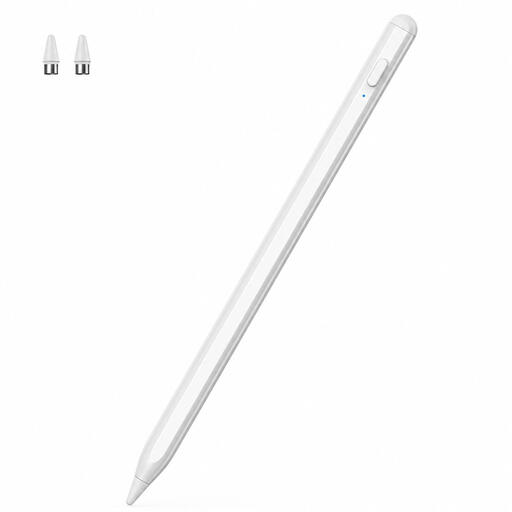
Stylus pen for iOS and Android touchscreens
For sketching on a touchscreen. Check compatibility with your exact tablet before buying.
The product name lists iOS and Android touchscreens as compatible devices.
View on Joybuy
 No image available
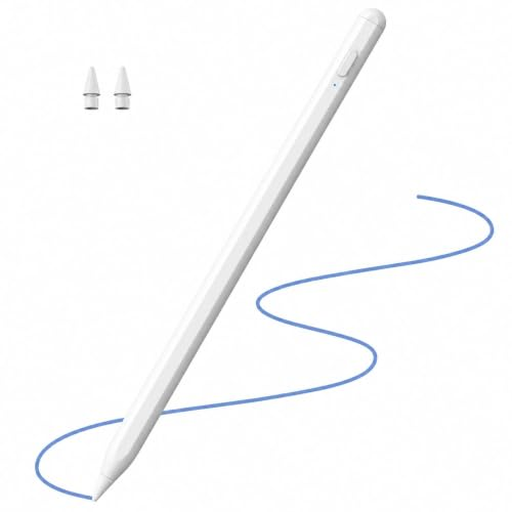
iPad stylus, 2018–2026, with tilt support
For iPad sketching where tilt and palm rejection matter. Check your iPad model against the product details.
The product name lists iPad models from 2018 to 2026, tilt support, palm rejection and 2X Fast Charging.
View on Joybuy
 No image available
Rechargeable active stylus with dual-touch function
For sketching on touchscreens. Check that the exact stylus version is compatible with your device.
The product name lists a dual-touch function, rechargeable use, and iOS and Android devices.
View on Joybuy
 No image available
iPad stylus with USB-C port and tilt support
For iPad sketching where tilt and palm rejection matter. Check that your exact model is supported.
The product name lists a USB-C charging port, tilt recognition, palm rejection, magnetic attachment and an LED battery indicator. According to the product description, the magnetic attachment is for storage; wireless charging isn’t supported.
View on Joybuy
 No image available
VoxorAI HL-U05 White Pen
For sketching on a capacitive touchscreen. Check that your exact device is supported.
The product details list iOS and Android devices, as well as a built-in battery.
View on Joybuy
Frequently asked questions
By a bright window, can I just buy a different stylus instead of getting a screen solution?
No. A stylus won’t change reflections on your screen. Samsung describes a model-specific anti-reflective film for the Galaxy Tab S11 and says it doesn’t affect S Pen input; Apple offers nano-texture glass on certain iPad Pro configurations. Start by assessing your display at your workspace.
Do I need a pressure-sensitive stylus to draw fabric folds?
Only if you want to control line weight by pressing harder or more lightly. For consistent outlines, a compatible stylus without pressure sensitivity may also work, provided your drawing app has suitable tools. Apple clearly distinguishes between pressure and tilt recognition.
What should I bear in mind when setting up and maintaining a stylus?
Check the instructions for your exact stylus version and make sure it’s compatible with your device. The Apple Pencil (USB-C) pairs and charges via cable; the Bamboo Ink Plus needs an input protocol that matches your Windows device. Replacement nibs are available for the LAMY AL-star EMR, and you should choose a type suited to the screen surface.
Do I need to buy an S Pen for my Galaxy Tab?
Samsung says the Galaxy Tab S10 FE and FE+ come with an S Pen. For other tablets, check what’s included with your exact version and, if needed, factor in replacement nibs, charging accessories and your drawing app’s requirements.
What are my rights when buying a stylus online in Germany?
Consumers generally have a right to cancel a distance-selling contract, subject to statutory exceptions. Under § 355 BGB, the usual cancellation period is 14 days; for an ordinary purchase of goods, it generally begins when you receive them. Claims for faulty goods are separate: for ordinary purchases, § 438 BGB generally provides for a two-year limitation period from delivery. The applicable statutory requirements and exceptions apply; this information comes from the German Federal Ministry of Justice and the Federal Office of Justice.


