Start by choosing a stylus that’s confirmed to work with your exact tablet model. For varied outlines and shading, check whether the stylus, device and drawing app support pressure or tilt input. For longer sessions, charging, storage and replacement nibs matter too.
Who are the different styluses suited to?
Sketchers using a tablet they already own
If you want to keep using your current device, first check which stylus works with your exact iPad, Galaxy Tab, Surface or EMR tablet. Apple Support Germany, Samsung Germany, Microsoft Support and STAEDTLER Germany list compatibility requirements by model or display.
Costume artists who draw in detail
To create varied outlines, fabric folds and shading, the app and brushes you use also need to respond to the stylus input. For example, Procreate explains how brushes can respond to pressure or tilt.
Sketchers working from home for longer sessions
If you want to move quickly between designs, consider how the stylus charges and where you’ll store it, as well as the availability of replacement nibs. Apple Support Germany, STAEDTLER Germany and Microsoft Support describe different charging and accessory options.
What should you look for when buying?
Apple Pencil Pro
A good fit if: your iPad is on Apple’s compatibility list and your drawing app uses pressure and rotation input with the brushes you want.
Bear in mind: Apple requires specific iPad models and at least iPadOS 17.5.
Apple Pencil (USB-C)
A good fit if: you mainly draw outlines and quick ideas on a compatible iPad, using tilt input.
Bear in mind: Apple says it attaches magnetically to the iPad for storage, but pairing and charging are handled via a USB-C cable.
Samsung S Pen designed for your model
A good fit if: you use a compatible Galaxy Tab and need pressure and tilt input for detailed sketches.
Bear in mind: the model number and features must match your specific tablet; “S Pen” alone doesn’t tell you whether it’s compatible.
STAEDTLER Noris digital
A good fit if: you prefer a pencil-like stylus that doesn’t need charging or pairing and have a suitable EMR display.
Bear in mind: pressure response and the digital eraser also depend on the app you use.
Microsoft Surface Slim Pen
A good fit if: you sketch on a compatible Surface and want to stick with your Windows workflow.
Bear in mind: charging options depend on your Surface model and accessories; you may need to buy a separate charger.
First, check that your exact tablet and stylus combination is compatible. Then see whether your app uses pressure, tilt or rotation input with the brushes you want.
| What matters |
What to check before buying |
Who should pay particular attention? |
| Compatibility |
Check the exact tablet generation and stylus model against the manufacturer’s list; for the Noris digital, check for an EMR display too. |
If I want to keep my current tablet, the stylus needs to work with it exactly. Around 36% of consumers would put device compatibility first. |
| Lines and shading |
Check whether the app uses pressure, tilt or rotation input with that specific stylus and the brushes you want. |
For fabric folds and varied outlines, I want to know how I can control my brushes. Around 29% of consumers would prioritise control over lines and shading. |
| Ready to use |
Check the charging method and any accessories you’ll need separately from how the stylus is stored. |
During longer sketching sessions, I want my stylus close to hand and to be able to plan for charging breaks. Around 21% of consumers would give particular importance to readiness and storage. |
| Replacement nibs and accessories |
Check what’s included and whether compatible replacement nibs are available; for the Surface Slim Pen, check the charging option for your device too. |
If I use my stylus regularly, I want to know which spare parts and charging accessories I’ll need. Around 14% of consumers would put accessories and potential ongoing costs first. |
Common misconceptions when buying a stylus
-
“Works with tablets” doesn’t mean a stylus will work with your device
Apple, Samsung and Microsoft list compatible devices by model. The Noris digital requires a suitable EMR display.
Before you buy, compare the full names of your tablet and stylus with the manufacturer’s information.
-
Magnetic attachment isn’t the same as magnetic charging
Apple says the Apple Pencil (USB-C) attaches magnetically for storage, but pairs and charges via cable. Charging options for the Surface Slim Pen also depend on the device and accessories.
Check storage, charging and any accessories you’ll need for the specific model separately.
-
Pressure levels don’t guarantee a particular result in every drawing app
The visible response depends on whether the device and app support the relevant input, and on how the brush is set up. STAEDTLER notes that the Noris digital’s pressure response depends on the app too.
Try a suitable brush in your drawing app to check that lines and shading respond as you need them to.
A guide to popular stylus brands
Apple
The Apple Pencil Pro and Apple Pencil (USB-C) are designed for different compatible iPad models.
- Apple lists features for the Pencil Pro including rotation, plus magnetic pairing and charging.
- Apple says the Pencil (USB-C) pairs and charges via cable; compatibility differs between the models.
Samsung
Samsung lists S Pen models for specific Galaxy Tab devices and their features.
- Samsung lists pressure and tilt response for the S Pen EJ-PX510BPEGEU, which is compatible with the Galaxy Tab S9 FE and Tab S10 FE.
- Details for one S Pen model don’t automatically apply to other models.
STAEDTLER
The Noris digital is a pencil-like stylus for compatible EMR displays.
- STAEDTLER says the stylus needs neither a battery nor pairing, and has replaceable nibs.
- A compatible EMR display is essential; pressure response and the digital eraser also depend on the app.
Microsoft
The Surface Slim Pen is designed for compatible Surface devices and their pen features.
- Microsoft documents pen features for each Surface model.
- Charging options vary; a separate charger is available if needed.
Logitech
The Crayon (USB-C) is designed for sketching, writing and annotating on compatible iPads.
- Logitech describes tilt input for varying line thickness and use without Bluetooth pairing.
- The manufacturer’s information for the USB-C version doesn’t mention pressure control, so don’t buy it on the assumption that it supports pressure-sensitive brushes.
Styluses for different tablets and workflows
The styluses below are described as compatible with different iPad, Surface, reMarkable and Kindle devices, as well as Android and iOS touchscreens. Check compatibility with your exact model before buying.
 No image available
ZSPEED Wireless Charging Stylus Pen for iPad
An option for sketching on one of the iPads named in the product title. Check your model against the compatibility list before buying.
The product title mentions tilt sensitivity, palm rejection and magnetic charging. Compatible models listed are iPad Pro 11″ (1st–4th generation), iPad Pro 12.9″ (3rd–6th generation), iPad Air 4/5 and iPad mini.
View at Joybuy
 No image available
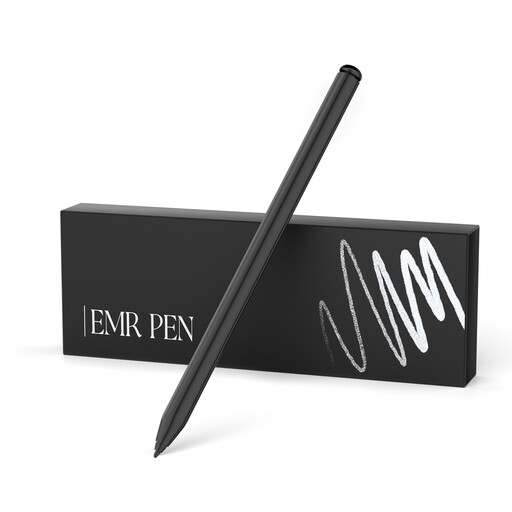
EMR Stylus for reMarkable 1/2 and Kindle Scribe
An option for detailed sketches if you use one of the specifically listed compatible devices.
The product title mentions 4,096 pressure levels, palm rejection, magnetic attachment and an eraser. According to the product information, the stylus isn’t designed for reMarkable PAPER PRO or other devices.
View at Joybuy
 No image available
Stylus Pen for Microsoft Surface, Black
An option for sketching on the Surface devices listed in the product title. Compare the full model list with your device.
Features listed include 4,096 pressure levels, tilt input, palm rejection and magnetic attachment. The Surface Laptop Go and Surface Laptop SE are excluded according to the product information.
View at Joybuy
 No image available
Stylus for iPad (2018–2025), USB-C fast charging
An option for sketching on a compatible iPad; check that your exact model is included in the product information.
The product title mentions USB-C fast charging. According to the product information, magnetic attachment for storage is limited to compatible iPads and isn’t used for charging.
View at Joybuy
 No image available
Universal Touchscreen Stylus for Android and iOS
An option for sketching on the Android and iOS touchscreens named in the product title. Check compatibility with your device before buying.
The product title mentions fast charging, an LED indicator and magnetic attachment. According to the product information, this attachment is for storage only on compatible iPads, not for charging.
View at Joybuy
Frequently asked questions
How do you set up a stylus for costume sketches?
First, check your exact tablet model and which styluses are compatible with it. Apple Support Germany lists the iPads supported by the Pencil Pro; Apple says the Apple Pencil (USB-C) pairs and charges via a USB-C cable. The Noris digital doesn’t need pairing when used with a suitable EMR display.
Why isn’t line thickness changing as expected in your drawing app?
The response depends on the stylus, device and brush settings. For example, the Procreate Handbook describes brushes whose size responds to pressure or whose opacity is controlled by tilt. So check the specific brush in the app you’re using.
What should you check when a stylus nib is worn?
Check whether replacement nibs are available for your exact model and what tool you need to change them. STAEDTLER says the Noris digital jumbo comes with five replacement nibs and a replacement tool.
What are your rights when shopping online in Germany?
When consumers buy online from a trader, they generally have a 14-day right to cancel from the date of delivery, although exceptions may apply. If goods are faulty, you have statutory consumer rights against the seller. According to Your Europe, the European Union, these generally last for at least two years from receipt. A voluntary guarantee is separate from these rights.


