Start by choosing a stylus for your exact tablet model and the support offered by your drawing app: a stylus with a similar name isn’t automatically compatible. For pressure-sensitive lines and shading, the stylus, tablet and app all need to work together. At a shared workspace, though, a straightforward set-up may matter more. Then check the charging method, how it can be stored and which replacement tips are suitable for the specific version.
Which stylus is right for you?
Designers who already own a tablet
If you want to create lines and shading, check that the stylus works with your exact tablet model and drawing app. Apple Support Germany publishes model lists for Apple Pencil; for Noris digital, STAEDTLER specifies displays with an EMR digitiser as a requirement.
Teams sharing a drawing desk
If several people use the same workspace, consider how the stylus is started, charged and stored. Logitech says the Crayon USB-C is ready to use without Bluetooth pairing; STAEDTLER says the Noris digital works without charging.
Creative users with an EMR or Surface device
If you want to keep using your existing device, check its input technology and exact model before buying accessories. STAEDTLER provides a compatibility list for EMR devices; Microsoft notes that not every Surface supports pen input.
What should you look for when buying?
First check compatibility with your device and app, then consider the level of control you want over your strokes. Finally, think about how well charging and storage will work in a shared workspace.
| What matters when buying |
What to look for |
Who it matters most to |
| Tablet and app compatibility |
Check your exact tablet model and, where relevant, operating system version against the stylus compatibility list. EMR styluses also need a display with the right digitiser; STAEDTLER specifies this for Noris digital. |
If you’re looking for a stylus for a tablet you already own, you’ll want to make sure it supports the features you need. Around 36% of consumers put compatibility first. |
| Lines and shading |
Check pressure and tilt recognition separately, and make sure your drawing app supports the feature you want. STAEDTLER and Adonit note that certain drawing features depend on the app. |
If you want to draw fabric designs with different lines or shading, control over the brush is key. Around 29% of consumers prioritise stroke control. |
| Sharing and storage |
Compare how the specific model starts up and pairs. Also check whether it can be stored on your tablet as you’d like; magnetic attachment doesn’t automatically mean magnetic charging. |
If several people share a drawing desk, you’ll want to pick up the stylus again without unnecessary set-up steps. Around 21% of consumers value easy handovers above all. |
| Replacement tips and charging accessories |
Check what’s included and which replacement tips fit the exact version. Also find out which charging cable or adapter you’ll need for pairing and charging. |
If you use the stylus regularly, you’ll want to know which tips and charging accessories you’ll need for ongoing use. Around 14% of consumers make this their top priority. |
Common mistakes when choosing
-
Confusing tilt recognition with pressure sensitivity
A stylus may let you change the line by tilting it, but that doesn’t mean it offers pressure-sensitive brush control. Logitech describes tilt recognition for the Crayon; this doesn’t mean it supports pressure sensitivity.
If you want to vary your strokes by applying pressure, check that the stylus, tablet and app you use all support the feature.
-
Assuming magnetic attachment means magnetic charging
Attachment, pairing and charging can work differently across stylus versions. Apple Support Germany says the Apple Pencil (USB-C) pairs and charges via USB-C.
Check the charging method and any accessories you’ll need for the exact stylus version before relying on a particular storage or charging option.
-
Buying a “Noris digital” without checking the version
The name alone doesn’t tell you whether it’s the Classic or Jumbo. STAEDTLER says the Noris digital classic 180 22 comes with five replacement tips; features may vary by version and app.
Check the full model name, what’s included, whether the display has an EMR digitiser and whether the app supports the features you need.
Key brands at a glance
Apple
Apple Pencil models for specific listed iPads. For sketching designs on an iPad, it’s important to match the stylus to the exact generation.
- Apple lists pressure and rotation features for Pencil Pro.
- Apple Pencil (USB-C) is a different version: Apple lists tilt recognition and USB-C for pairing and charging. Compatibility varies by model.
Samsung
S Pen versions for specific Galaxy devices, including the EJ-PT730 replacement stylus for the Galaxy Tab S7 FE.
- Samsung lists a 0.7-mm tip and 4,096 pressure levels for the EJ-PT730.
- Compatibility and remote features depend on the model. Samsung says gestures and remote features require a compatible BLE S Pen.
Logitech
Crayon, an iPad stylus for drawing and annotating; the version described uses USB-C.
- Logitech says it’s ready to use without Bluetooth pairing and offers tilt recognition.
- Tilt recognition doesn’t mean it offers pressure sensitivity for pressure-sensitive brushes.
STAEDTLER
Noris digital for devices with a compatible EMR digitiser, if you want a stylus that fits a workspace without needing to be charged.
- STAEDTLER lists 4,096 pressure levels and no need to charge for Noris digital.
- The specific display must support EMR, and the effect of pressure sensitivity also depends on the app.
Microsoft
Surface Pen for compatible Surface devices that support pen input.
- Microsoft describes pressure control and an eraser for Surface Pen.
- Supported features depend on the Surface model; not every device supports pen input.
Adonit
Note⁺ 2, an iPad alternative with replaceable tips and drawing features that depend on the app.
- According to Adonit, pressure sensitivity and shortcut buttons can be enabled by pairing with specific apps.
- Check current support for your exact iPad model. Adonit limits magnetic attachment on certain 2024 models.
Joybuy product recommendations for different devices
The styluses below are described for various Android, HarmonyOS, iPad, reMarkable, Kindle Scribe and Surface devices. Before choosing one, check compatibility with your specific model and drawing app.
 No image available
Touchscreen stylus with 1.5-mm copper tip
For drawing on the Android or HarmonyOS touchscreens listed; the product description says it can be switched on without Bluetooth pairing.
The description lists a 1.5-mm copper tip and activation with a double tap. According to the product details, it isn’t intended for iPad, Microsoft devices or some Lenovo tablets.
View at Joybuy
 No image available
ZSPEED stylus for iPad Pro, Air and mini
For sketching and shading on the iPad models listed in the product description, which also mentions tilt recognition.
The product details list palm rejection, plus magnetic attachment, pairing and charging on compatible iPads. Compatibility is limited to specific iPad models.
View at Joybuy
 No image available
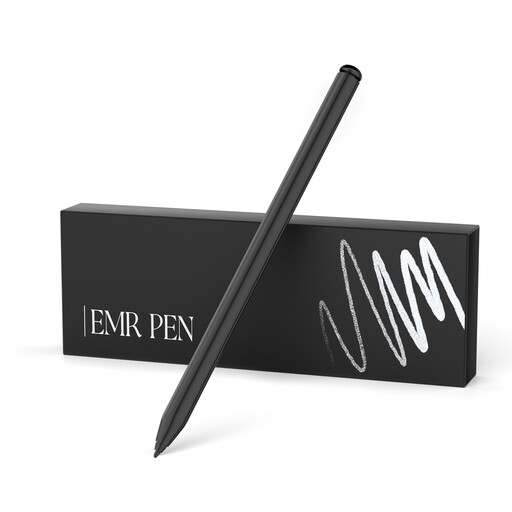
EMR stylus for reMarkable and Kindle Scribe
For pressure-sensitive lines on the EMR devices listed; the product description specifies 4,096 pressure levels.
The description lists palm rejection, an eraser, five replacement tips and no need to charge. It lists reMarkable 1/2 and Kindle Scribe; it isn’t compatible with reMarkable PAPER PRO or other devices.
View at Joybuy
 No image available
Surface drawing pen, black, 4,096 pressure levels
For pressure-sensitive strokes on compatible Surface devices; the product description also mentions tilt support.
The description lists palm rejection, an eraser and right-click button, and magnetic attachment to compatible devices. It isn’t compatible with Surface Laptop Go 1/2/3 or Surface Laptop SE.
View at Joybuy
 No image available
USB-C stylus for iPad, models from 2018 to 2025
For sketching and shading on compatible iPads; the product description lists tilt recognition and palm rejection.
The description says it charges via USB-C. It lists iPads from 2018 to 2025 as compatible; check that your specific model is included before buying.
View at Joybuy
Frequently asked questions
Is it enough for the stylus to say “for tablets”?
No. First check your exact tablet model and, where relevant, operating system version against the compatibility list. For Noris digital, the specific display needs an EMR digitiser, as STAEDTLER states in its compatibility list.
Can I use pressure levels in every drawing app?
No. The stylus specifications alone don’t confirm that an app supports pressure sensitivity. STAEDTLER says line variation depends on the app; with Adonit Note⁺ 2, pressure sensitivity and shortcut buttons require pairing with specific apps.
How do I set up a stylus when several people use the same iPad?
It depends on the model. Logitech says the Crayon USB-C is ready to use without Bluetooth pairing. The Apple Pencil (USB-C) pairs and charges via USB-C; you may need to pair it again after certain connection changes.
Which extra parts might I need later?
Check which replacement tips and charging accessories fit your exact model. STAEDTLER says the Noris digital classic 180 22 comes with five replacement tips; for certain iPads, Apple lists a USB-C adapter for pairing and charging with the 1st generation Apple Pencil.
Does every tablet stylus in Germany need to carry a CE mark?
Not necessarily. According to the European Union, CE marking is only required when the relevant harmonised rules require it for that specific type of product. The term “tablet stylus” alone doesn’t mean that the same CE requirement applies to every design.


