Tablet users drawing patterns
You already have a tablet and are looking for a compatible stylus for outlines and shading. The key considerations are compatibility with your exact model and the stylus features supported by your drawing app.


First, choose a stylus that’s explicitly compatible with your exact tablet model: Apple Pencil, Galaxy S Pen, Xiaomi Focus Pen and EMR styluses aren’t universally interchangeable. For varied outlines and shading, your stylus, tablet and drawing app all need to support the pressure or tilt input you require. Creating a seamless repeating pattern and choosing the right export format depend on your workflow in the app, not the stylus alone.
You already have a tablet and are looking for a compatible stylus for outlines and shading. The key considerations are compatibility with your exact model and the stylus features supported by your drawing app.
You want to combine individual drawings into a seamless repeating fabric pattern and share the file. So, as well as choosing a stylus, consider your app’s tiling tools and export options.
You’re comparing a tablet and stylus as a complete package. According to Samsung, the Galaxy Tab S10 FE and S10 FE+ come with an S Pen; still, check what’s included with the specific offer.
First check that the stylus matches your tablet model, then look at the drawing features in your app and finally find out how to export your finished pattern.
| What to consider | What to check before buying | Who it matters most to |
|---|---|---|
| Compatibility | Check the exact tablet and stylus versions against the relevant manufacturer’s compatibility list. Apple Support Germany also specifies iPadOS requirements for certain Apple Pencil models; with EMR styluses, the display must support this technology. | If I want to keep using my existing tablet, the stylus needs to match its exact model. Around 33% of consumers put compatibility with their existing device first. |
| Variable strokes | Check whether the stylus, tablet and app brush support pressure or tilt input. Manufacturers’ claims about pressure levels aren’t an independent comparison of drawing quality. | If you want to vary outlines or shading with stylus pressure, test the feature in your own app. Around 27% of consumers prioritise variable brush strokes. |
| Pattern and export | Check your app’s tiling workflow and find out which file format you need to share your work. Procreate describes both repeatable patterns and exporting in different formats. | If I want to share a drawing as a repeatable fabric pattern, I need the right tiling and export workflow as well as a stylus. Around 20% of consumers put this workflow first. |
| Complete package | If you’re buying a new tablet, check exactly what’s included and whether it comes with a stylus, charging cable or adapter. Samsung says the Galaxy Tab S10 FE and FE+ include an S Pen. | If you’re buying a tablet and stylus together, you’ll want to avoid unnecessary accessory purchases while still getting the drawing features you need. Around 20% of consumers first consider the overall cost of the device, stylus and accessories. |
Even styluses from the same product range may support different tablet models. And the fact that a device has a touchscreen doesn’t necessarily mean it will work with an EMR stylus.
Before ordering, check the full model names of your tablet and stylus against the manufacturer’s compatibility list.
These refer to different types of input. A high number of pressure levels alone doesn’t prove that a stylus will help you create better fabric patterns.
Think about whether you really need pressure-sensitive strokes, and check the stylus, tablet and brush you want to use together.
A stylus won’t automatically create a seamless repeating pattern. Tiling and exporting the file are steps you’ll need to do in your software.
Create a test tile, check how it repeats and confirm the required file format before you finish your design.
A compatible stylus may already be included, but charging accessories and other items can vary by bundle. Samsung says the Galaxy Tab S10 FE and FE+ come with an S Pen, but not a charging adapter.
Check what’s included with the specific offer before ordering an extra stylus or charging accessories.
Apple Pencil models are designed for specific compatible iPads. The features that work for you depend on both the stylus and tablet model.
The S Pen is an option for compatible Galaxy Tabs, including the FE series mentioned here.
The Focus Pen Pro is designed for the Pad series listed by Xiaomi.
The Noris digital jumbo is designed for EMR displays that explicitly support it.
Logitech Crayon is an iPad stylus for drawing and writing, ideal if you want to get started without any fuss.
Here you’ll find Joybuy styluses for iPads and touchscreens, as well as a tablet and stylus bundle for sketching. Check that each model is compatible with your device and the features you need.
 No image available
The product title mentions magnetic charging and compatibility with certain generations of iPad Pro, iPad Air and iPad mini. Check your exact model before buying.
Models listed include iPad Pro 11″ generations 1 to 4, iPad Pro 12,9″ generations 3 to 6, iPad Air 4/5 and iPad mini.
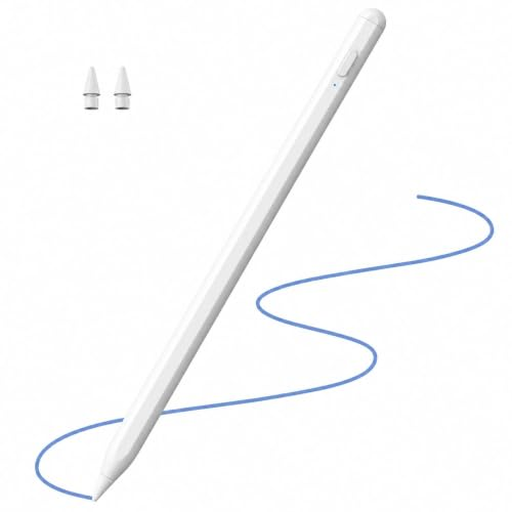 No image available
The title lists iPads from 2018–2026, as well as palm rejection and tilt support. Check whether your exact model is included.
 No image available
The product title mentions dual-touch functionality and a rechargeable stylus for drawing and writing on iOS and Android touchscreens. Check that the features work with your device and app.
 No image available
The title lists selected iPad models, as well as tilt detection and palm rejection. Check compatibility with your exact model before buying.
 No image available
If you’re looking to buy a tablet and stylus together, the product title says it includes a T-Pen with 4,096 pressure levels for drawing.
The offer describes a tablet with a 13,4-inch 2K display. Check that it suits your drawing app and pattern-making workflow.
First check your tablet model and stylus version. Apple says the Apple Pencil (USB-C) pairs and charges via a USB-C cable; according to STAEDTLER, the Noris digital jumbo doesn’t need charging or pairing when used with a compatible EMR device. Then open your drawing app and test whether your chosen brush responds to pressure and tilt.
Procreate explains how to arrange individual elements into a seamlessly repeating tile. Check the repeat, then export the file in the format your workflow requires. Procreate lists PDF, JPEG, PNG and TIFF among the available formats.
STAEDTLER says the Noris digital jumbo has replaceable tips and doesn’t need charging; the Apple Pencil (USB-C) requires a USB-C cable for charging. Samsung says the Galaxy Tab S10 FE and FE+ come with an S Pen, but not a charging adapter. Check what’s included with the specific offer.
According to Verbraucherzentrale, online consumer purchases generally come with a 14-day right to cancel; you need to tell the seller that you’re cancelling. If a newly purchased product is faulty, you may generally have statutory rights against the seller for up to two years after it was delivered. A voluntary guarantee is separate from these rights.
Not necessarily. The German Patent and Trade Mark Office explains that whether a work qualifies as an original intellectual creation is decided on a case-by-case basis; reproduction and distribution are among the rights of exploitation. If you’re using someone else’s design, check that you have the necessary rights for your intended use.