First, check that the specific stylus version works with your tablet and drawing app. Good drawing features are no use if the combination isn’t supported. For lines and shading that vary with pressure, you’ll need a compatible pressure-sensitive input; for simple outlines, tilt detection may be enough. At a standing desk, the charging method and a secure place to put the stylus down matter too.
Who is this guide for?
Designers with an existing tablet
You’re looking for a stylus that works with your specific tablet and drawing app, rather than one that requires you to buy a new device. Apple Support Germany, Samsung Germany, Wacom and STAEDTLER each list specific device or input requirements.
Sketch artists who want to vary their lines
You draw silhouettes, fabric folds and shading, and want to understand the difference between pressure and tilt input before you buy. Samsung Germany and Microsoft describe pressure input for specific stylus models; Logitech lists tilt detection, but no pressure sensitivity, for the documented Crayon version.
Creatives at a standing desk
You switch between designing and other tasks while standing, so you need a clear way to put your stylus down, charge it and pick it up again. Apple and Microsoft describe different charging and storage options for their respective stylus models.
What should you look for when buying?
Start by checking device compatibility and the kind of control you want over your strokes. Then consider where you’ll keep the stylus, how you’ll charge it and whether you’ll need any accessories for your workspace.
| What matters |
What to check before buying |
Who it matters most to |
| Compatibility |
Check the full tablet model, exact stylus version and whether the drawing app supports the input you want. |
If I want to keep using my existing tablet, the stylus has to be a precise match. Around 34% of consumers are likely to put compatibility first. |
| Line control |
Check pressure and tilt detection separately for the exact stylus version, and confirm that your tablet and app support each feature. |
For shading fabric and varying outlines, I want to know whether strokes respond to pressure or the angle of the stylus. Around 33% of consumers are likely to prioritise variable line control. |
| Keeping it close to hand |
Check whether the attachment is just for storage or also charges the stylus, and find out which cable or charging accessories you’ll need. |
When I switch between designing and other tasks, I want the stylus to stay secure and be easy to pick up again. Around 20% of consumers are likely to prioritise easy access. |
| Accessories and nibs |
Check what’s included, whether you’ll need charging accessories and which replacement nibs fit the specific model. |
If I draw regularly, I want to know in advance whether I’ll need accessories and whether I can replace a worn nib. Around 13% of consumers are likely to prioritise accessories and wear and tear. |
Common buying mistakes
-
Assuming “for tablets” means it’s compatible
Stylus generations and input technologies are designed for specific devices. A stylus may therefore be unsuitable for your screen, even if it’s marketed as a tablet stylus.
Check the exact stylus version against your tablet’s full model name. With EMR styluses, the specific screen must have an EMR digitiser.
-
Confusing tilt detection with pressure sensitivity
Tilt and pressure affect the look of a line in different ways. Logitech lists tilt detection for the Lightning-connected Crayon, but says this version isn’t pressure-sensitive.
If your designs need pressure-sensitive shading, check separately that the stylus, tablet and drawing app support pressure input.
-
Assuming magnetic storage means it charges
A magnetic attachment doesn’t automatically mean the stylus charges there. Apple says the Pencil (USB-C) attaches magnetically for storage, but pairs and charges via a cable.
Check the charging method and what’s included for the specific combination. A separate charger may be needed for the Surface Slim Pen, depending on your device.
Key brands at a glance
Apple
Apple Pencil models for specific, explicitly supported iPads.
- Apple says the Pencil Pro offers additional pressure, rotation and control features, along with magnetic pairing and charging on compatible iPads.
- The Pencil (USB-C) connects by cable for pairing and charging. Which Pencil version is right for your iPad depends on the exact model.
Samsung
S Pen models for selected Galaxy devices.
- Samsung lists 4,096 pressure levels, a 0.7-mm nib and magnetic attachment for the EJ-PT730.
- According to Samsung’s German product sheet, the EJ-PT730 is a replacement stylus for the Galaxy Tab S7 FE. These details don’t apply to every S Pen or Galaxy Tab.
Microsoft
Surface Pen and Surface Slim Pen models for supported Surface devices.
- Microsoft describes pressure and tilt input for the Surface Pen.
- The Slim Pen’s supported features and charging locations depend on the Surface model and, where applicable, the accessories. Microsoft says some Surface laptops don’t support pen input.
Wacom
Bamboo Ink Plus for compatible Windows Ink devices with Wacom AES or Microsoft Pen Protocol.
- Wacom lists USB-C charging, replaceable nibs and up to 4,096 pressure levels.
- Tilt and nib features may depend on the third-party device. Check compatibility with your specific device.
STAEDTLER
Noris digital classic and Jumbo for screens with an EMR digitiser.
- STAEDTLER says the classic has replaceable nibs and works without charging or pairing.
- According to its compatibility information, these styluses only work with screens that have an EMR digitiser. The Jumbo’s eraser function depends on the app.
Logitech
Crayon for sketching and note-taking on iPad; versions and charging connectors vary.
- Logitech describes a connection that doesn’t require complex Bluetooth pairing, with line variation controlled by tilting the stylus.
- Logitech says the documented Lightning-connected Crayon isn’t pressure-sensitive. This version isn’t an equivalent choice for pressure-sensitive strokes.
Joybuy products for sketching at a standing desk
These Joybuy products are described as styluses for sketching on selected iPads or touchscreens. Before buying, check compatibility with your exact device and make sure the charging method suits you.
 No image available
ZSPEED Wireless Charging Stylus Pen for iPad, white
Described for sketching on the iPad models listed in the product name; check compatibility with your exact iPad.
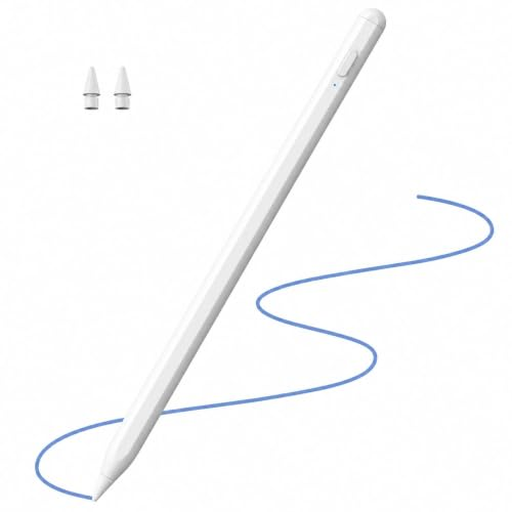
A 1.0-mm nib, tilt detection and palm rejection are listed. Magnetic charging and two replacement nibs are also included in the product details.
Joybuy
 No image available
Stylus for Apple iPad, 2018–2026, 2X fast charging
Described for iPad models; check your device’s exact model name against the compatibility information.
Tilt support and palm rejection are listed. The product information says to use only suitable 5-V USB adapters for charging, unplug the cable once fully charged and disconnect the stylus immediately if it shows visible signs of damage.
Joybuy
 No image available
Active stylus with dual-touch function for iOS and Android
Described as a stylus for drawing and writing on touchscreens. Check beforehand whether your specific device is supported.
A rechargeable design and dual-touch function are listed. The product information says to use only a 5-V USB adapter for charging, unplug it once fully charged and protect it from heat and moisture.
Joybuy
 No image available
iPad stylus with USB-C charging port
Described for selected iPad models; check whether your exact model is included.
Tilt detection, palm rejection, an LED battery indicator and up to eight hours of use after charging are listed. The magnetic attachment is for storage and, according to the product information, doesn’t support wireless charging.
Joybuy
Frequently asked questions
How can I check that a stylus will work with my tablet before buying?
Check your tablet’s full model name against the compatibility list for the exact stylus version. For Noris digital, the screen must also have an EMR digitiser; for Windows styluses, the device and supported input protocol are key.
Will a stylus charge automatically when attached magnetically to a tablet?
No. Magnetic attachment doesn’t always mean the stylus charges there. Apple says the Pencil (USB-C) attaches magnetically for storage, but pairs and charges via a USB-C cable. The Pencil Pro pairs and charges magnetically only with supported iPads.
What should I do if the stylus nib is worn?
Check the instructions and find the right replacement nibs for your exact model. For the documented Crayon, Logitech recommends replacing a damaged or worn nib to avoid damaging the screen; STAEDTLER lists replaceable nibs for the Noris digital classic.
What are my rights in Germany if a stylus I’ve bought is faulty?
If you buy from a retailer as a consumer, statutory consumer rights are separate from a voluntary guarantee. According to consumer information from the European Union, you’re entitled to a minimum two-year legal guarantee from the date you receive the goods. If there’s a fault, contact the seller to arrange a remedy.


