Fashion designers with an existing tablet
If you want to keep using your iPad, Galaxy Tab or Surface, check the stylus against your device’s exact model name. Apple, Samsung and Microsoft list compatibility by model.


First, choose a stylus that’s compatible with your exact tablet model. For pressure-sensitive outlines and shading, the stylus, device and drawing app also need to work together. At a small desk, magnetic storage and charging on the device can save space, while USB-C styluses need a cable and separate pen tablets require a compatible computer and extra desk space.
If you want to keep using your iPad, Galaxy Tab or Surface, check the stylus against your device’s exact model name. Apple, Samsung and Microsoft list compatibility by model.
If you want your brushes to change outlines or shading according to pressure or tilt, check which inputs the stylus, tablet and drawing app actually support. Apple, Samsung and Logitech describe different features for their styluses.
If you want to keep charging accessories and your workspace tidy, compare how the stylus charges and stores with the space needed for the complete setup. Apple describes magnetic charging for a compatible Pencil, while Wacom also offers a compact pen tablet without its own screen.
First, check compatibility with your existing device. Then decide whether you need pressure or tilt input, and how much space the charging method and drawing area will take up.
| What matters | What to check before buying | Who is this important to? |
|---|---|---|
| Device compatibility | Check the exact tablet model, stylus generation and, where relevant, operating system version against the compatibility list. | If I want to keep using my existing iPad, Galaxy Tab or Surface, the stylus needs to work with that exact model. For around 29% of consumers, compatibility comes first. |
| Outlines and shading | Check the stylus’s pressure and tilt input, as well as whether the drawing app supports the brush you want to use. | For fashion outlines and shading, I want to know whether my brush responds to pressure or tilt. Line control is the top priority for around 29% of consumers. |
| Space, charging and storage | Check the charging method and storage options, and allow space for your tablet, computer and accessories. | At a small desk, I want to fit my stylus, charging setup and drawing area into the space while still leaving room to work. Clear desk space and tidy charging are priorities for around 24% of consumers. |
| App workflow and accessories | Check the app features you need, along with compatible replacement tips and any other required accessories. | If I want to continue editing designs in an app, I’ll factor in its features and any necessary accessories. App workflow and ongoing costs are decisive for around 18% of consumers. |
Apple, Samsung and Microsoft match styluses and their features to specific device models. A similar connector or a familiar product range alone doesn’t confirm compatibility.
Make a note of your device’s exact model name and check it against the relevant manufacturer’s list before ordering.
A separate pen tablet requires a compatible computer; depending on the setup, you may also need charging accessories or replacement tips.
Tilt can affect your linework, but it doesn’t replace pressure sensitivity. Apple lists it for the Pencil Pro, but not the Apple Pencil (USB-C); Logitech explicitly describes the Crayon as not pressure-sensitive.
If you want your brush to respond to pressure, check support separately for the stylus, device and drawing app.
Charging methods, app features and what’s included vary from one solution to another. A compatible stylus alone won’t necessarily provide all the drawing and editing features you need.
Before buying, make a note of the device and app you use, and which accessories you’ll actually need.
Apple offers several Pencil models, each for specific supported iPads.
S Pen versions are matched to specific supported Galaxy Tab models.
The Surface Slim Pen is designed for listed pen-enabled Surface devices and Windows workflows.
The Crayon is an iPad stylus for writing, annotating and drawing, with tilt input.
The Wacom One S is a compact drawing surface for people who already use a computer.
This selection includes styluses for selected iPads, Android tablets and Surface devices, as well as compatible reMarkable and Kindle Scribe models. Check compatibility with your exact device before buying.
 No image available
For sketching on a compatible iPad when tilt input is enough for line variation and shading.
Tilt input and palm rejection; USB-C charging and magnetic storage. According to the product listing, it isn’t pressure-sensitive; the magnetic attachment doesn’t enable wireless charging.
 No image available
For drawing and note-taking on a compatible Android touchscreen; check your specific tablet model first.
The product listing specifies a 1.5 mm copper tip, USB-C charging, magnetic attachment and tap-to-wake activation. Not compatible with iPad, Microsoft devices or some Lenovo tablets.
 No image available
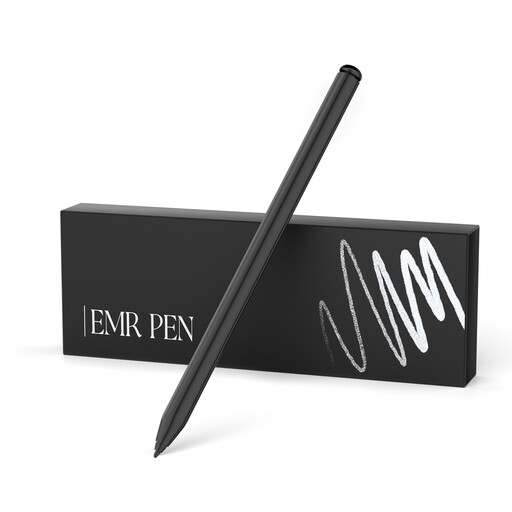
For detailed sketches on a compatible reMarkable or Kindle Scribe device.
The product listing specifies 4096 pressure levels, palm rejection, an eraser and magnetic attachment. According to the description, the stylus doesn’t need charging; it isn’t compatible with reMarkable PAPER PRO or other devices.
 No image available
For sketching and shading on a supported Surface model.
The product listing specifies 4096 pressure levels, tilt input, palm rejection, magnetic attachment and two function buttons. Not compatible with Surface Laptop Go 1/2/3 or Surface Laptop SE.
 No image available
For sketching and illustration on one of the compatible iPad models when tilt input is enough.
The product listing specifies tilt detection, palm rejection, USB-C charging and an LED battery indicator. The magnetic attachment is for storage, not wireless charging; compatibility is limited to selected iPad models.
A passive capacitive stylus is recognised like a finger input and, according to CHIP, is only suitable to a limited extent for detailed drawing. First, check which stylus features your tablet explicitly supports.
No. According to Apple, the Apple Pencil (USB-C) pairs and charges using a USB-C cable; the magnetic attachment is for storage.
First, check the charge, pairing and tip. Logitech recommends replacing a damaged or worn Crayon tip; Apple lists replacement tips for the Pencil generations mentioned.
Consumers generally have a right of withdrawal for distance-selling contracts. The statutory period is usually 14 days, and you must notify the seller that you wish to withdraw. The Federal Ministry of Justice and Consumer Protection and the Federal Office of Justice also list statutory exceptions; the circumstances of the specific purchase will determine what applies.
No. Statutory consumer rights apply against the seller, while a guarantee is an additional voluntary service subject to its own terms. The Verbraucherzentrale clearly distinguishes between the two.