Who should consider their options?

Artists who already own a tablet

If you’re buying a stylus separately, check the exact tablet generation and stylus version to make sure they’re compatible and that the charging method works with your device. Apple Support Germany, Samsung Germany and STAEDTLER list requirements that vary by model or technology.

Designers who want to vary their strokes

For silhouettes, seams and fabric effects, check whether the stylus and drawing app support the outline and shading controls you need. Clip Studio Paint lists compatibility with, among others, Apple Pencil and Galaxy S Pen.

Artists working by a bright window

If you want to see your sketch clearly in daylight, assess the display separately from your choice of stylus. Apple and Samsung describe anti-reflective solutions for specific devices and models.

What should you look for when buying?

Apple Pencil Pro with a compatible iPad

A good fit if: You own an iPad listed by Apple as compatible and want extra drawing controls, such as rotation.

Worth noting: Apple specifies particular iPad and iPadOS requirements. The nano-texture glass option on the iPad Pro described is only available on 1 TB or 2 TB models.

Apple Pencil (USB-C) or Logitech Crayon

A good fit if: You mainly sketch ideas and outlines on a compatible iPad, and tilt input is enough for the way you work.

Worth noting: Apple says the Pencil (USB-C) pairs and charges via a cable. Tilt input is not the same as pressure input.

A Samsung S Pen or EMR stylus suited to your model

A good fit if: You use a compatible Galaxy Tab or have confirmed that your display supports EMR.

Worth noting: Samsung lists the S Pen for specific models. According to the manufacturer, the STAEDTLER Noris digital classic requires an EMR display.

Surface Slim Pen with a compatible Surface

A good fit if: You draw as part of a Windows workflow and Microsoft lists the pen features you need for your Surface model.

Worth noting: Compatibility and magnetic charging options depend on the device and accessories. Not every Surface supports pen input.

Buying priority What to check Who is it important to?
Compatibility Check your tablet generation and exact stylus version against the manufacturer’s list; for the Noris digital classic, check for EMR support. If I’m buying a stylus for a tablet I already own, I want to be sure that this exact generation is supported. Around 33% of consumers put compatibility first.
Screen visibility in light from a window Assess the display where you plan to use it; check for anti-reflective features and make sure any screen protector fits your model. When I draw by a bright window, I want to see lines and blocks of colour clearly on screen. Around 27% of consumers prioritise visibility in bright light.
Outlines and shading Check the pressure and tilt features of the specific stylus, and whether the app’s brush supports them. For silhouettes and fabric shading, I want precise control over my drawing brush. Around 27% of consumers prioritise control over varied strokes.
Charging and replacement nibs Check how the stylus charges, what’s included and whether replacement nibs are available for the exact version. For longer sketching sessions, I want to know how the stylus charges and whether its nibs can be replaced. Around 13% of consumers prioritise ease of use and wear-related considerations.

Avoid common buying mistakes

  • “For tablets” doesn’t automatically mean it works across devices

    Apple and Microsoft list support by device; the STAEDTLER Noris digital classic requires an EMR-compatible display.

    Before buying, compare the full device and stylus names rather than relying on the product family alone.

  • A new stylus won’t get rid of reflections from a window

    Anti-reflective features relate to the display, not the stylus input. The nano-texture glass option described for the iPad Pro is limited to specific storage configurations; Samsung lists a separate screen protector for the Galaxy Tab S11 Ultra.

    Assess the display and viewing angle at your bright workspace separately from your choice of stylus, and check that any screen protector fits your model.

  • Tilt, pressure and magnetic attachment are different features

    Apple says the Pencil (USB-C) supports tilt input and charges via a cable. Microsoft lists magnetic charging options for the Slim Pen that depend on the device.

    Check that your exact device and stylus combination offers the brush control you want and the charging method you expect.

A guide to brands and compatible styluses

Apple

Apple Pencil versions are designed for the iPads listed as compatible with each one.

  • Apple lists features including rotation and magnetic charging for the Pencil Pro.
  • Apple says the Pencil (USB-C) pairs and charges via a cable. Compatibility depends on the iPad model and operating system version.

Samsung

Samsung lists S Pens for specific Galaxy Tab models.

  • According to Samsung, the Galaxy Tab S11 comes with an S Pen.
  • The S Pen for the Tab S11 series is designed for specifically listed devices. Samsung describes a separate anti-reflective screen protector for the Tab S11 Ultra.

STAEDTLER

The Noris digital classic is a pencil-shaped option for EMR-compatible displays.

  • STAEDTLER lists 4,096 pressure levels, replaceable nibs and no need to charge or pair the stylus.
  • The EMR requirement means it won’t necessarily work with iPads or any touchscreen tablet.

Microsoft

The Surface Slim Pen is designed for compatible Surface devices and Windows workflows.

  • Microsoft lists pressure and tilt input.
  • Features and magnetic charging options depend on the device and accessories; not every Surface model supports pen input.

Logitech

The Crayon (USB-C) is an iPad-focused option for outlines and strokes that vary with tilt.

  • Logitech describes USB-C charging and stroke widths that vary when you tilt the stylus.
  • If you want to use pressure-sensitive brushes, check whether this feature is supported by the specific Crayon version.

Joybuy styluses for drawing on a tablet

The following Joybuy listings include styluses described as suitable for sketching on an iPad or touchscreen. Before buying, check compatibility with your exact tablet. Assess screen visibility in light from a window separately, by looking at the display.

iPad stylus with USB-C charging

iPad stylus for 2018–2026 with USB-C

For sketching on an iPad when tilt-controlled shading matters.

The product details list tilt recognition and palm rejection; pressure-sensitive brush control is not specified.

USB-C charging; described as compatible with iPad models from 2018 to 2026. Check compatibility with your exact model.

Joybuy

iPad stylus with USB-C charging and tilt input

iPad stylus for 2018–2025 with USB-C

For drawing on an iPad when tilt-controlled shading suits your app’s brush.

The product details list tilt input, palm rejection and USB-C charging.

Described as compatible with iPad models from 2018 to 2025; check support for your exact model before buying.

Joybuy
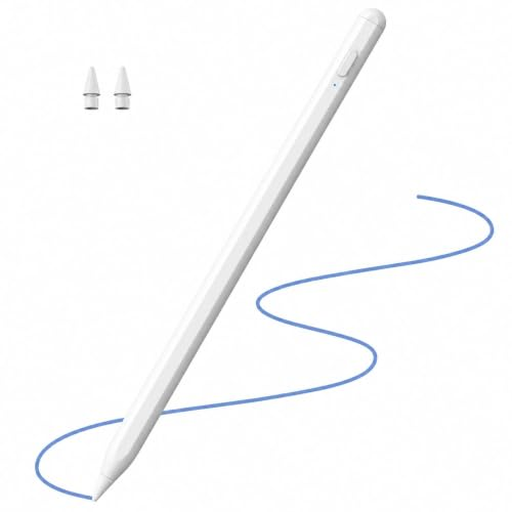
Stylus for Apple iPad with tilt input and palm rejection

Stylus for Apple iPad 2018–2026 with 2X Fast Charging

For sketching on an iPad when tilt-controlled variation in line width and palm rejection matter.

The product details list tilt input, palm rejection and 2X Fast Charging.

Described as compatible with Apple iPad models from 2018 to 2026; check support for your exact model.

Joybuy

Active stylus for iOS and Android touchscreens

Active stylus for iOS and Android touchscreens

For drawing and writing on touchscreens when a rechargeable stylus with dual-touch functionality suits your device.

The product details list an active, rechargeable stylus with dual-touch functionality.

Described as suitable for iOS and Android touchscreens; check support for your specific tablet.

Joybuy

iPad stylus with USB-C, tilt input and palm rejection

iPad stylus with USB-C, tilt and palm rejection

For sketching on an iPad when tilt-controlled variation in line width and palm rejection are useful.

The product details list USB-C charging, magnetic attachment and an LED battery indicator.

Compatibility is limited to selected iPad models; check the exact device version.

Joybuy

Frequently asked questions

How do I check whether a stylus works with my tablet?

Note down the exact tablet generation and stylus version, then check both against the relevant manufacturer’s list. For the Noris digital classic, you’ll also need to confirm that the display supports EMR. For Apple devices, check the listed iPadOS requirement too.

How should I set up my stylus for longer sketching sessions?

Test the brush you want to use in your drawing app to check its support for pressure and tilt input. According to Apple, the Apple Pencil (USB-C) pairs and charges via a cable; STAEDTLER says the Noris digital classic doesn’t need charging or pairing. If the stylus has replaceable nibs, check the instructions for your exact model.

What costs and rights should I consider when buying online in Germany?

Check whether your budget accounts for any charging accessories, replacement nibs, the drawing app and, if needed, a compatible anti-reflective screen protector. Distance contracts generally come with a right to cancel; § 355 BGB sets a 14-day period, while § 312g BGB provides for exceptions. The right to cancel and your rights if a product is faulty are separate from any voluntary manufacturer’s guarantee.

Can I put a stylus with a worn-out battery in household rubbish?

No. The German Environment Agency advises that used batteries and rechargeable batteries must not go in household rubbish and should be collected separately. Check whether the battery can be removed from your specific stylus and how to dispose of the used device.