Garden planners with an existing tablet
If you’re buying a stylus separately, check the exact device generation and the input technology it supports. Apple, Samsung, STAEDTLER and Wacom each list their own compatibility requirements.


Choose your stylus based first on your exact tablet model and the input technology it supports. Apple, Samsung, STAEDTLER and Wacom each specify device-dependent requirements. For garden plans drawn to scale, the drawing app’s import, scaling and measurement features also matter – stylus functions can’t replace these planning tools.
If you’re buying a stylus separately, check the exact device generation and the input technology it supports. Apple, Samsung, STAEDTLER and Wacom each list their own compatibility requirements.
If you use existing plans or images as a starting point, check that your drawing app supports importing, scaling and measurement units for the work you have in mind, as well as checking the stylus. Concepts explains these features in its guides.
If you often revise your designs, you’ll probably want to think about the line control you need and how the stylus fits into your workflow, including charging, pairing and palm rejection. Product information from Apple, Wacom, STAEDTLER and Logitech outlines different features and requirements.
First, check that your stylus and tablet use the same input technology. Then consider the features of your drawing app and the line control you need to find a stylus that suits the way you plan.
| What matters | What to check before buying | Who will find this important? |
|---|---|---|
| Compatibility | Check the exact tablet generation, display technology and stylus technology against the manufacturer’s information. | If I’m buying a stylus for my existing tablet, I want to be sure the input technology is compatible. Around 36% of consumers are likely to consider compatibility their top priority. |
| Scale and plan variations | Check whether the app can import a plan, scale it using a reference measurement and work with measurement units. | If I want to use bed spacing from an existing plan, I need the right app features and clear measurements. Around 29% of consumers are likely to prioritise planning to scale. |
| Drawing comfort | Consider whether you need pressure or tilt input. Also check charging, pairing and whether eraser functions depend on the app. | If I regularly draw and edit different versions at my desk, I want input that suits my app and workflow. Around 21% of consumers are likely to prioritise drawing comfort. |
| Additional requirements | Check what’s included, which app features you’ll need and whether replacement nibs are available. | If I want to avoid unnecessary extra purchases, I check what’s included and whether I’ll need particular app features or replacement nibs. Around 14% of consumers are likely to make additional requirements their main concern. |
According to STAEDTLER, the Noris digital requires an EMR digitiser. The Bamboo Ink Plus, on the other hand, requires Wacom Active ES or Microsoft Pen Protocol (MPP), according to Wacom. These requirements aren’t interchangeable.
Before buying, check the exact device model and the display or stylus technology it supports.
Samsung specifically lists the EJ-PT730 for the Galaxy Tab S7 FE. The Samsung product page for the S Pen for the Tab S9 FE and S10 FE refers to a different model.
Check the full model number against your tablet rather than searching for “S Pen” alone.
Pressure and tilt input affect how you draw lines. To get reliable measurements, you’ll also need suitable dimensions and the right app features.
Before you start, check that your app can import and scale plans, and work with the measurements you need.
STAEDTLER says that the Noris digital Jumbo’s digital eraser function depends on the app you use.
Check how it works in the app you plan to use for your garden sketches.
Apple Pencil models are designed for the specific iPads listed for each one.
Replacement S Pens are matched to specific Galaxy Tab models.
The Noris digital and Noris digital Jumbo are designed for devices with an EMR digitiser.
The Bamboo Ink Plus is designed for compatible Windows devices that support stylus input.
The Crayon is an iPad stylus; the Lightning and USB-C versions should be considered separately.
Joybuy styli for sketching and taking notes on compatible touchscreens. Check the details for each model against your specific device and the way you plan to use it.
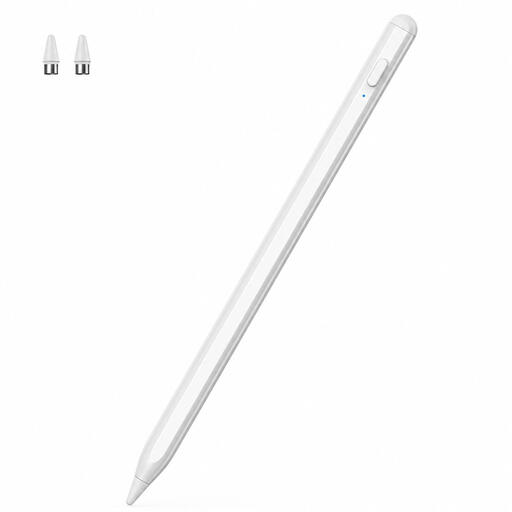 No image available
For sketching and taking notes on touchscreens, provided it’s compatible with your specific device.
Listed as compatible with iOS and Android touchscreens; check that it’s suitable for your device.
 No image available
For sketching and writing on compatible touchscreens; check that your specific device supports it.
The product name mentions a dual-touch function and a rechargeable design.
 No image available
For sketching on a compatible capacitive touchscreen; the description mentions pressure sensitivity.
According to the description, setup requires an app to pair the stylus with your device.
 No image available
For sketching on the selected iPad models that the stylus is compatible with.
Features listed include tilt recognition, palm rejection and USB-C charging. Magnetic attachment is for storage; wireless charging isn’t supported.
No. To get reliable measurements, you need suitable reference dimensions and an app that lets you set the scale and measurement units. Concepts explains how to scale new and imported drawings.
If your app supports importing, you can add a plan or image as a starting point and align it using a known measurement. If the app allows it, you can create different versions on separate layers; accuracy also depends on the quality of your source data.
According to STAEDTLER, the Noris digital doesn’t need its own battery or pairing. The Noris digital Jumbo’s digital eraser function depends on the app you use. The stylus also requires an EMR digitiser.
For a standard online purchase from a business seller in Germany, you generally have a 14-day right to cancel, starting from the day you receive the goods; exceptions may apply. Your Europe, the European Union’s consumer portal, also explains that goods are covered by a legal minimum guarantee of at least two years from receipt. These rights are separate from any additional manufacturer’s warranty.