Sketchers with an existing tablet
You want to add a stylus or replace one without buying the wrong generation. Your exact tablet model is the most important starting point; Apple Support and Samsung list compatibility for specific models and series.


First, check your exact tablet model and choose a stylus specifically listed as compatible with it. Apple Support and Samsung list compatibility by model or series. For varied lines and shading, you’ll need pressure sensitivity and a drawing-app brush that responds to it; Procreate explains how to link brush size to Apple Pencil pressure. Tilt may be enough for simple outlines, while grip comfort, charging method and replacement nibs are worth considering for longer sketching sessions.
You want to add a stylus or replace one without buying the wrong generation. Your exact tablet model is the most important starting point; Apple Support and Samsung list compatibility for specific models and series.
You want to vary line thickness for outlines and shading by changing how hard you press. Your stylus, tablet and drawing app all need to work together. STAEDTLER also notes that the pressure-sensitive line variation of the Noris digital classic depends on the app you use.
For longer sessions, grip comfort, charging breaks and replaceable nibs are important things to consider. LAMY describes the AL-star EMR as working without batteries or charging; STAEDTLER lists replaceable nibs for the Noris digital classic.
Start by checking compatibility with your tablet. Then consider the kind of strokes you want to create: do you need pressure sensitivity, or will tilt and precise input be enough for your sketches?
A good fit if: Your iPad is compatible with this model and you want to create varied lines or shading with pressure-sensitive brushes in an app.
Keep in mind: Pressure, rotation and gesture features require a compatible iPad. The app must also support the feature you want to use.
A good fit if: You mainly sketch outlines, variations and annotations on a compatible iPad, without needing pressure-sensitive line thickness.
Keep in mind: COMPUTER BILD describes the USB-C versions it tested as not pressure-sensitive; tilt is not a substitute for pressure sensitivity. Also check that the specific model is compatible and how it charges.
A good fit if: You have a compatible Galaxy Tab and want to use pressure and tilt for detailed sketches. Samsung lists both features for the S Pen EJ-PX710.
Keep in mind: S Pen versions are not universally interchangeable. Check the exact tablet series and model number, and see whether the stylus is already included.
A good fit if: Your tablet supports the relevant EMR input and you’d prefer a stylus that doesn’t need charging. LAMY describes the AL-star EMR as battery-free and requiring no charging.
Keep in mind: EMR alone does not guarantee compatibility with every tablet. STAEDTLER says pressure-sensitive line variation also depends on the app you use.
| Consideration | What to look for when buying | Who is it important to? |
|---|---|---|
| Tablet compatibility | Check the full model name and generation against the stylus compatibility list. For Apple products, also check the listed iPadOS requirements. | If I’m buying a stylus to use with my existing tablet, I want to be sure it’ll work with my exact model. Around 36% of consumers put compatibility first. |
| Variable lines | Check whether the stylus detects pressure and whether your chosen brush in the drawing app responds to it. Pressure sensitivity isn’t essential for simple outlines. | If I want to vary outlines and shading on jewellery details by pressing harder, both the stylus and app need to support pressure input. Around 29% of consumers prioritise variable drawing input. |
| Comfort during longer sessions | Compare the stylus shape, palm rejection and charging method for your device. A charge-free EMR stylus requires a compatible tablet. | For regular sketching sessions, I want to draw on the screen without grip discomfort or charging breaks getting in the way. Around 21% of consumers put comfort and ease of use first. |
| Additional purchases and nibs | Check what comes with the tablet and stylus, as well as which replacement nibs and accessories are compatible. | Before buying a spare or replacement stylus, I want to know whether one is already included with the tablet and which nibs I might need later. Around 14% of consumers prioritise additional purchases and ongoing costs. |
Styluses can be designed for different tablet generations and input technologies. An incompatible stylus may not work for the input you want to use.
Before ordering, check your tablet’s full model name and generation against the details for the specific stylus.
A poor choice could mean having to buy another stylus.
Tilt can produce different strokes or shading effects, but it doesn’t mean the stylus will respond when you press harder.
If you want to draw pressure-sensitive outlines, check both that the stylus supports pressure input and that your chosen brush in your drawing app responds to it.
What’s included can vary depending on the specific tablet version. Samsung says the Galaxy Tab S12+ comes with an S Pen, but this doesn’t apply to every Galaxy Tab.
Before buying a spare or replacement stylus, check what’s included with the exact tablet version you’ve chosen.
Apple Pencil models are designed for specific iPads. The Pencil Pro and Pencil (USB-C) differ in the input features they offer.
Different S Pen versions are designed for specific Galaxy Tab series. When buying a replacement, it’s important to check the exact model.
The AL-star EMR is an option for devices that support the relevant EMR input.
The Noris digital classic 180 22-1 is designed for compatible EMR displays.
The Crayon (USB-C) is an option for compatible iPads if tilt and getting started easily matter more to you than pressure input.
The following products are mostly described as suitable for sketching on compatible iPads; one model also lists iOS and Android touchscreens. Before buying, check compatibility with your exact tablet. If you need pressure-sensitive lines, the stylus and drawing app must also support this input.
 Image unavailable
For sketching on compatible iPads, with tilt input and palm rejection.
The product details list magnetic attachment and charging on compatible iPads. The full title specifies iPad Pro, iPad Air and iPad mini, with the relevant model generations.
According to the product details, magnetic attachment and charging require a compatible iPad.
 Image unavailable
For drawing and sketching on an iPad, provided your specific model is supported.
The product title lists iPad models from 2018 to 2025 and USB-C charging; the product description lists tilt input and palm rejection.
According to the product details, use only compatible USB-C cables and power sources for charging.
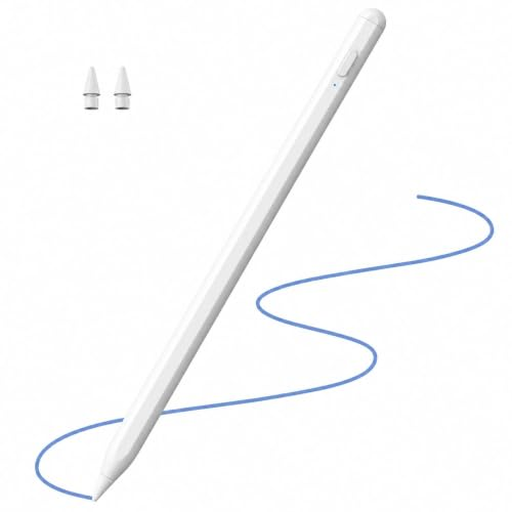 Image unavailable
For sketching and shading on supported Apple iPad models.
The title lists iPad models from 2018–2026 and 2X Fast Charging; the product details list tilt input and palm rejection.
For charging, the product description recommends using a suitable 5-V adapter and unplugging the cable once charging is complete.
 Image unavailable
For drawing and writing on a touchscreen, provided it’s compatible with your specific tablet.
The product title lists iOS and Android touchscreens and a rechargeable stylus. For charging, the description recommends using a 5-V adapter, unplugging the cable once charging is complete, and avoiding heat and moisture.
 Image unavailable
For sketching on selected iPad models, with tilt input and palm rejection.
The product details also list magnetic attachment and an LED battery indicator.
Before buying, check the compatibility information against your exact iPad model.
Yes, if you mainly draw consistent outlines and annotations and your stylus is compatible with your tablet. To vary line thickness by pressing harder, you’ll need pressure input and a brush in your app that responds to it.
It depends on the model. Apple says the Apple Pencil (USB-C) pairs and charges via a USB-C cable, while STAEDTLER says the Noris digital classic needs neither pairing nor charging. Check the instructions for your specific stylus and make sure it’s compatible with your tablet.
Only use replacement nibs designed for your stylus model. STAEDTLER lists five replacement nibs and a removal tool as included with the Noris digital classic; Samsung describes how to replace the nib on its S Pen for the Tab-S11 and Tab-S12 series.
For most online purchases by consumers, you have a 14-day cancellation period; exceptions and the circumstances of the contract should be taken into account. Your Europe, the European Union’s portal, states that faulty goods are covered by a legal guarantee from the seller for at least two years from receipt. This is separate from a voluntary guarantee.