First, choose a stylus that’s explicitly compatible with your exact tablet model: Apple Pencil, S Pen and other stylus systems aren’t interchangeable. Check pressure and tilt input separately, and compare them with the features supported by your drawing app; STAEDTLER, for example, notes that using its pressure levels depends on the app. For longer drawing sessions, the position of your tablet and arms also matters, as does being able to change your posture.
Who should consider this stylus guide?
Artists with a tablet they already own
If you want to keep using your iPad, Galaxy tablet or stylus-compatible Windows device, check the exact device model against the compatibility information for each stylus. Apple, Samsung and Microsoft provide device-specific compatibility details.
Artists who use varied brush effects
If you want to control outlines and shading with pressure or tilt, check each input separately and see how your drawing app uses it. Apple, STAEDTLER and Logitech describe different stylus features and requirements.
Artists who switch between sitting and standing for longer sessions
If you spend longer drawing at a height-adjustable desk, consider more than just the grip: think about the position of your tablet, work surface and arms, and whether you can change your posture. The Federal Institute for Occupational Safety and Health (BAuA) offers guidance on setting up workstations for standing work.
Which buying criteria matter?
Start by checking compatibility with your tablet. Then compare pressure and tilt input separately, and finally make sure the grip and your workspace are suitable for longer periods of standing.
| Criteria |
What to look for |
Who should consider it? |
| Tablet compatibility |
Check the exact tablet model and, where relevant, the operating system version against the stylus specifications. EMR styluses require a display with a compatible EMR digitiser. |
If you want to keep using your existing tablet, make sure compatibility is confirmed for that specific model. Around 36 % of consumers put compatibility first. |
| Brush control |
Check pressure and tilt input separately for the exact stylus model, and try the brushes you want to use in your drawing app. Tilt alone doesn’t replace pressure sensitivity. |
If you want to vary outlines and shading precisely, what matters is which inputs your drawing app actually supports. Around 29 % of consumers prioritise variable brush strokes. |
| Comfort when standing |
Try the grip and check whether you can position your tablet and work surface comfortably. For standing work, the BAuA recommends a suitable working height and a sit-stand stool as a guide. |
If you draw standing for longer periods, grip and the ability to adjust your arm and tablet positions may matter more than any single stylus feature. Around 21 % of consumers prioritise comfort during longer periods of standing. |
| Charging and tips |
Check the charging and pairing methods, and whether suitable replacement tips are available. Logitech recommends replacing a damaged or worn Crayon tip. |
If you want to minimise the effort involved in charging and replacing worn parts, compare these details for the exact model. Around 14 % of consumers prioritise ongoing upkeep. |
Common buying mistakes
-
Confusing tilt detection with pressure sensitivity
Tilt and pressure are different inputs. Logitech explicitly describes the Crayon as not pressure-sensitive; check each feature separately on other styluses, too.
If you want to control line thickness by pressing harder, look for an explicit pressure-sensitivity specification for the exact stylus model, then check that your drawing app supports it.
-
Buying an EMR stylus just because your tablet has a touchscreen
STAEDTLER specifies an EMR digitiser as a requirement for Noris digital styluses. A touchscreen alone doesn’t confirm compatibility.
Before buying, check the exact display version of your tablet and compare it with the compatibility information.
-
Focusing only on the stylus shape when using a standing desk
A different grip won’t automatically fix an awkward position for your work surface, tablet or arms.
Set up your workspace so you can change your posture. Guidance on workplace design doesn’t automatically create a legal obligation for a private drawing space.
Brands to consider
Apple
Each Apple Pencil generation is designed for specific iPad models, so the right combination depends on the iPad you own.
- Apple describes the 1st generation Pencil as pressure- and tilt-sensitive. The Pencil Pro requires specific iPads and iPadOS 17.5 or later.
- Check compatibility for your exact iPad model. Features available on one Pencil generation aren’t automatically available on another.
Samsung
S Pen models are designed for supported Galaxy devices; make sure the compatibility information covers your specific tablet and stylus.
- Samsung also describes the Creator Edition as suitable for drawing, with tilt sensitivity and two tips included.
- Samsung says the Creator Edition isn’t compatible with the Galaxy Z Fold series. The EJ-PT730 is listed as a replacement stylus for the Galaxy Tab S7 FE.
STAEDTLER
Noris digital is a family of EMR styluses for displays with a compatible EMR digitiser.
- STAEDTLER specifies 4,096 pressure levels and battery-free operation.
- According to the manufacturer, pressure input depends on the app. The stylus won’t work without an EMR digitiser; on the Jumbo model, the digital eraser function also depends on the app.
Microsoft
Surface Pen models are designed for supported Surface devices and, where applicable, compatible Windows devices with Microsoft Pen Protocol.
- Microsoft provides compatibility and feature guides for Surface Pen.
- Not every Surface supports stylus input. For devices from other manufacturers, the device and stylus must support Microsoft Pen Protocol.
Logitech
The Crayon may suit you if you have a supported iPad and tilt input is enough; pressure control isn’t its main feature.
- Logitech says you can vary line thickness by tilting the stylus.
- Logitech’s instructions for the Lightning version explicitly state that the Crayon isn’t pressure-sensitive.
Lenovo
The documented Precision Pen 3 is designed for the Lenovo Tab P12 Pro.
- For this model, Lenovo specifies 4,096 pressure levels, tilt detection and magnetic charging from a compatible tablet.
- These specifications don’t confirm compatibility with other Lenovo tablets.
Joybuy picks for drawing
This selection includes, according to the product names, styluses for iPad models and touchscreen styluses. Check each model’s compatibility with your tablet and make sure it supports the drawing features you need.
 No image available
Input Pen Stylus for iPad (2018–2026), USB-C fast charging
For drawing on a compatible iPad when you need tilt input; check your exact model before buying.
The product name lists iPad models from 2018 to 2026 and USB-C fast charging. According to the product description, the stylus isn’t pressure-sensitive, so tilt won’t replace pressure-based brush strokes. The description also mentions palm rejection.
View at Joybuy
 No image available
Input Pen Stylus for touchscreens, Android
For drawing on a supported touchscreen; check compatibility with your exact tablet.
The product details list Samsung, Huawei and Xiaomi as examples of compatible devices. According to the description, the stylus isn’t suitable for iPad, Microsoft devices or some Lenovo tablets.
View at Joybuy
 No image available
ZSPEED Stylus for iPad, White
For drawing and shading on a compatible iPad when you want tilt input as a way to control your strokes.
The product details list tilt input, palm rejection, wireless charging and magnetic charging. Compatible models include iPad Pro 11″ (4th/3rd/2nd/1st generation), iPad Pro 12.9″ (6th/5th/4th/3rd generation), iPad Air 4/5 and iPad mini; check your exact model.
View at Joybuy
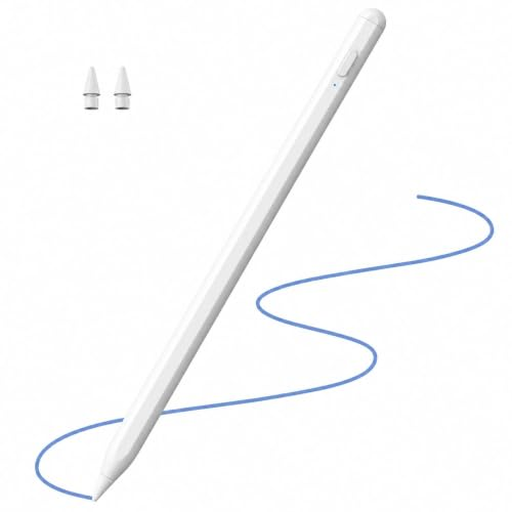 No image available
Stylus for Apple iPad (2018–2026) with tilt
For drawing and shading on a compatible iPad when tilt input is useful for your drawing app.
The product details list iPad models from 2018 to 2026, tilt, palm rejection and 2X fast charging. Check that your exact iPad model is supported.
View at Joybuy
 No image available
Active Stylus Pen for iOS and Android touchscreens
For drawing and writing on a touchscreen, provided your specific device is compatible with the stylus.
The product name mentions a dual-touch function and a rechargeable stylus. The device details include iPad, iPad Pro, Air, mini, iPhone, Samsung and tablets; check compatibility with your exact model.
View at Joybuy
Frequently asked questions
Is a “for tablets” label enough to confirm compatibility?
No. Check your exact tablet model against the compatibility list for the specific stylus. Noris digital also requires an EMR digitiser; Apple specifies that Pencil Pro works with certain iPads running iPadOS 17.5 or later.
How can I check whether a landscape brush responds to the stylus?
In your drawing app, test light and firm strokes, then try different stylus angles separately. STAEDTLER notes that using its pressure levels depends on the app, so a stylus feature alone doesn’t guarantee the brush will respond as you want.
What should I do if the stylus tip is worn?
Use a replacement tip that’s compatible with your exact stylus model. Logitech recommends replacing a damaged or worn Crayon tip to avoid damaging the screen.
What are my rights if I buy a faulty stylus in Germany?
According to the Verbraucherzentrale (German Consumer Advice Centre), consumers who buy faulty goods new can generally claim their statutory warranty rights from the seller within two years of receiving them; this is separate from a manufacturer’s guarantee. For many online purchases, you may also have the right to cancel within 14 days of receiving the goods, subject to the statutory conditions.


