Which stylus is right for you?

Landscape artists with an existing tablet

If you’re looking for a stylus for an iPad, Galaxy Tab or stylus-compatible Windows tablet you already own, first check the exact device model. Apple, Samsung and Wacom each list compatibility requirements that depend on the device.

Artists who use brushes and shading

If you want to control outlines, line thickness or shading as you paint, check that the stylus, tablet and painting app work together to support the pressure or tilt inputs you need. For example, Procreate describes brushes whose size can be adjusted by pressure.

Getting started quickly while working from home

If you switch between work and painting, consider what’s included, how the stylus charges and how easily you can change tools. Samsung lists an S Pen as included with certain Galaxy Tab S10 FE models; Apple styluses use different charging methods depending on the model.

What should you look for when buying?

What to consider What to check before buying Who will find this especially important?
Compatibility Check the exact tablet model against the manufacturer’s information, including any required operating system version or Windows pen protocol. If I’m looking for a stylus for a tablet I already own, I want to know whether it supports that exact generation. Around 34% of consumers put compatibility first.
Pressure and tilt input Check pressure sensitivity and tilt separately; don’t assume that tilt functionality means strokes respond to pressure. If I want to control line thickness or shading with my stylus, the right inputs need to be supported. Around 33% of consumers prioritise brush control.
Painting app and brushes Check which pressure, tilt or rotation functions your app offers for your device and the brushes you want to use. If I want to tailor my brushes and tool changes to the way I paint, the app’s actual supported features matter. Around 20% of consumers put compatibility with their painting app first.
Charging and what’s included Check whether a stylus is included, how it charges and whether compatible cables or replacement nibs are supplied. If I want to get started while working from home without buying unnecessary accessories, I check what’s included and how it charges. Around 13% of consumers prioritise being ready to use the stylus and having the right accessories.

Avoid common buying mistakes

  • Choosing an Apple Pencil based on the iPad brand alone

    Apple lists which iPad models support each Apple Pencil generation, and sometimes specifies a required iPadOS version too. A stylus intended for a different model may not work with your tablet.

    Before ordering, check the exact name of your iPad and the Apple Pencil version against Apple’s compatibility information.

  • Confusing tilt recognition with pressure sensitivity

    Apple does not list pressure sensitivity for the Apple Pencil (USB-C). With compatible brushes, tilt can control a different input, but it can’t replace a pressure-sensitive stroke.

    If you want to change line thickness by pressing harder, choose a combination that is confirmed to be compatible and pressure-sensitive.

  • Assuming magnetic attachment means magnetic charging

    Apple describes the Apple Pencil (USB-C) as attaching magnetically, but pairing and charging are done using a USB-C cable.

    Check the charging method and what’s included for the exact stylus version. Depending on the package contents, you may need to have a suitable USB-C charging cable ready.

  • Buying an extra S Pen without checking what’s included

    Samsung lists an S Pen as included with certain Galaxy Tab S10 FE models, so an additional purchase may be unnecessary.

    Before buying accessories, check the contents list for the specific tablet model on offer.

Key brands to consider

Apple

Apple Pencil models are designed for specific iPads, so you’ll need the generation that matches your exact tablet.

  • Apple lists pressure sensitivity and rotation for Pencil Pro; its feature comparison lists tilt but not pressure sensitivity for the Pencil (USB-C).
  • Additional brush gestures are only useful if your app supports them. The Pencil (USB-C) pairs and charges using a USB-C cable.

Samsung

S Pen models and included styluses are designed for selected Galaxy Tabs, so the exact stylus version matters.

  • Samsung lists pressure and tilt sensitivity for the S Pen EJ-PX710.
  • These specifications don’t automatically apply to every S Pen version. Bluetooth features require a charged stylus and may vary by app.

Wacom

The Bamboo Ink Plus is an option for compatible Windows devices using Wacom Active ES or Microsoft Pen Protocol.

  • Wacom describes replaceable nibs and a choice between two input protocols.
  • You’ll need to check your specific Windows device’s protocol and whether the nibs are suitable. It isn’t described as a universal solution for iPad or Galaxy Tab devices.

Joybuy products

The following Joybuy products include styluses for drawing on iPad, as well as a rechargeable stylus for iOS and Android touchscreens. Before buying, check that your exact tablet model is supported and which features your painting app can use with the stylus.

ZSPEED Wireless Charging Stylus Pen for iPad, white

ZSPEED Wireless Charging Stylus Pen for iPad, White

For shading on a compatible iPad, the stated tilt sensitivity is useful; check your exact model before buying.

Compatible models listed are iPad Pro 11" (1st–4th generation), iPad Pro 12.9" (3rd–6th generation), iPad Air 4/5 and iPad mini 5/6. The description also mentions palm rejection, magnetic charging and two replacement nibs.

Joybuy
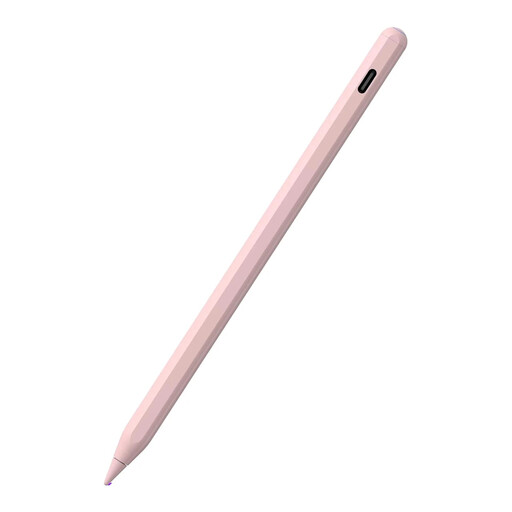
ZSPEED Wireless Charging Stylus Pen for iPad, pink

ZSPEED Wireless Charging Stylus Pen for iPad, Pink

For shading on a compatible iPad, the description lists tilt sensitivity; check compatibility with your specific device before buying.

Compatible models listed are iPad Pro 11" (1st–4th generation), iPad Pro 12.9" (3rd–6th generation), iPad Air 4/5 and iPad mini 5/6. Palm rejection and two replacement nibs are also mentioned. Magnetic charging is not listed for every compatible model.

Joybuy
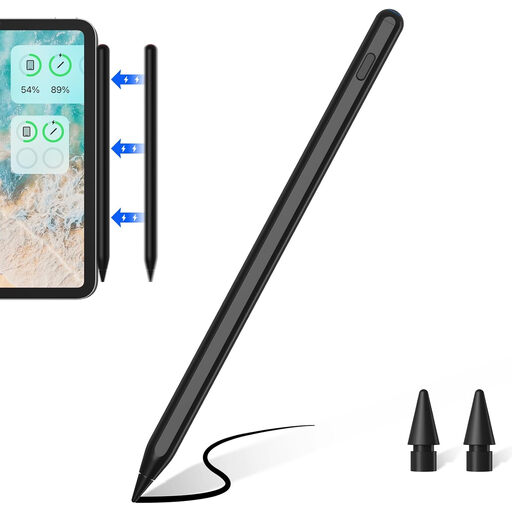
ZSPPED Wireless Charging Pencil 2nd Generation, black

ZSPPED Wireless Charging Pencil 2nd Generation, Black

For tilt input when drawing on a compatible iPad, the description lists tilt sensitivity and palm rejection.

Compatible models listed are iPad 8/9/10, iPad mini 6, iPad Air 4/5, iPad Pro 11" (1st–3rd generation) and iPad Pro 12.9" (3rd–6th generation). Magnetic charging is listed for certain models only; the description also mentions two replacement nibs and a battery level indicator on the iPad.

Joybuy

Input Stylus Pen for iPad, model range 2018–2025

Input Stylus Pen for iPad, 2018–2025

For drawing and illustration on a compatible iPad, the description lists tilt sensitivity and palm rejection.

According to the product details, the stylus supports fast charging via USB-C. The magnetic attachment is for storage; wireless charging is not supported.

Joybuy

Active Stylus Pen with dual-touch function for iOS and Android touchscreens

Active Stylus Pen with Dual-Touch Function

The product description lists iOS and Android touchscreens as suitable for drawing and writing; check compatibility with your exact device.

The stylus is described as rechargeable. Pressure or tilt sensitivity is not listed in the product details.

Joybuy

Frequently asked questions

Is tilt recognition enough for pressure-sensitive landscape brushes?

No. Apple’s feature comparison does not list pressure sensitivity for the Apple Pencil (USB-C). Also check whether your painting app lets you link the brush you want to pressure or tilt.

How do I set up a Bamboo Ink Plus on a Windows tablet?

First, check your specific device and its Wacom Active ES or MPP protocol against Wacom’s compatibility information. Wacom explains how to switch protocols using the two side buttons and recommends updating your device driver.

Do I need to buy an S Pen separately for the Galaxy Tab S10 FE?

Not for the S10 FE version described by Samsung, which includes an S Pen. However, check the contents list for the specific tablet model on offer.

Who should I contact in Germany if a new stylus is faulty?

The seller is generally responsible for the statutory warranty. In information dated 13 August 2026, the Verbraucherzentrale states that the period is two years. For purchase contracts entered into from 31 July 2026, choosing a repair instead of a replacement may extend this period once by twelve months. This is separate from any voluntary manufacturer’s guarantee.

Can an old electronic stylus or its battery go in the household bin?

No. According to the German Environment Agency, waste electrical equipment must be taken to separate collection points, while used batteries and rechargeable batteries should be taken to collection points. Removable batteries should be taken out and disposed of separately before you return the device, provided this can be done easily by hand.