First, choose a stylus that’s compatible with your exact tablet model and the app you use to annotate your lecture slides. However, a compatible stylus won’t automatically turn your tablet into a second computer screen: your tablet, computer, software and connection all need to work together. If both devices run independently, a standalone PDF and note-taking workflow will do the job.
Who is this guide for?
Students using two screens
You want to annotate slides on one screen while watching the lecture or viewing other materials on the other. The key question is whether your tablet will work independently or act as an extended computer screen. Apple describes Sidecar as a way to extend or mirror a Mac desktop on an iPad; Samsung and Lenovo offer their own second-screen workflows, depending on the devices involved.
Students taking notes on PDFs
You open lecture slides as PDFs on your tablet and need an app with annotation tools, plus a practical way to save or share the edited file. Samsung describes how to import PDFs into Samsung Notes and annotate them directly.
Anyone looking for a replacement or spare stylus
You already own a tablet and want to buy a compatible stylus rather than replace the whole device. Check the exact model name and stylus generation: Apple, Samsung, Microsoft and HUAWEI list compatibility by model.
What should you look for?
First, decide whether you’ll be writing on a standalone tablet or extending your computer screen onto it. Then compare the tablet model, stylus and app, as well as the connection and charging accessories, if needed.
| Buying priority |
What to check |
Who needs to know? |
| Stylus compatibility |
The manufacturer’s list for your exact tablet model and stylus version; how it pairs and charges. |
If you’re buying a stylus for a tablet you already own, the exact model combination matters more than a similar product name. Around 36% of consumers put compatibility first. |
| Second-screen functionality |
Extending or mirroring; supported devices, accounts and connections, and stylus input in the mode you want. |
If you want to view slides and a lecture on separate screens at the same time, you’ll need to distinguish between two standalone devices and an extended computer screen. Around 29% of consumers prioritise second-screen functionality. |
| Annotating slides |
PDF import and annotation tools in your chosen app; saving or sharing the edited file. |
If you want to annotate your lecture slides directly and find them again later, the file workflow should suit your course materials. Around 21% of consumers prioritise slide annotation. |
| Total cost and accessories |
Whether you need to buy the stylus separately and which cable or charging accessories are required for your chosen setup. |
If you’re planning a complete purchase without any missing charging accessories, check how the stylus charges too. Around 14% of consumers focus mainly on total cost and the accessories they’ll need. |
Common misconceptions
-
“USB-C” or “S Pen” tells you everything you need to know about compatibility
The stylus name and connection alone don’t tell you whether a particular tablet supports it. Apple and Samsung list compatibility by device and stylus model.
Before you order, compare your tablet’s full model name with the relevant manufacturer’s list.
-
Two devices automatically mean an extended desktop
A tablet can display slides independently or, if the devices support it, act as an extension or mirror of a computer screen. These workflows have different requirements.
First, decide whether you need separate apps on two devices or want to move computer windows onto your tablet. Then check the device and connection requirements for the specific workflow.
-
Magnetic attachment means wireless charging
Apple says the Pencil (USB-C) attaches magnetically for storage; it pairs and charges using a USB-C cable.
Check how the specific stylus charges instead of assuming it charges through its magnetic holder.
-
A manufacturer’s guarantee and your statutory rights are the same thing
The Verbraucherzentrale distinguishes between a voluntary guarantee and your statutory rights against the seller if a product is faulty.
Keep your proof of purchase and check who to contact if you discover a fault.
Key brands at a glance
Apple
Apple Pencil models are compatible with specific iPads; Sidecar lets you use a compatible iPad as a second display with a Mac.
- Apple lists note-taking and annotating documents among the uses for Pencil (USB-C).
- Pencil (USB-C) pairs and charges using a USB-C cable; Apple says the magnetic attachment is for storage. Check compatibility with your iPad model.
Samsung
S Pen models for supported Galaxy Tabs; Samsung Notes can import PDFs and let you annotate them directly with a stylus.
- Samsung describes PDF editing in Samsung Notes and a Second Screen mode for certain devices.
- For Second Screen, Samsung lists requirements including the same Wi-Fi network and Samsung Account; functionality may be limited, depending on the computer. The S Pen EJ-PX730BWEGEU is designed for the specified Galaxy Tab S11 and S12 models, not every Galaxy Tab.
Microsoft
Surface pens for supported Surface devices, if you want to edit slides in Windows while using an external display.
- Microsoft lists stylus features and compatibility by device model.
- Some Surface laptops don’t support either the Surface Slim Pen or Surface Pen. The rechargeable Slim Pen requires compatible charging accessories.
Lenovo
Styluses for specific models; Lenovo also describes the Tab P11 Gen 2 with the optional Precision Pen 2 (2023) as part of a Windows PC workflow.
- Lenovo describes split-screen use on the Tab P11 Gen 2 and using it with Freestyle as a wireless touch monitor for Windows.
- The Precision Pen 2 (2023) is optional for this workflow. This doesn’t mean it’s compatible with other Lenovo tablets.
HUAWEI
M-Pencil versions for specific MatePad models; certain tablet and computer combinations offer cross-device features.
- HUAWEI publishes a stylus compatibility list organised by model and, in some cases, software version.
- The instructions for using a tablet as a second laptop screen apply to the MatePad Paper and specify HUAWEI PC Manager 12.0 or later. They don’t automatically apply to every MatePad.
Related products at Joybuy
This selection includes styluses for handwritten notes and slides on supported iPads, Android devices and other specified e-readers. Before you buy, check compatibility with your exact device and the screen workflow you need.
 No image available
USB-C stylus for iPad (2018–2026)
For handwritten notes on a compatible iPad; check your exact model before you buy.
The product name specifies USB-C charging. Magnetic attachment is described as available only for certain iPad models and doesn’t support wireless charging.
View at Joybuy
 No image available
Touchscreen stylus for Android
A possible option for handwritten notes on supported Android devices; check your tablet’s exact compatibility before you buy.
The product name lists Samsung, HUAWEI and Xiaomi. According to the product information, the stylus isn’t suitable for iPad or Microsoft devices, or some Lenovo tablets.
View at Joybuy
 No image available
ZSPEED Wireless Charging Stylus Pen for iPad
For handwriting on a compatible iPad; check that your iPad generation is among the listed models.
The listed models are iPad Pro 11" (4th, 3rd, 2nd and 1st generation), iPad Pro 12.9" (6th, 5th, 4th and 3rd generation), iPad Air 4/5 and iPad mini. According to the product information, magnetic charging is limited to compatible models.
View at Joybuy
 No image available
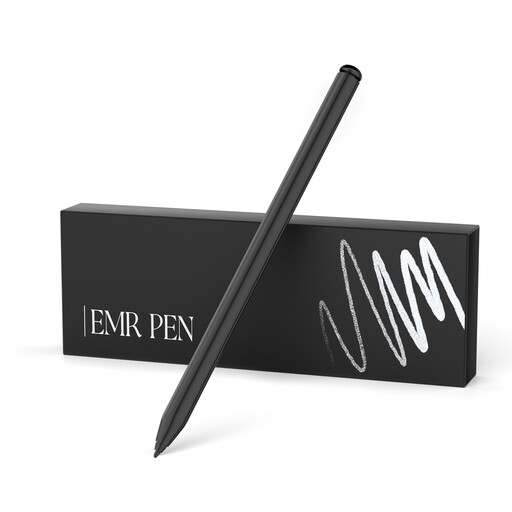
EMR stylus for reMarkable 1/2 and Kindle Scribe
For digital note-taking on the compatible devices listed; check your exact model before you buy.
The product name lists an eraser, 4096 pressure levels, palm rejection and magnetic attachment. According to the product information, the stylus isn’t compatible with reMarkable PAPER PRO or other devices.
View at Joybuy
 No image available
Universal touchscreen stylus for Android and iOS
For writing and drawing on compatible capacitive touchscreens; check that your device is supported first.
The product name lists a POM tip, fast charging, an LED indicator and magnetic attachment.
View at Joybuy
Frequently asked questions
Can I write directly on my lecture slides with any tablet stylus?
No. The stylus and tablet must be compatible, and your slides app must support annotations. Samsung describes PDF annotation in Samsung Notes; Apple lists annotation with Apple Pencil in supported apps. First, check your exact tablet model, then check how your app handles files.
How do I set up my tablet as a second screen?
It depends on the devices you’re using. Sidecar can extend or mirror a Mac desktop on a compatible iPad. For Samsung’s Second Screen, Samsung says supported Galaxy Tabs and Windows PCs must use the same Wi-Fi network and Samsung Account; Windows 10 or later is also required.
Do I need to charge the Surface Slim Pen before using it?
Yes, you’ll need to charge the Surface Slim Pen before using it. Microsoft says you can charge it using the charging area on a compatible device or accessory. Check that the right charging accessory is available for your setup.
What are my rights in Germany if a stylus I bought online is faulty, or I want to cancel my purchase?
If a product is faulty, you have statutory rights against the seller; these are separate from any voluntary guarantee. For online consumer purchases, you generally have 14 days from receiving the goods to withdraw from the contract; you must notify the retailer. The Verbraucherzentrale highlights that exceptions may apply.


