For artists who already own a tablet
If you want to sketch a logo on an iPad, Galaxy Tab or Surface you already own, first check that the stylus and device are compatible. Apple, Samsung and Microsoft list compatibility by model or device range.


First, choose a stylus that’s explicitly compatible with your exact tablet model. If you want to create freehand sketches with varied line weight, check for pressure sensitivity and app support; for simple outlines, a stylus without pressure sensitivity may be enough. To turn your design into an editable logo, you’ll also need a suitable app for a vector workflow – the stylus alone won’t create a vector file.
If you want to sketch a logo on an iPad, Galaxy Tab or Surface you already own, first check that the stylus and device are compatible. Apple, Samsung and Microsoft list compatibility by model or device range.
For freehand strokes, shading or calligraphic shapes, the stylus features and support from the app you use are key. STAEDTLER notes that pressure-dependent line variation with the Noris digital depends on the app.
If you want to turn your first sketch into editable paths and wordmarks, the app needs to suit your project too. Adobe describes tools in Illustrator on iPad for creating logos, illustrations and graphics.
When choosing a stylus for logo design on a tablet you already own, check compatibility first, then the line control you need, and finally whether your app workflow can take you through to editable vectors.
| Criteria | What to look for | Who should consider this? |
|---|---|---|
| Tablet compatibility | Check your exact tablet model and the stylus’s full model number against the manufacturer’s compatibility list. | If I’m drawing on a tablet I already own, the stylus needs to be an exact match; around 36% of consumers put compatibility first. |
| Line control | Check pressure and tilt sensitivity separately, and make sure your drawing app supports the input you want. | For freely varied sketch lines, I want to know which movements the stylus actually detects; around 29% of consumers prioritise line control. |
| Further vector editing | Check that your chosen app can edit paths, shapes and text on your device. | If I want to turn my sketch into an editable logo, the app workflow matters just as much as the stylus; around 21% of consumers put vector editing first. |
| Setup and care | Check the charging method, pairing process, what’s included and whether compatible replacement nibs are available. | For occasional design work, I want a stylus that’s easy to keep ready and look after; around 14% of consumers prioritise ease of use. |
Compatibility may depend on a specific device model or input technology. So a stylus that works with one tablet won’t necessarily work with another.
Make a note of the full model numbers for your tablet and stylus, then check them against the manufacturer’s information.
Tilt and pressure are different inputs. Apple’s comparison lists pressure sensitivity for the Apple Pencil Pro, but not for the Apple Pencil (USB-C); tilt alone doesn’t mean a stylus detects pressure.
Check both features separately and make sure your drawing app supports them.
A stylus alone won’t turn a freehand design into editable paths or wordmarks. You’ll need the right features in your design app to do that.
Before you buy, decide whether an idea sketch is enough or whether you want to edit shapes, paths and text further.
A Wacom Intuos Pro is a separate graphics tablet for a computer, not a replacement stylus for an iPad or Galaxy Tab screen.
First decide whether you want to draw directly on your tablet or use a connected graphics tablet with your computer at home.
The Apple Pencil Pro and Apple Pencil (USB-C) are different styluses for iPads; your choice depends on your exact iPad model.
S Pen models are designed for specific Galaxy devices. Samsung describes the EJ-PT730 as a replacement stylus for the Galaxy Tab S7 FE.
The Noris digital classic is an option for tablets with a compatible EMR display if you want a pencil-like shape and a stylus that doesn’t need charging.
The Crayon is an iPad-focused option for sketching and annotating. The USB-C and Lightning versions should be considered separately.
The Surface Pen and Surface Slim Pen are options for compatible Surface devices with pen input.
This selection includes styluses for compatible Android touchscreens, iPads, reMarkable and Kindle Scribe devices, and Surface models. Before buying, check that the specific stylus is compatible with your device.
 No image available
Described as suitable for drawing on compatible Android touchscreens; suitability depends on the specific device.
1.5 mm copper tip; charges via USB-C. According to the product information, it’s not designed for iPads, Microsoft devices or some Lenovo tablets.
 No image available
Described as suitable for sketching on the compatible iPad models listed.
Tilt detection, palm rejection and magnetic charging according to the product description. Models listed include iPad Pro 11-inch (1st–4th generation), iPad Pro 12.9-inch (3rd–6th generation), iPad Air 4/5 and iPad mini.
 No image available
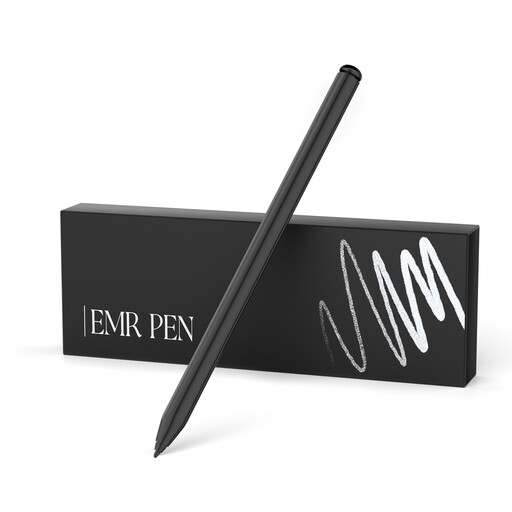
Described as suitable for sketching on the compatible EMR devices listed.
4,096 pressure levels and palm rejection; no charging required according to the product description. reMarkable 1/2 and Kindle Scribe are listed; not compatible with reMarkable PAPER PRO.
 No image available
Described as suitable for sketching on the Surface models listed; check the exact model number before you buy.
4,096 pressure levels, tilt detection and palm rejection according to the product information. Not designed for Surface Laptop Go 1/2/3 or Surface Laptop SE.
 No image available
Described as suitable for drawing and sketching on the iPad models listed in the product information.
Tilt detection, palm rejection and USB-C charging according to the product description. Compatibility is limited to the model ranges and date period specified there.
No. Check your exact tablet model against the stylus’s compatibility list. For example, the Noris digital requires an EMR display; Apple and Microsoft also list compatibility by device model.
Yes, if you want to develop your design into editable paths and text, you’ll need a suitable app. Adobe describes tools for this in Illustrator on iPad; check in advance that the app runs on your device and suits your workflow.
It depends on the model: Apple says the Pencil (USB-C) pairs and charges via a USB-C cable, while the Pencil Pro pairs and charges magnetically with compatible iPads. According to STAEDTLER, the Noris digital classic needs neither charging nor pairing; the listed items include replacement nibs and a tool for changing them.
For consumer purchases from a business seller in the EU, you generally have a statutory guarantee of at least two years from the date you receive the goods, as explained by the European Commission on its consumer portal. A voluntary manufacturer’s warranty is separate; purchases from private individuals aren’t covered by the rules described there.
Not every stylus automatically needs one. The European Commission says that CE marking is required only for products covered by relevant harmonised EU rules that expressly require it. Check the classification of the specific stylus version; a CE mark isn’t a general quality rating.