First, choose a stylus that’s explicitly compatible with your exact tablet model and, where necessary, its software version. Similar-looking styluses aren’t necessarily interchangeable. For variable line widths, both the stylus and drawing app need to support pressure input, though other features may be enough for simple outlines. On a small desk, charging and storage matter too: depending on the combination, you may need a cable, compatible charging accessories or no charging at all.
Which stylus is right for you?
Tablet owners sketching a logo
If you want to draw on a device you already own, check its exact model generation against the relevant manufacturer’s compatibility list. Apple Support, Samsung, Microsoft and STAEDTLER list approvals according to device or display.
Those drawing freehand lines
If you want letters or symbols to vary in width depending on pressure, check that both the stylus and the brush settings in your drawing app support pressure input. The Procreate Handbook explains how brushes respond to pressure when used with supported Apple Pencil input.
Sketchers with limited desk space
If you want to keep your tablet and stylus close at hand, consider how they charge and where you’ll store them. Manufacturers’ guidance on magnetic storage, charging and pairing varies by stylus and device.
What should you look for when buying?
| Criterion |
What to check before buying |
Who it matters most to |
| Tablet compatibility |
Check the exact model name, stylus version and any required software version against the manufacturer’s compatibility list. |
If you want to draw directly on a tablet you already own, the stylus must work with that specific model generation. Around 36% of consumers prioritise compatibility. |
| Line control |
Check pressure and tilt input separately. Also make sure your drawing app and chosen brush support the input you want to use. |
If you want letters or symbols to have thicker strokes when you press harder, pressure support is essential. Around 29% of consumers prioritise variable-width freehand strokes. |
| Apps and editing |
Try sketching, switching tools and making corrections in your chosen app; check separately for any export features you need. |
If you want to create and edit your concept in a particular app, its brushes and editing tools matter. Around 21% of consumers prioritise this app-based workflow. |
| Space and charging |
Check whether the stylus needs a cable, compatible charging accessories or no charging, and how it can be stored with your particular tablet. |
If you want to minimise charging and storage on a small desk, the charging method and storage options are important considerations. Around 14% of consumers prioritise keeping things organised. |
Avoid common buying mistakes
-
Assuming “for tablets” means “for my tablet”
Compatibility can depend on the exact tablet generation, stylus version or display technology. An incompatible stylus may not support the drawing input you need.
Before buying, check your exact tablet model and any required software version against the manufacturer’s compatibility list.
-
Confusing tilt, a fine tip and pressure sensitivity
These features aren’t the same. Tilt input doesn’t mean stroke width will change with pressure, and the app also needs to support the input you want to use.
For variable-width outlines, check pressure support for the exact stylus and the brush you’re using in your drawing app separately.
-
Overlooking charging accessories and replacement tips
Depending on the version, you may need a charger. Replacement tips also vary between styluses.
For the exact version, check what’s included, how you can charge it and whether compatible replacement tips are available.
An extra charger or replacement tips may take up more space and add to the hassle.
Key brands at a glance
Apple
Apple Pencil Pro and Apple Pencil (USB-C) are different options for iPads that are explicitly compatible.
- Apple lists additional control features and magnetic charging for Pencil Pro.
- According to Apple Support, compatibility depends on the iPad model. Apple Pencil (USB-C) pairs and charges using a USB-C cable. These are manufacturer claims, not an independent performance comparison.
Samsung
According to Samsung, the S Pen EJ-PX510BWEGEU is designed for the Galaxy Tab S9 FE and S10 FE series.
- For this version, Samsung lists pressure and tilt input, as well as magnetic storage.
- These details don’t apply to all S Pen or tablet models.
STAEDTLER
Noris digital classic and jumbo are options for tablets with an EMR digitiser.
- STAEDTLER lists replaceable tips and operation without charging or pairing.
- An EMR display is required. The eraser function on the Noris digital jumbo depends on the app.
Microsoft
The Surface Slim Pen is an option for compatible Surface devices with pen input.
- Microsoft lists supported pen input and charging options according to device.
- Not every Surface supports the stylus, and a separate charger may be needed, depending on the model.
Logitech
Crayon (USB-C) is an iPad stylus for sketching if getting started easily matters more than extra pen gestures.
- Logitech describes USB-C charging, tilt control and quick start without a complicated Bluetooth pairing process.
- Check compatibility with your exact model and whether your app supports the line effect you want.
Joybuy product selection
This selection includes tablet styluses for sketching on compatible iPads, Android devices, reMarkable and Kindle Scribe devices, and Microsoft Surface models. Check compatibility with your specific device before buying.
 No image available
Input Pen for iPad, 2018–2026, USB-C fast charging
An option for sketching on a compatible iPad if tilt input is enough and you don’t need pressure-sensitive line widths.
According to the product description, it features USB-C charging, tilt input and palm rejection; it isn’t pressure-sensitive. Magnetic attachment works with selected iPad models only.
Joybuy
 No image available
Input Pen for touchscreens, Android-compatible
For sketching on a compatible Android or HarmonyOS device if you want simple use without Bluetooth pairing.
According to the product description, it features USB-C charging and a 1.5 mm copper tip; magnetic attachment works with compatible tablets only. Not suitable for iPad, Microsoft devices or some Lenovo tablets.
Joybuy
 No image available
ZSPEED Wireless Charging Stylus Pen for iPad, white
An option for sketching on the compatible iPad generations listed explicitly.
According to the product description, it features magnetic pairing and charging, tilt sensitivity, palm rejection and a replaceable tip. Listed models include iPad Pro 11″ (1st–4th generation), iPad Pro 12.9″ (3rd–6th generation), iPad Air 4/5 and iPad mini.
Joybuy
 No image available
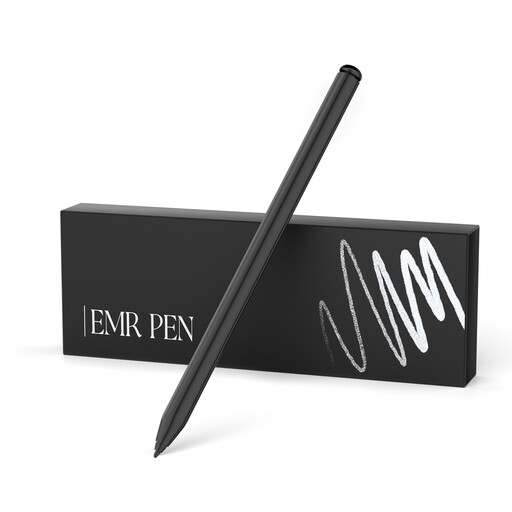
EMR stylus for reMarkable and Kindle Scribe, 4096 pressure levels
For pressure-sensitive sketching on a compatible device with EMR input.
According to the product description, it features 4096 pressure levels, an eraser and magnetic attachment; it doesn’t need charging. reMarkable 1/2 and Kindle Scribe are listed; it isn’t suitable for reMarkable Paper Pro or other devices.
Joybuy
 No image available
Stylus Pen for Microsoft Surface, 4096 pressure levels, black
An option for pressure-sensitive sketching on a compatible Surface model.
According to the product description, it features 4096 pressure levels, palm rejection, tilt support, magnetic attachment and two shortcut buttons. Models listed include Surface Pro 3–11 and X, Surface Go 1–4, Surface Laptop 1–6, and Surface Studio and Book 1–3. Not compatible with Surface Laptop Go 1/2/3 or Surface Laptop SE.
Joybuy
Frequently asked questions
Can I use any tablet stylus to sketch a logo?
No. First, check that the exact tablet and stylus versions are approved by the manufacturer. For example, the STAEDTLER Noris digital needs a display with an EMR digitiser.
Why don’t my brush strokes change with pressure, even though I have a compatible stylus?
Check that your specific stylus supports pressure input and that the app and selected brush respond to it. The Procreate Handbook describes pressure-sensitive brush settings for supported Apple Pencil input.
What should I set up before I start drawing at a small desk?
Decide how you’ll charge your particular stylus, if needed, and set aside a dedicated storage spot. Apple Pencil (USB-C) pairs and charges using a USB-C cable; Noris digital needs neither charging nor pairing, but does require an EMR display.
What are my rights when buying a tablet stylus online in Germany?
For most online purchases from a trader, you generally have 14 days from delivery to cancel, although exceptions may apply. If an item is faulty, you also have statutory consumer rights. The European Union sets a minimum two-year guarantee period for goods; check return costs and exceptions separately.


