Start by choosing a stylus that’s compatible with your exact tablet model: Apple Pencil, S Pen, Surface Pen, EMR and AES/MPP styluses aren’t universally interchangeable. For quick concept sketches, charging and storage can make all the difference. If you want varied line work, check whether your tablet and app support the relevant pressure or tilt features.
Who should consider their options?
Logo sketchers with a tablet already
You’re looking for a stylus to use with a device you already own, and want to avoid buying the wrong one because similar-sounding versions aren’t compatible. Apple, Samsung and Microsoft each list compatibility by model.
Designers looking for varied line work
You’re sketching logo shapes or lettering and want to know whether pressure, tilt or switching tools makes a difference with your particular device and app. The features available vary between stylus versions.
People moving between shared-office desks
You want to take your stylus from one workspace to another and spend as little time as possible charging, pairing or finding accessories before you start sketching. Charging and storage options vary by model.
Which buying criteria matter most?
Apple, Samsung, Microsoft, Wacom and STAEDTLER each design their styluses for specific devices or input technologies. So start by checking your tablet model, then look at the features, charging method and accessories you’ll need.
The percentages relate to consumers choosing a tablet stylus for logo concept sketching. Each row focuses on the buyer’s main priority.
| Criteria |
What to check before buying |
Who is this especially important to? |
| Tablet compatibility |
Check the exact tablet name and generation against the compatibility details for the specific stylus version. For Windows devices, check the input protocol too. |
If I already have a tablet, I want to check the exact stylus version rather than rely on similar product names. Around 36 % of consumers prioritise compatibility with their existing tablet. |
| Control over line work |
Check whether the stylus version supports pressure and tilt detection, and whether your drawing app supports them too. |
For sketching different logo shapes, I need control over the outlines. Pressure or tilt input only matters if my device and app support it. Around 29 % of consumers put control over line variation first. |
| Ready to use quickly |
Check the charging method and any accessories needed, as well as how the stylus attaches to your device and whether it needs pairing again. |
If I only have a short time to sketch at a shared desk, I want to get started without unnecessary charging or pairing steps. Around 21 % of consumers prioritise being ready to use at their workspace. |
| Accessories needed |
Check what’s included, which replacement tips are compatible, whether you need an adapter, and how the specific device version charges. |
Before buying, I want to know whether I’ll need a cable, adapter or compatible replacement tips, and what comes in the box. Around 14 % of consumers prioritise accessories and what they’ll need while using the stylus. |
Common tablet stylus buying mistakes
-
“For tablets” doesn’t mean “for my tablet”
Styluses may only work with specific device models or input protocols. A similar product name alone doesn’t tell you whether the drawing features will work with your tablet.
Check the full device name and generation against the specific stylus version. For Windows devices, check the supported protocol too. An EMR stylus also needs a compatible display.
-
Magnetic storage doesn’t automatically mean magnetic charging
Apple says the Apple Pencil (USB-C) attaches magnetically for storage and charges via cable. Microsoft lists charging methods by Surface model.
Check attachment and charging separately for the exact version.
Depending on the stylus and tablet, you may need a compatible charging cable or an additional charging accessory.
-
Pressure levels don’t guarantee better logo designs
A stylus specification doesn’t prove that your device and app support the feature, or that it will improve the finished design.
Check that the line feature you want works with your device and app. Compare pressure levels as a specification of the particular stylus version only.
Brands to consider
Apple
Apple Pencil Pro and Apple Pencil (USB-C) are options for specific supported iPad models.
- Apple lists pressure sensitivity, rotation and magnetic charging for Pencil Pro; the Pencil (USB-C) offers tilt detection and charges via cable.
- Features and compatibility vary by version and iPad. Apple lists compatibility by model.
Samsung
Samsung specifies the S Pen EJ-PX510BWEGEU for the Galaxy Tab S9 FE and Tab S10 FE series.
- Samsung lists pressure and tilt detection, as well as magnetic attachment, for this stylus and device combination.
- This information doesn’t confirm compatibility with other Galaxy Tab models or S Pen versions.
Wacom
Bamboo Ink Plus is an option for pen-enabled Windows devices that support Wacom Active ES or Microsoft Pen Protocol.
- Wacom lists USB-C charging, replaceable tips and up to 4,096 pressure levels.
- According to Wacom, tilt detection and whether individual tips work depend on the third-party device.
STAEDTLER
The Noris digital jumbo is designed for users with a compatible EMR display who want to start sketching without charging or pairing.
- STAEDTLER lists a replaceable 0,7-mm tip, five replacement tips, 4,096 pressure levels and a digital eraser.
- It requires a compatible EMR device. Check separately whether the eraser works with the app you use.
Microsoft
The Surface Slim Pen is a model-specific option for supported Surface devices.
- Microsoft lists pressure input, tilt, tactile signals and charging methods by Surface model.
- This information doesn’t apply to all Windows devices. You may need a separate charger, depending on the Surface model.
Tablet styluses at Joybuy
The Joybuy options below are listed as styluses for iPad or touchscreen sketching. Check that your specific tablet model is supported before buying.
 No image available
ZSPEED Wireless Charging Stylus Pen for iPad, White
An option for sketching with your palm resting on the screen, provided your exact iPad model is supported.
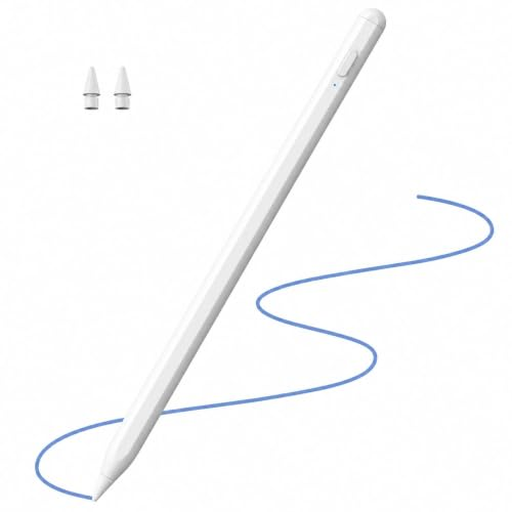
The title lists magnetic charging, palm rejection and tilt sensitivity. Compatible models listed include iPad Pro 11″ (4th, 3rd, 2nd and 1st generation), iPad Pro 12,9″ (6th, 5th, 4th and 3rd generation), iPad Air (4th and 5th generation) and iPad mini. Check compatibility with your exact model.
View at Joybuy
 No image available
Stylus for Apple iPad 2018–2026, 2X Fast Charging, with Palm Rejection and Tilt
Worth considering for sketching with your palm resting on the screen and using tilt input, if your specific iPad is supported.
The title lists 2X Fast Charging, palm rejection and tilt support. Check compatibility with your iPad model before buying.
View at Joybuy
 No image available
Active Stylus Pen for iOS and Android touchscreens
A possible option for touchscreen sketching, if your device and drawing app support the input you need.
The title lists dual-touch functionality and a rechargeable design. Check compatibility with your specific tablet model.
View at Joybuy
 No image available
iPad stylus with USB-C charging port
Worth considering for iPad sketching with your palm resting on the screen and tilt input, provided your exact model is supported.
The title lists USB-C charging, tilt detection, palm rejection, magnetic attachment and an LED battery indicator. According to the product description, the magnetic attachment is for storage, not wireless charging.
View at Joybuy
Frequently asked questions
Is a stylus with a USB-C connector compatible with every iPad?
No. Having the same connector doesn’t remove the need to check the specific Apple Pencil version and iPad model. Apple’s compatibility information applies to specific combinations.
How can I avoid having to stop and charge before a short sketching session?
Check how your version charges and have the right cable or accessories ready. Apple says the Pencil (USB-C) pairs and charges via cable. According to STAEDTLER, the Noris digital jumbo needs neither charging nor pairing when used with a compatible EMR device.
What should I check if my stylus tip is worn?
Look for replacement tips made for your exact stylus version, and check what’s included. STAEDTLER lists five replacement tips for the Noris digital jumbo; Microsoft describes the Surface Slim Pen as having a replaceable tip.
What are my rights when buying online for personal use in Germany?
Consumers who enter into a distance contract with a business generally have a right of withdrawal, although statutory exceptions may apply. Under §§ 312g, 355 and 356 BGB, the usual period is 14 days and, for an ordinary purchase of goods, generally starts when you receive them. The Federal Ministry of Justice and the Federal Office of Justice publish these statutory provisions. The Verbraucherzentrale distinguishes statutory rights for faulty goods from a voluntary guarantee. If you’re buying for business purposes, don’t assume you have a consumer right of withdrawal.
How should I dispose of an old electronic stylus or removable batteries?
The Federal Environment Agency advises that waste electrical equipment should be collected separately from household waste. If you can remove the batteries before handing the device in, dispose of them separately at a battery collection point.


