Illustrators with an existing tablet
If you want to draw fine map lines on your own device, first check exact model compatibility and the pressure or tilt features you need. Apple, Samsung and Microsoft each list compatible devices by model.


Start by choosing a tablet stylus that matches your exact model and supports the right pen technology: similar-looking styluses aren’t necessarily compatible. For varied map lines and shading, check for pressure and tilt sensitivity, as well as support from your app. At a shared desk, palm rejection, charging requirements and a suitable place to store your stylus also matter. Manufacturer information describes features, but doesn’t provide independent comparisons of drawing quality.
If you want to draw fine map lines on your own device, first check exact model compatibility and the pressure or tilt features you need. Apple, Samsung and Microsoft each list compatible devices by model.
If you regularly need to clear your desk for someone else, it helps to choose a stylus with the right technology for your device and a storage solution that suits your workspace. Depending on the stylus, magnetic attachment to the device may be useful; charging and compatibility still need to match your model.
If you only label or sketch maps occasionally, weigh up the charging routine, replacement nibs and any extra accessories against how much you draw. STAEDTLER says the Noris digital classic comes with replacement nibs; it requires a compatible EMR display.
First check that the stylus technology works with your existing tablet. Then consider drawing features, how it will work at a shared desk and whether you’ll need any extra accessories.
| What matters | What to check before buying | Who is this important to? |
|---|---|---|
| Compatibility | Exact tablet model number and compatible stylus technology; for Windows, AES or MPP, and for the Noris digital, EMR. | If I want to use the stylus with my existing tablet, I’ll check the model and stylus technology first. Around 36% of consumers say compatibility is their top priority. |
| Lines and shading | Pressure and tilt sensitivity on the specific stylus, and support from the drawing app. | For fine map boundaries and hatching, I want to know how I can control lines and input. Around 29% of consumers prioritise this level of drawing control. |
| Using it at a shared desk | Palm rejection in the app you use, as well as how the stylus attaches to and charges on your specific device. | If I share my workspace, I’ll consider where to put the stylus and whether I can draw with my hand resting on the screen. Around 21% of consumers particularly value an easy handover. |
| Accessories and ongoing upkeep | What’s included, compatible replacement nibs, and any charging or pairing adapters required. | For occasional sketches, I want to avoid unnecessary extras and ongoing hassle. Around 14% of consumers put accessories and upkeep first. |
Apple Pencil, EMR styluses and Windows styluses using AES or MPP protocols each have different requirements. If a stylus isn’t compatible, you won’t be able to use its drawing features with your existing device.
Before buying, check your tablet’s full model number and the compatibility details for the specific stylus version.
The Apple Pencil Pro is an option for specifically supported iPads if you want pressure sensitivity, rotation and magnetic storage.
The S Pen EJ-PT730 is listed as a replacement for the stylus that comes with the Galaxy Tab S7 FE.
The Noris digital classic is an option for compatible EMR displays if you want a stylus that doesn’t need charging or pairing.
The Crayon is an option for drawing and labelling on compatible iPads if you don’t need pressure-sensitive line control.
The Bamboo Ink Plus is an option for compatible Windows devices using the AES or MPP protocol.
A Surface Pen may be suitable for supported Surface models and, where applicable, compatible Windows PCs.
This selection includes styluses for specific reMarkable and Kindle Scribe devices, Surface and MPP devices, iPads and capacitive touchscreens. Always check compatibility with your exact tablet model before buying.
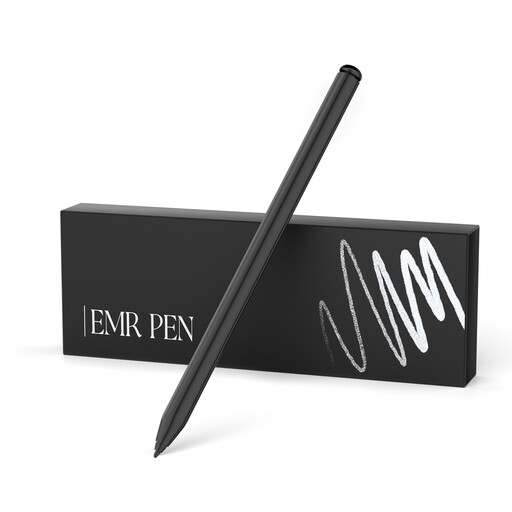 Image unavailable
For sketching on the devices listed in the product description; check compatibility with your exact model.
4,096 pressure levels, palm rejection and an eraser, according to the product details.
Works without charging; magnetic attachment to compatible devices, plus five replacement nibs and a tool, are also listed.
According to the product details, it isn’t suitable for reMarkable PAPER PRO or other devices.
 Image unavailable
For compatible Surface or MPP devices; check your exact model against the compatibility details.
4,096 pressure levels, tilt sensitivity and two function buttons, according to the product description.
Palm rejection and magnetic attachment are also listed.
According to the product details, it isn’t compatible with Surface Laptop Go 1, 2 and 3 or Surface Laptop SE.
 Image unavailable
For drawing and sketching on compatible iPad models; check support for your exact device.
Tilt sensitivity, palm rejection and USB-C charging are listed in the product description.
 Image unavailable
For drawing and sketching on compatible capacitive touchscreens; the product name lists Android and iOS devices.
POM tip; the product description states a 30-minute charging time and up to 10 hours of use.
According to the description, magnetic attachment is only for compatible iPads and doesn’t charge the stylus.
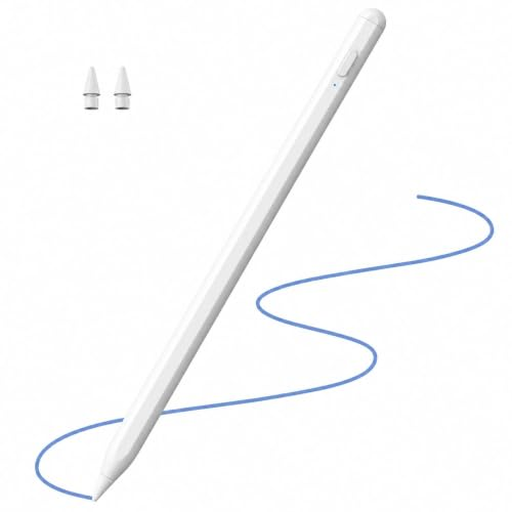 Image unavailable
For the iPad models listed in the product name; check compatibility with your exact device.
Tilt sensitivity and palm rejection are listed for drawing and shading.
No, not without checking the exact model. Apple lists the iPads supported by each Pencil, STAEDTLER requires a compatible EMR display for the Noris digital, and Wacom requires a compatible AES or MPP device for the Bamboo Ink Plus.
STAEDTLER says the Noris digital classic doesn’t need charging or pairing. You’ll still need a compatible EMR display, and palm rejection may depend on the app you use.
According to STAEDTLER, the Noris digital classic comes with five replacement nibs and a replacement tool. For purchases of goods in the EU, Your Europe, the European Union’s consumer portal, states that you’re generally entitled to at least two years of legal guarantee from the date you receive the goods. This is separate from any voluntary manufacturer’s warranty.