Teachers who already have a tablet
If you’re buying a stylus separately, check your tablet’s exact model against the specific stylus version and the features it supports.


Start by choosing a tablet stylus that matches your device’s exact model and input technology. Only then consider writing feel, charging and extra features. Apple, Samsung, Wacom and Microsoft list stylus compatibility by device. For marking PDFs by hand, the app, storage method and your school’s rules on handling pupil data also need to be right – a stylus alone won’t resolve these issues.
If you’re buying a stylus separately, check your tablet’s exact model against the specific stylus version and the features it supports.
If you write detailed feedback directly on students’ work, your workflow should cover commenting on, saving and sharing the files.
If you want to mark students’ work at home on your own device, also check with your school what rules apply to the device, app and data processing.
If you’re choosing a tablet stylus for marking students’ work, start with the factor that matters most to you. The percentages below show how buyers’ priorities break down.
| Priority | What to check before buying | Who is it most important for? |
|---|---|---|
| Device compatibility | Check the exact model generation and stylus version against the manufacturer’s list. EMR, AES and MPP are different input technologies. | If I want to keep using a tablet I already own, the stylus needs to be a precise match. Around 29 % of buyers put compatibility first. |
| PDF marking workflow | Test with an approved sample file to check whether the app supports comments and drawings, and whether you can save the file as required. Adobe describes annotation features for Acrobat on mobile devices. | If I comment directly on work in PDFs, I need a workflow that saves annotations in a usable format. Around 23 % of buyers put their PDF workflow first. |
| Writing comfort | Try resting your hand on the screen and adding a few short notes in your app. Only check pressure or tilt features if you need them for your style of commenting. | When I’m giving lots of handwritten feedback, I want a stylus that’s easy to control and lets me rest my hand comfortably as I write. Around 18 % of buyers make writing comfort their top priority. |
| Data protection | Check with your school or education authority which devices, apps, storage locations and transfer methods are approved. Data protection guidance from Hesse and North Rhine-Westphalia applies to their respective jurisdictions and frameworks. | If students’ work can be linked to individuals, I want to know which school-approved process to follow before importing or syncing it. Around 18 % of buyers put data protection first. |
| Charging and accessories | Compare the charging method and what’s included with the exact version you’re considering; magnetic attachment doesn’t automatically mean magnetic charging. Also check whether compatible replacement nibs are available. | If I’m marking work for long periods, I want to know how the stylus charges and whether I can get suitable replacement parts later. Around 12 % of buyers prioritise charging and ongoing costs. |
Manufacturers distinguish between iPad models, Galaxy devices and stylus protocols. A Windows touchscreen may not necessarily support stylus input either.
Note down your tablet’s exact model name and check it against the compatibility list for the specific stylus version.
Apple says the magnetic attachment on Apple Pencil (USB-C) is for storage; it pairs and charges via a USB-C cable. The charging accessories you need for a Surface Slim Pen can depend on the device combination.
Check the charging method and what’s included with the exact version you’ve chosen.
Depending on the model, you may need a USB-C cable or compatible charging accessories for the intended charging setup.
An app may support PDF comments, but your school’s rules on devices, storage and transfer still apply when you’re handling students’ personal data.
Check the approved workflow before importing or syncing students’ work.
Apple Pencil models are an option for iPads that are explicitly listed as compatible.
An S Pen is an option if you already have a Galaxy Tab that’s explicitly listed as compatible.
The Crayon is an iPad-focused alternative for writing and commenting.
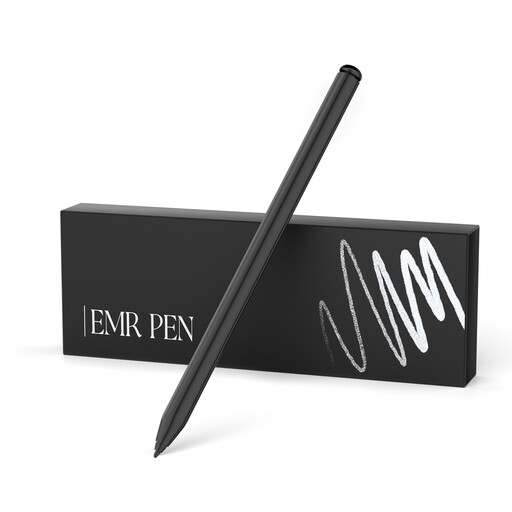
The AL-star EMR is an option for devices with a display that supports the required EMR technology.
The Bamboo Ink Plus is designed for compatible Windows devices with AES or Microsoft Pen Protocol.
The Surface Slim Pen is relevant if you have a pen-enabled Surface model listed by Microsoft.
This selection includes styluses for compatible iPads, Android touchscreens, and certain reMarkable and Kindle Scribe devices. Check that your exact tablet model is supported before buying.
 No image available
For handwriting on a compatible iPad; check your exact model against the product’s compatibility details.
The product name specifies iPad 2018–2026 and USB-C fast charging.
 No image available
The product name lists Android touchscreens, Samsung, Huawei and XiaoMi; check compatibility with your specific device.
 No image available
For the iPad versions listed in the product name; check the exact generation before buying.
Listed models are iPad Pro 11" (1/2/3/4), Pro 12.9" (3/4/5/6) and Air 4/5.
 No image available
For handwriting on the specifically listed reMarkable and Kindle Scribe devices.
The product name specifies 4096 pressure levels and an eraser. According to the description, the stylus isn’t intended for reMarkable Paper Pro or other devices.
 No image available
For a compatible iPad; check that your exact model is included in the compatibility details before buying.
The product name specifies iPad 2018–2025 and USB-C fast charging.
No, not if you want to use the features of an active stylus. Check the exact tablet model and stylus version: Microsoft lists some Surface models that don’t support a stylus or inking, while Wacom specifically states that the Bamboo Ink Plus requires AES or Microsoft Pen Protocol.
Test with an approved sample file to see whether your chosen app supports drawings and comments, and whether you can save the result as needed. Adobe documents these annotation features for Acrobat on mobile devices, but that doesn’t mean the app has been approved by your school.
No. Apple says the magnetic attachment is for storage. The Apple Pencil (USB-C) pairs and charges via a USB-C charging cable.
It depends on the model. LAMY offers compatible POM replacement nibs for the AL-star EMR; Microsoft says the Surface Slim Pen charges with compatible devices or accessories, and a separate charger is available. Check what’s included with the specific version.
Check with the relevant person at your school first, as the guidance available doesn’t provide one simple yes-or-no answer for all of Germany. The Hessian Commissioner for Data Protection and Freedom of Information outlines the school’s responsibility to process data lawfully and securely; North Rhine-Westphalia’s data protection authority highlights the risks of unrestricted iCloud use on school iPads. The rules that apply to you, your device, the app and the storage method are among the factors to consider.