What should you look for when buying?
First, check compatibility with your existing tablet, then test the PDF workflow and writing comfort. Next, work out how the stylus will be stored and charged at a shared workstation, and what accessories the specific version needs.
| Consideration |
What to check before buying |
Who it matters most to |
| Compatibility |
Check the exact tablet model and stylus version against the relevant manufacturer’s list. For Surface devices, also check support for pen input. |
If I already have a tablet, I want to be sure the stylus will actually write on it, not just that the connector or product name seems right. Around 29% of consumers put tablet compatibility first. |
| PDF marking |
Use a test file to try opening, annotating, saving or exporting, and reopening it in the app you plan to use. |
If I need to return marked work through a particular app, I want to check the whole process through to the finished file. Around 23% of consumers put the PDF workflow first. |
| Writing comfort |
Try resting your hand on the screen and writing in the app you use. Only consider pressure or tilt features if your exact model supports them. |
If I’m making lots of handwritten comments, I want to be able to rest my hand on the screen and control my strokes. Around 18% of consumers make writing comfort their main consideration. |
| Storage and charging |
Check how the specific stylus version attaches and charges, and what accessories are included. Agree on a designated storage spot. |
At a shared desk, I want to know where the stylus is and whether it’s charged before the next marking session. Around 18% of consumers prioritise storage and readiness to use. |
| Accessories |
Once compatibility is confirmed, check what’s included and whether you’ll need any charging or pairing accessories. |
If I have to use a particular tablet, I want to factor in any necessary accessories before deciding. Around 12% of consumers focus on the purchase price and ongoing costs. |
Suitable products on Joybuy
The products below are mainly styluses for selected iPads, along with one stylus for reMarkable and Kindle Scribe devices and one active stylus described as universal. Before choosing, check compatibility with your specific tablet and the requirements of the app you use.
 No image available
Stylus for iPad (2018–2026), USB-C
For handwriting on compatible iPads; the product information lists palm rejection and tilt detection. Pressure sensitivity is explicitly not supported.
USB-C charging; magnetic attachment is for storage, not wireless charging. Check your exact iPad model before buying.
Joybuy
 No image available
ZSPEED stylus for iPad, white
For handwritten annotations on the iPad models listed in the product information; palm rejection and tilt sensitivity are also listed.
Magnetic charging isn’t supported on all iPads described as compatible. Check the full model list against your device.
Joybuy
 No image available
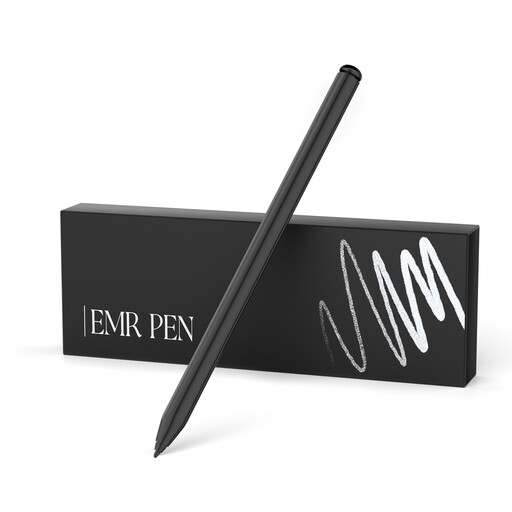
EMR stylus for reMarkable 1/2 and Kindle Scribe, with eraser
For handwriting on reMarkable 1/2 or Kindle Scribe, according to the product title. Features listed include 4096 pressure levels, palm rejection, magnetic attachment and an eraser.
The description says it works without charging and excludes reMarkable PAPER PRO and other devices.
Joybuy
 No image available
iPad stylus with USB-C and LED battery indicator
For handwriting on compatible iPads; the product information lists palm rejection and tilt detection, as well as an LED battery indicator.
USB-C charging; according to the product information, magnetic attachment is for storage only, not wireless charging. Check compatibility with your exact model.
Joybuy
 No image available
VoxorAI HL-U05 White Pen
Described as an active stylus for iOS, iPad, Android and Microsoft devices; the description lists writing and handwriting-to-text conversion.
According to the description, setup requires an app downloaded via QR code, and pairing is done through this app. The stated weight is 59.4 g. Check that the app works with your school device.
Joybuy
Frequently asked questions
Does having a USB-C port on an iPad mean that any Apple Pencil will work with it?
No. Apple lists compatible iPads separately for each Pencil version. For iPad (10th generation) and iPad (A16), Apple also specifies an adapter for pairing and charging the 1st generation Apple Pencil.
How can I check the marking workflow before using it?
Open a test PDF with no personal pupil data in the app you plan to use. Add a handwritten annotation, save or export the file, then reopen the exported version. Apple explains how to mark up PDFs in supported apps; Samsung describes PDF editing in Samsung Notes using the Tab S10 Ultra as an example.
Do I need extra charging accessories for a Surface Slim Pen?
It depends on the Surface and accessories you already have. Microsoft lists compatible keyboards with a pen storage slot, certain built-in charging slots and a separate Slim Pen charger. Check which of these options works with your Surface model.
Does a compatible stylus automatically make marking pupils’ personal work compliant with data protection rules?
No. How you handle pupils’ work also depends on factors including the device, app, accounts, storage and transfer methods; stylus compatibility doesn’t answer these questions. On 25 August 2025, North Rhine-Westphalia’s data protection authority warned against unrestricted use of iCloud by schools. This dated, regional assessment does not establish an unchanged, nationwide ban on iCloud. Check the currently approved procedures with your school’s governing body.


