Start by choosing a stylus that matches your exact tablet model: Apple, Samsung, Microsoft and STAEDTLER each provide their own compatibility information, while Logitech describes the Crayon as being for supported iPads. If you do a lot of marking, your app’s workflow, palm rejection, charging and storage also matter. The stylus alone won’t tell you how to manage files or handle pupil data.
Which approach is right for you?
Teacher with an existing tablet
If you’re looking for a replacement or spare stylus, check your tablet’s full model name against the compatibility list for the specific stylus version before choosing. Apple Support Germany, Samsung Germany, Microsoft Support and STAEDTLER Germany provide information based on device or display.
Teacher who does a lot of digital marking
If you annotate pupils’ work by hand, check that palm rejection and the stylus work as you expect in your marking app, and that you can keep the stylus close to hand between tasks. Logitech describes the Crayon’s palm rejection; STAEDTLER says the Noris digital classic works without charging or pairing.
Teacher with pupil data on their device
When working with real pupils’ assignments, you’ll also need to check how your school and platform manage storage and sharing. The Data Protection Conference covers data processing on online learning platforms in schools; the specific requirements depend on how the platform is used.
What should you look for when buying?
Stylus for an iPad
A good fit if: Your exact iPad model appears on the compatibility list for the stylus version you’ve chosen.
Things to weigh up: Apple Pencil and Logitech Crayon differ in features such as pressure sensitivity and charging. Logitech says the Crayon is not pressure-sensitive.
Samsung S Pen
A good fit if: Your Galaxy Tab specifically supports the S Pen version in question.
Things to weigh up: Samsung lists the EJ-PT730 as a replacement for the Galaxy Tab S7 FE and the EJ-PX510 for certain Tab S9 FE and S10 FE series models. This doesn’t mean they’re compatible with all Galaxy Tabs.
Surface Slim Pen
A good fit if: Microsoft lists pen and inking support for your Surface model.
Things to weigh up: Features and charging options vary by model. Microsoft excludes certain Surface laptops from pen input and says a separate charger may be needed.
STAEDTLER Noris digital classic
A good fit if: Your tablet display supports EMR and the compatibility information lists the stylus.
Things to weigh up: STAEDTLER says the stylus doesn’t need charging or pairing, but it only works with EMR. Even different device variants in the same range can have different displays.
| Priority |
What to check before buying |
Who is this important to? |
| Compatibility |
Check the exact tablet and stylus names and, where relevant, the display version against the manufacturer’s list. |
If I’m looking for a stylus for my existing tablet, the main thing I want to know is whether it supports the input I need. Around 26% of consumers put compatibility first. |
| Handwritten annotations |
Check palm rejection and the stylus features you need on your specific tablet and in your marking app. |
When marking lots of pages, I want to write clearly and rest my hand on the screen. Around 21% of consumers prioritise how a stylus feels to write with. |
| File workflow |
Use a permitted test file to try opening, annotating and carrying out the export you need. |
If I need to return work digitally, I need a workflow that lets me open, annotate and share files using my app. Around 21% of consumers prioritise this file workflow. |
| Keeping it ready and charged |
Check the charging method, any accessories you need and how the specific stylus and tablet combination can be stored. |
At my standing desk, I want my stylus close to hand between short marking sessions and to avoid unnecessary breaks to recharge it. Around 16% of consumers prioritise having it ready to use. |
| Pupil data |
Before using real assignments, check your school’s rules for devices, apps, storage and sharing. |
If I’m marking pupils’ work on a tablet, the way it’s stored and shared must comply with my school’s requirements. Around 16% of consumers prioritise how pupil data is handled. |
Avoid common buying mistakes
-
Choosing based only on the brand or a position in a list
Apple Pencil versions and Surface models have different compatibility limits; the Noris digital needs an EMR display.
Before ordering, check the full names of your tablet and stylus against the relevant manufacturer’s list.
-
Assuming magnetic storage means magnetic charging
Apple says the Pencil (USB-C) attaches magnetically for storage, but pairs and charges via a USB-C cable. Microsoft says a separate charger may be needed for the Surface Slim Pen.
Check how the specific version charges and what’s included before relying on a particular storage option.
-
Assuming pressure sensitivity is essential for every type of marking
Logitech says the Crayon is not pressure-sensitive. Whether this matters depends on the tools you use when annotating work.
Check whether your marking tools need pressure sensitivity, and don’t confuse it with tilt recognition. Logitech describes the Crayon as using tilt recognition for writing and annotating.
-
Confusing buying a stylus with approval to use pupil data
Whether you can use a personal device and platform for work containing personal data depends on your school’s requirements, not the stylus model.
Check your school’s rules on devices, apps and file sharing separately from your choice of hardware.
Key brands to consider
Apple
Apple Pencil versions are designed for specific iPads listed as compatible and may fit into an existing iPad marking workflow.
- Apple says the Pencil (USB-C) supports document annotation and USB-C charging. Source: Apple Support Germany.
- Compatible iPads vary by Pencil version. The USB-C model attaches magnetically but doesn’t charge magnetically; for older iPads, also check which adapter Apple specifies.
Samsung
S Pens are designed for specific Galaxy Tab models or series, depending on the version.
- Samsung lists a 0.7-mm tip and 4,096 pressure levels for the EJ-PT730 for the Galaxy Tab S7 FE.
- These details don’t automatically apply to all S Pens. Samsung lists the EJ-PX510 for certain Tab S9 FE and S10 FE series models.
Logitech
Crayon versions are designed for writing and annotating on supported iPads.
- Logitech says the USB-C Crayon works without Bluetooth pairing and supports palm rejection.
- Logitech says the Crayon is not pressure-sensitive. When buying, distinguish between the USB-C and Lightning versions.
STAEDTLER
The Noris digital classic is a pen-shaped EMR alternative for displays that are specifically listed as compatible.
- STAEDTLER lists replaceable 0.7-mm tips and says the stylus works without charging or pairing.
- The stylus only works with EMR. STAEDTLER says that even different device variants in the same range can use different display technology.
Microsoft
The Surface Slim Pen is relevant to Surface devices for which Microsoft lists pen and inking support.
- Microsoft lists supported pen features by model.
- Microsoft says certain Surface laptops don’t support pen input; a separate charger may also be needed.
Joybuy products
This selection includes iPad styluses for handwritten marking. Before buying, check your exact iPad model and the charging features of the specific version.
 No image available
iPad stylus with USB-C charging port
The product name lists iPads from 2018 to 2026; check compatibility with your exact model.
USB-C charging; the magnetic attachment is for storage and doesn’t support wireless charging.
Joybuy
 No image available
ZSPEED Wireless Charging Stylus for iPad
According to the product name, this stylus is designed for certain iPad models; check your tablet against the details for the specific version.
The product name lists magnetic charging for compatible iPads.
Joybuy
 No image available
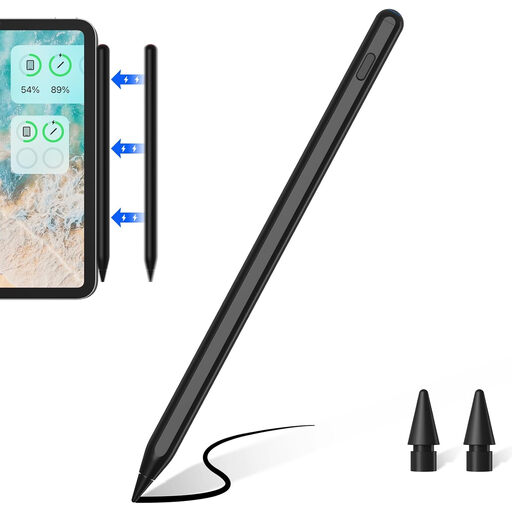
ZSPPED Wireless Charging Pencil, 2nd Generation, Black
The product name lists several iPad variants; check your exact model before relying on the charging feature.
According to the product information, magnetic charging is limited to certain compatible iPad models.
Joybuy
 No image available
iPad stylus with USB-C charging port and LED battery indicator
According to the product name, this stylus is designed for selected iPad models; check compatibility with your exact model before buying.
USB-C charging and an LED battery indicator; the magnetic attachment is for storage and doesn’t support wireless charging.
Joybuy
Frequently asked questions
Is a universal touchscreen stylus enough for marking?
Not necessarily. First check that your tablet supports the type of stylus you need and that your marking app handles handwriting as you expect.
What should I set up before marking for the first time?
Check how your exact stylus version charges or pairs, then test the full file workflow with an approved test file. Apple says the Pencil (USB-C) uses a USB-C cable for pairing and charging; Microsoft explains how to insert documents as annotatable printouts in OneNote Desktop.
Which replacement parts or charging accessories should I check?
Check whether your version needs a charger and whether its tips can be replaced. Microsoft says a separate charger may be needed for the Surface Slim Pen; STAEDTLER lists five replacement tips and a replacement tool in the case for the Noris digital classic.
Can I mark and sync pupils’ work on a personal tablet?
There’s no single answer that applies to every school and service. The Data Protection Conference guidance of 26 April 2018 covers online learning platforms in schools; guidance from the Rhineland-Palatinate Commissioner for Data Protection and Freedom of Information covers safeguards for teachers’ personal devices. Before using real pupils’ work, check the requirements that apply at your school, as well as how files are stored and transferred.


