For iPad concept artists
If you sketch on an iPad you already own, check its exact model name against the compatibility list. Apple’s Pencil range offers different options for pressure sensitivity and basic input.


Choose a stylus for product sketches only after checking it against the exact iPad, Galaxy Tab or Surface model you own: Apple Pencil, S Pen, EMR styluses and Surface Slim Pen are not interchangeable. Pressure sensitivity matters if you want to vary line thickness; Apple lists it for Pencil Pro, while Samsung specifies pressure and tilt input for the S Pen EJ-PX710. Also check that your drawing app supports the features you want, and that charging and accessories suit the way you work.
If you sketch on an iPad you already own, check its exact model name against the compatibility list. Apple’s Pencil range offers different options for pressure sensitivity and basic input.
If you want pressure and tilt input, an S Pen made for your Galaxy Tab series could be a good choice. The Noris digital, on the other hand, requires a display with an EMR digitiser. STAEDTLER also says that this stylus range works without a battery or pairing.
If you already work on a Surface, check which stylus features are supported by your exact model and how the stylus can be charged. Microsoft notes that both the device and accessories can affect this.
First, check stylus compatibility with your exact device model. Then decide what kind of line control and charging routine will work best for your sketches.
| What matters when buying | What to check | Who is it important to? |
|---|---|---|
| Device compatibility | Check the full tablet or Surface model against the manufacturer’s list. For the Noris digital, also check for an EMR digitiser. | If I want to sketch on a device I already own, I want to make sure the stylus will work with it first. Around 36% of consumers would make device compatibility their top priority. |
| Control over lines and shading | Understand the difference between pressure and tilt input, and check whether your drawing app supports the feature you want. | When creating detailed concepts, I want to vary my lines deliberately, not just draw outlines. Around 29% of consumers would put line control first. |
| Workflow | Check whether the stylus needs charging or pairing, and which charging accessories are compatible with your device. | When sketching regularly, I want my stylus close to hand and to be able to plan for charging or set-up breaks. Around 21% of consumers would put workflow first. |
| Upfront and ongoing costs | Compare models that are compatible with your device, and check what’s included and whether you might need charging accessories. | If my main aim is to avoid paying for features or accessories I don’t need, the total cost matters as well as the stylus itself. Around 14% of consumers would make cost their main concern. |
Apple and Microsoft list the specific device models they support. STAEDTLER requires a display with an EMR digitiser for the Noris digital.
Before ordering, check the full model name, the stylus version and, where relevant, the display’s digitiser.
Apple lists pressure sensitivity for Pencil Pro, but not for Pencil (USB-C). Logitech says the Crayon varies line thickness according to the angle of the stylus.
If you want your brushes to respond to pressure, check specifically for pressure sensitivity and support from your drawing app.
Charging options for Surface Slim Pen depend on the Surface model and accessories. The eraser function on the Noris digital Jumbo depends on the app you use.
Check whether your device can charge the stylus, which accessories you already have and whether your app supports extra features.
Depending on your device, you may need a separate charger for Surface Slim Pen.
Apple Pencil Pro and Apple Pencil (USB-C) are designed for specific iPad models listed by Apple.
Samsung offers S Pen versions for specific Galaxy Tab series, including the EJ-PX710.
Noris digital and Noris digital Jumbo are designed for displays with an EMR digitiser.
Surface Slim Pen is designed for compatible Surface devices and their drawing workflows.
Logitech describes Crayon as suitable for outlines, diagrams and annotations on compatible iPads.
The Joybuy products below are styluses for iPads. Check that your specific iPad is supported by each model.
 No image available
For sketching on one of the specifically listed iPad models if you want to use tilt input.
The product name lists iPad Pro 11″ (4th/3rd/2nd/1st generation), iPad Pro 12,9″ (6th/5th/4th/3rd generation), iPad Air 4/5 and iPad mini. The description mentions palm rejection and magnetic charging.
 No image available
For sketching and shading on a compatible iPad if you’re looking for tilt input and palm rejection.
The product description mentions USB-C fast charging and an LED charging indicator. A suitable USB-C cable and power source are required for charging.
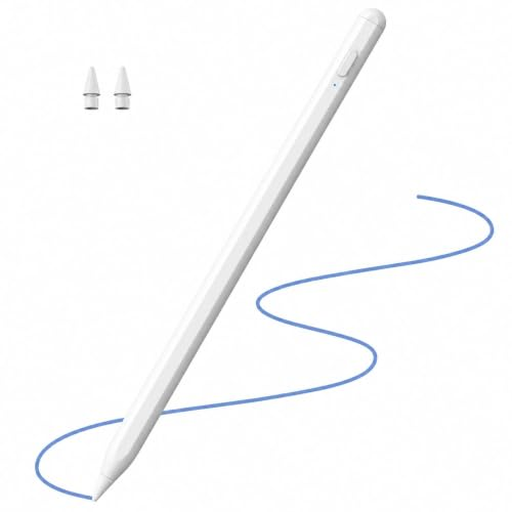 No image available
For sketching on an iPad from the stated model range if tilt input and palm rejection suit your drawing style.
The product name mentions 2X fast charging. The description recommends a suitable 5-V USB adapter for charging and says to unplug the cable once charging is complete.
 No image available
For sketching on one of the listed compatible iPad models if you want to use tilt detection and palm rejection.
The description mentions a USB-C charging port and an LED charging indicator. The magnetic attachment is for storage; wireless charging is not supported.
 No image available
For sketching on a capacitive touchscreen, provided the specific device and set-up are supported.
The product description mentions a built-in 140-mAh battery and capacitive touchscreens; the product name lists iOS, iPad and Android. According to the description, set-up requires downloading an app and pairing.
Check the full model name of your device against the stylus manufacturer’s compatibility list. Noris digital also requires your specific display version to have an EMR digitiser; Surface features can vary by model.
Pressure sensitivity and tilt input are different features. Apple lists pressure sensitivity for Pencil Pro, but not Pencil (USB-C); Logitech says that line thickness on Crayon varies with the angle of the stylus. Check which feature your drawing app supports.
To pair and charge Apple Pencil (USB-C), connect it to a compatible iPad using a USB-C cable. STAEDTLER says Noris digital needs neither charging nor pairing, but it does require an EMR display.
For consumer purchases in Germany, the seller is generally responsible for statutory warranty claims; Verbraucherzentrale distinguishes these from a voluntary manufacturer’s warranty. Consumer rights do not necessarily apply to business purchases. Also check whether your Surface can charge Slim Pen or whether you’ll need accessories.
According to Verbraucherzentrale, online consumer purchases generally come with a 14-day right to cancel, with some exceptions; simply returning an item does not count as notifying the seller that you’re cancelling. Umweltbundesamt recommends not putting electrical and electronic waste in household rubbish, and returning removable used batteries or rechargeable batteries separately to an appropriate collection point.