Choose a stylus based on your exact tablet model and the stylus version approved for it; a similar product name or the same charging port does not prove compatibility. For pressure-sensitive lines, the stylus, tablet and drawing app all need to work together. For simple sketches, tilt detection and easy setup may also matter. At a shared desk, check how the stylus charges and where it will be kept, and whether you’ll need replacement tips.
Which stylus is right for you?
Concept artists with an existing tablet
If you want to sketch outlines, shading or variations directly on your tablet, first identify the stylus version that’s right for your specific device. Apple Support Germany lists compatibility for its Pencil models by iPad model; Samsung also identifies its S Pen versions by device series.
Quick sketchers at a shared desk
If you want your stylus ready for short working sessions, charging, storage and ease of use are important considerations. Logitech says the Crayon (USB-C) is ready to use without Bluetooth pairing, while LAMY states that the AL-star EMR works without a battery or charging.
Shoppers keeping an eye on ongoing costs
If you want to avoid buying extra accessories, check whether you’ll need a charger or compatible replacement tips. Microsoft says the Surface Slim Pen charger is sold separately, while Logitech offers a replacement tip for the Crayon.
What should you look for when buying?
Start by checking device compatibility, then consider the line control you need, followed by charging and accessories. This will help you choose a stylus that suits your sketching style and shared workspace.
| What to consider |
What to check |
Who will find this especially important? |
| Tablet compatibility |
Match your tablet model and generation to the compatibility information for the stylus’s full name or model number. |
If I want to sketch on my existing tablet, I don’t want to accidentally buy the wrong stylus version. Around 36% of consumers put compatibility first. |
| Lines and shading |
Check pressure and tilt detection separately, and confirm that your drawing app supports the input you want. |
If my sketches need varied outlines or shading, I check which inputs my brush actually uses. Around 29% of consumers put line control first. |
| Ready to use at your desk |
Check how it charges, what charging accessories you already have, and where you can conveniently store it between sessions. |
If several people share the same desk, I want to be able to leave the stylus ready to use and find it again easily. Around 21% of consumers prioritise having their stylus ready to use at their workspace. |
| Spare parts and accessories |
Check what’s included, along with compatible replacement tips and, if needed, a separate charger. |
If I want to avoid buying extra items, I want to know about any spare parts or accessories I may need before placing my order. Around 14% of consumers pay particular attention to ongoing costs. |
Common buying mistakes
-
Assuming a general device name proves compatibility
Manufacturers distinguish between tablet models and stylus versions. So a stylus that works with one device family won’t necessarily work with every generation.
Before ordering, compare your exact tablet model and generation with the full stylus name or model number.
-
Confusing tilt detection with pressure sensitivity
Tilt and pressure detection are different features. In its 2025 stylus comparison, COMPUTER BILD described the Apple Pencil (USB-C) and Logitech Crayon (USB-C) as not pressure-sensitive.
If you need pressure-sensitive outlines, check that this feature is supported by the stylus, tablet and drawing app.
-
Overlooking charging options and replacement tips
A separate charger or replacement tip may be important if you don’t already have the right accessory.
Before buying, check what’s included and whether it suits the charging options at your shared workspace.
Depending on the stylus, a charger may be sold separately; Logitech offers a replacement tip for the Crayon.
Key brands at a glance
The information below relates to the specific stylus ranges and device requirements mentioned, rather than being a general assessment of each brand.
Apple
Apple Pencil Pro and Apple Pencil (USB-C) are designed for specific, explicitly supported iPads.
- Apple describes the Pencil Pro as offering pressure features, magnetic pairing and charging.
- The Apple Pencil (USB-C) pairs and charges via a cable; compatibility varies by version. Apple Support Germany lists compatible combinations by iPad model.
Samsung
S Pen versions are designed for specific Galaxy Tab ranges, including separate versions for FE and S9/S10 models.
- Samsung says the S Pen for FE models offers pressure and tilt detection, as well as magnetic attachment.
- The name “S Pen” alone isn’t enough to choose the right one; the tablet model and stylus version must match.
LAMY
The AL-star EMR may be suitable for devices that support the EMR stylus technology.
- LAMY describes the stylus as battery-free and not requiring charging.
- Check EMR support for your specific tablet; it doesn’t mean the stylus is compatible with all Android devices.
Logitech
The Crayon (USB-C) is an option for compatible iPads and a workflow that doesn’t require Bluetooth pairing.
- Logitech describes the stylus as offering tilt detection and USB-C charging.
- In its 2025 stylus comparison, COMPUTER BILD described the Crayon (USB-C) as not pressure-sensitive. A replacement tip is available separately.
Microsoft
The Surface Slim Pen is designed for the Surface devices listed individually by Microsoft.
- Microsoft describes the stylus as rechargeable.
- The features supported depend on the Surface model. Check whether you have a compatible charging dock or need a separate charger.
Lenovo
The Tab Pen Plus may be suitable for Lenovo tablets confirmed as compatible.
- Lenovo lists 4096 pressure levels, tilt detection and Bluetooth pairing for the Tab Pen Plus.
- These stylus specifications don’t prove that it works with every Lenovo tablet.
Joybuy product selection
This selection includes tablet and touchscreen styluses for a range of device families. Check compatibility with your specific model before buying; similar product names don’t prove that a stylus will work with your device.
 No image available
Touchscreen stylus for Android, Samsung, Huawei and Xiaomi
For sketching on a supported touchscreen; according to the product information, it isn’t designed for iPad, Microsoft or some Lenovo tablets. Check compatibility with your specific device.
View at Joybuy
 No image available
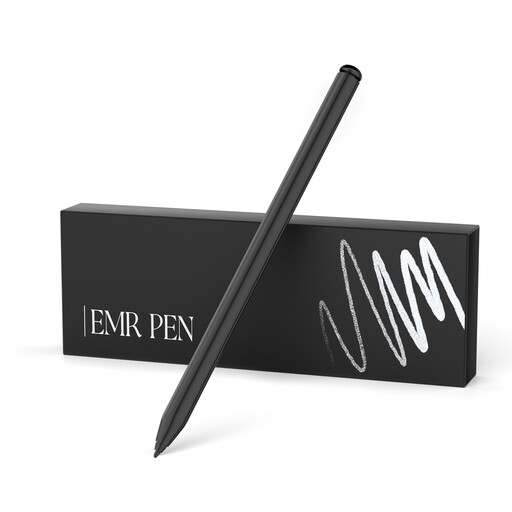
EMR stylus for reMarkable 1 and 2, and Kindle Scribe
The product name lists 4096 pressure levels and palm rejection. According to the product information, the stylus is designed for reMarkable 1/2 and Kindle Scribe, not reMarkable PAPER PRO or other devices. Check that your model is approved before buying.
View at Joybuy
 No image available
Stylus for Microsoft Surface, 4096 pressure levels
The product name lists pressure sensitivity, tilt detection and palm rejection. Compatible models include selected Surface Pro 11/10/9/8/7/6/5/4/3/X and Go 1–4 models; Surface Laptop Go 1/2/3 and Surface Laptop SE are excluded. Check the full list of models.
View at Joybuy
 No image available
USB-C stylus for iPads (2018–2025)
The product name lists iPads from 2018–2025 and USB-C charging. Check that your specific iPad model is supported before buying.
View at Joybuy
 No image available
Touchscreen stylus for Android and iOS devices
The product name lists USB-C charging, an LED indicator and magnetic attachment. According to the product information, the magnet is for storage with compatible iPads, not charging; check support for your specific device.
View at Joybuy
Frequently asked questions
Is a USB-C port enough to make a stylus work with my tablet?
No. Check your exact tablet model against the compatibility information for the specific stylus version. Apple Support Germany lists Pencil versions separately; Microsoft lists Surface features by model.
How can I keep a Surface Slim Pen ready to use at a shared desk?
Charge it using a device or accessory supported by Microsoft before use. If you don’t have a compatible charging dock, check the separately available charger; Microsoft provides separate information about Bluetooth pairing.
What should I do if my stylus tip is worn?
Check the spare parts information for your exact stylus. Logitech says a damaged or worn Crayon tip can be replaced and offers a replacement part.
What are my rights in Germany if my stylus is faulty?
The Verbraucherzentrale explains that, in principle, retailers are responsible for goods being free from defects when handed over for two years, where they are responsible for the defect. Your statutory rights are separate from a voluntary manufacturer’s warranty; the circumstances of each case matter.
Can I put an old electronic stylus in household rubbish?
No. The German Environment Agency says that waste electrical equipment must not be put in household rubbish. It must be collected separately, for example at a suitable take-back point.


