For sketching concepts while working from home, first check your exact tablet model against the stylus compatibility list. For Windows devices, you’ll also need to make sure the input protocol matches. If you want to vary your lines using pressure, choose a combination that explicitly supports pressure sensitivity; tilt sensitivity may be enough for simple outlines and notes. Then check pairing, charging and replacement tips to make sure they suit the way you work.
Which stylus is right for you?
Sketchers with an existing tablet
If you’re looking for a stylus for your specific iPad, Galaxy Tab or stylus-compatible Windows tablet, check the model and, where relevant, the protocol against the manufacturer’s information (Apple Support, Samsung Germany and Wacom).
Designers who want to vary their strokes
If you want to vary lines and shading in your concept sketches, check pressure and tilt sensitivity separately for the specific stylus and tablet (Samsung Germany and Wacom).
Quick sketchers working from home
If you jot down ideas as they come to you, look beyond compatibility to pairing, charging and storage. The exact process varies by model (Apple, Wacom and Logitech).
What should you look for when buying?
Apple Pencil (USB-C)
A good fit if: you mainly sketch, label or annotate on an iPad supported by Apple.
Bear in mind: Apple lists tilt sensitivity, with pairing and charging via a USB-C cable. This does not confirm pressure sensitivity (Apple Support).
Apple Pencil Pro
A good fit if: your iPad is on Apple’s compatibility list and you want extra tool features such as rotation.
Bear in mind: The Pencil Pro isn’t compatible with every iPad. Check whether its features will be useful in your drawing app too (Apple Support).
Samsung S Pen EJ-PX710
A good fit if: you use a compatible Galaxy Tab from the Tab S10 or Tab S9 series and need pressure and tilt input.
Bear in mind: This information applies to this model, not every S Pen. Air Command requires a charged stylus, and availability varies by app (Samsung Germany).
Wacom Bamboo Ink Plus
A good fit if: your stylus-compatible Windows device has been checked and supports the stylus’s Active ES or MPP protocol.
Bear in mind: Wacom lists up to 4,096 pressure levels. Tilt sensitivity and tip compatibility also depend on the specific third-party device (Wacom).
Logitech Crayon (USB-C)
A good fit if: you want to switch quickly between sketches and annotations on a supported iPad, without having to set up Bluetooth pairing.
Bear in mind: Logitech describes changing the line by tilting the stylus; pressure-sensitive strokes aren’t confirmed. Check the exact iPad and Crayon versions (Logitech).
Start by finding a tablet and stylus that work together. Then consider how much control you want over your strokes, how the stylus starts up and charges, and how you’ll manage replacement tips to find the right fit for your workflow.
| What matters |
What to check before buying |
Who should consider it? |
| Tablet compatibility |
Check the exact tablet generation and stylus model; for Windows, also check whether it uses Active ES or MPP (Apple Support, Samsung Germany and Wacom). |
If you want to avoid buying a stylus that doesn’t support your device, matching the models should be your first priority. Around 36% of consumers focus mainly on tablet compatibility. |
| Lines and shading |
Check pressure and tilt sensitivity separately for the stylus, device and drawing app (Samsung Germany and Wacom). |
If you want to vary line weight or shading while sketching, check specifically which input method supports it. Around 29% of consumers prioritise variable strokes. |
| Getting started quickly |
Check how the specific version pairs and charges, and how it’s stored. USB-C cable charging and magnetic charging aren’t the same thing (Apple Support, Apple and Logitech). |
If you sketch between tasks while working from home, a quick set-up can make all the difference. Around 21% of consumers particularly value being able to get started without any fuss. |
| Tips and accessories |
Compare what’s included, which replacement tips fit, and whether a charging cable is needed for the exact model variant (Wacom and Samsung Germany). |
If you use your stylus regularly, you’ll want to know which tips and accessories are actually included. Around 14% of consumers focus on accessories and day-to-day use. |
Avoid common buying mistakes
-
Choosing based on the tablet brand alone
Even styluses from the same brand may support different tablet models. For Windows devices, the input protocol may also be a deciding factor.
Before buying, check the exact model name and generation against the manufacturer’s compatibility list. For a Windows stylus, check the required protocol too.
-
Confusing tilt sensitivity with pressure sensitivity
A line that changes when you tilt the stylus doesn’t mean its width will change when you press harder.
If you want to create pressure-sensitive sketches, check that this feature is supported by the stylus, tablet and drawing app you plan to use.
-
Assuming magnetic storage means magnetic charging
Apple describes the Apple Pencil (USB-C)’s magnetic attachment as a way to store it; pairing and charging are done with a USB-C cable.
Check how the specific version pairs and charges, and which cable you’ll need.
Key brands at a glance
Apple
Pencil models for specific iPad generations listed by Apple; features and charging methods vary between versions.
- Apple lists tilt sensitivity and wired pairing and charging for the Pencil (USB-C); the Pencil Pro offers features including rotation, plus magnetic pairing and charging.
- The Pencil Pro is compatible with specific iPads only. Features of one Pencil version don’t automatically apply to another (Apple Support and Apple).
Samsung
S Pen versions for specified Galaxy devices; check compatibility for the exact stylus model.
- Samsung lists pressure and tilt sensitivity for the S Pen EJ-PX710.
- Samsung says Air Command requires a charged stylus, and availability varies by app. This information doesn’t apply to every S Pen version (Samsung Germany).
Wacom
Bamboo Ink Plus for compatible stylus-enabled Windows devices using the right Active ES or MPP protocol.
- For the CS322AK0B, Wacom lists up to 4,096 pressure levels, a set of tips and USB-C charging.
- Wacom says tilt sensitivity and tip compatibility depend on the third-party device; this doesn’t mean the stylus works with any tablet (Wacom).
Logitech
Crayon (USB-C), an iPad stylus for sketching and annotations.
- Logitech describes use without separate Bluetooth pairing, with line weight adjusted by tilting the stylus.
- This product information doesn’t confirm pressure-sensitive strokes or compatibility with every iPad generation (Logitech Germany).
Joybuy products for sketching and note-taking
This selection includes touchscreen styluses for Android and iOS devices, as well as models for specific reMarkable, Kindle Scribe and Microsoft Surface devices. Check compatibility with your exact tablet before buying.
 No image available
Touchscreen stylus for Android, Samsung, Huawei and Xiaomi
For drawing on compatible Android or HarmonyOS touchscreens; check support for your exact device model.
The product description lists a 1.5 mm copper tip, USB-C charging and an LED charging indicator. Switch it on with a double tap; no separate Bluetooth pairing is mentioned.
View on Joybuy
 No image available
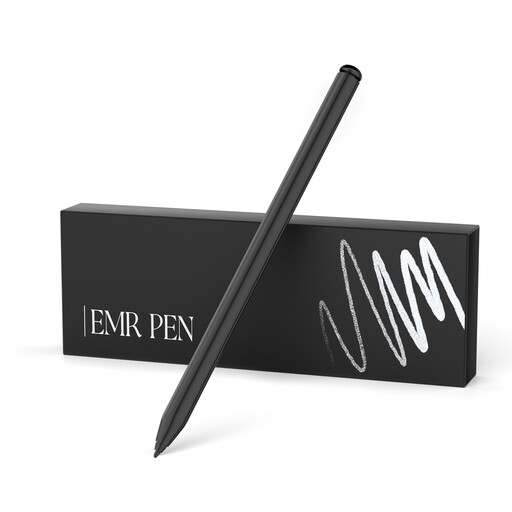
EMR stylus for reMarkable 1 and 2 and Kindle Scribe
For the reMarkable and Kindle Scribe devices listed in the product name; check compatibility with your model.
The product description lists 4,096 pressure levels, palm rejection, magnetic attachment, five replacement tips and a tool for changing the tip. According to the product information, the stylus isn’t compatible with reMarkable PAPER PRO.
View on Joybuy
 No image available
Stylus for Microsoft Surface, 4,096 pressure levels
For the Surface models listed in the product name; check whether your exact device variant is included before buying.
The title and description list 4,096 pressure levels, tilt support, palm rejection, and eraser and right-click functions. Surface Laptop Go and Surface Laptop SE are explicitly excluded.
View on Joybuy
 No image available
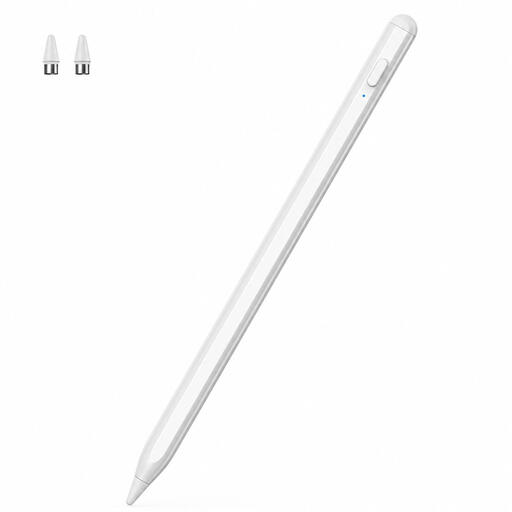
Touchscreen stylus for iOS and Android devices
For sketching on compatible capacitive smartphones and tablets; the product description lists iOS and Android devices.
The description lists a POM tip, two replacement tips and a USB-C charging cable. Charging takes 30 minutes, with up to ten hours of use.
View on Joybuy
 No image available
Stylus for iOS and Android touchscreens
The product information lists drawing and note-taking on iOS and Android touchscreen devices. Check compatibility with your exact device.
View on Joybuy
Frequently asked questions
Is ‘suitable for tablets’ enough information?
No. Check the exact tablet model and stylus version against the manufacturer’s compatibility list. For the Bamboo Ink Plus, the compatible Windows device and its Active ES or MPP protocol must also match.
How do you pair and charge the Apple Pencil (USB-C)?
According to Apple’s instructions, connect the stylus to a compatible iPad using a USB-C cable, then tap ‘Tap to Connect’ to pair it. Leave it connected by cable to charge; Apple describes the magnetic attachment on this model as a way to store it.
What should you check if a stylus tip is worn?
Check that the replacement tip fits your exact stylus model, and follow the instructions for changing it. Wacom includes a set of tips with the Bamboo Ink Plus; according to Wacom, usability also depends on the third-party device.
What rights apply to private online purchases in Germany?
For a distance-selling contract with a business, you generally have a 14-day right to cancel from the date of delivery; exceptions and possible return costs may apply (Your Europe – European Union). According to this EU consumer information, faulty goods are generally covered by a legal guarantee of at least two years from receipt. This is separate from a voluntary manufacturer’s warranty.


