What should you look for when choosing?
First decide how you’ll connect the second screen. Then choose a stylus that works with your exact device model and preferred app workflow.
Compatible iPad with Apple Pencil and Mac
A good fit if: You have a compatible Mac and an iPad that supports Sidecar, and want to show Mac content on your iPad or use an Apple Pencil in supported Mac apps. Apple Support describes Sidecar as an extended or mirrored Mac display.
Bear in mind: Sidecar requires compatible devices and the same Apple Account on both. Pencil compatibility also depends on the iPad model. When you insert a PSD into an existing image, Procreate imports it as a flattened image.
Galaxy Tab as a second screen for Windows
A good fit if: You want to use a Windows computer and a supported Galaxy Tab as an additional display with stylus input. Samsung Germany specifically describes this setup for the Galaxy Tab S11 Ultra.
Bear in mind: The Second Screen feature listed for the Tab S11 Ultra isn’t automatically available on every Galaxy Tab. Also check that the S Pen you want is compatible with your exact tablet and whether it’s included in the box.
Wacom One pen display connected to a computer
A good fit if: You create your collage on a computer and want to work directly on an additional drawing display. The Wacom One Standard Pen is designed for the Wacom One devices listed by Wacom.
Bear in mind: The pen display needs to connect to a compatible computer. Wacom notes that the main device alone doesn’t include a pen in the documented configurator, so check the bundle you choose.
Pen-enabled Surface with an external monitor
A good fit if: You already own a supported Surface and want to edit your collage on its screen while viewing references on a connected monitor.
Bear in mind: Microsoft lists pen features by model, and charging methods and features can vary by device and accessory. You’ll need to set up the monitor connection separately.
Lenovo Tab P12 Pro with Precision Pen 3
A good fit if: You already own a Lenovo Tab P12 Pro and are looking for a compatible replacement stylus. Lenovo lists pressure levels and tilt detection for the Precision Pen 3.
Bear in mind: The listed stylus compatibility doesn’t confirm that the Tab P12 Pro can work as a second computer screen. Check the screen setup separately.
| Buying priority |
What to check before buying |
Who is this important to? |
| Connecting two screens |
Check the operating system, exact tablet model and supported connection method. Apple Support and Samsung Germany describe screen features that are specific to particular devices. |
If I want to use my canvas and references on separate displays, the second device must support the screen setup I need. Around 40% of consumers have this as their main priority. |
| A stylus that works with my device |
Compare the full tablet or display model name with the relevant manufacturer’s compatibility information. |
I want to buy a replacement stylus without replacing my existing device. Around 30% of consumers prioritise finding the right stylus and device combination. |
| Editing imported elements later |
Check the app documentation for supported import formats, layer preservation and stylus input requirements. Procreate describes different ways to import PSD files. |
If I want to keep editing image files in a collage, my app’s import method needs to preserve the layers I need. Around 20% of consumers have this as their main priority. |
| A complete setup, not just a stylus |
Check what’s included, the connections you’ll need and any charging accessories required for the specific version. Wacom and Microsoft describe differences by model or configuration. |
I don’t want to find out after buying that I need to add missing parts to my drawing setup. Around 10% of consumers prioritise getting a complete setup. |
Key brands to consider
The styluses and screen setups listed here are for specific product ranges and device models, not every product from each brand.
Apple
Apple Pencil models for specifically supported iPads. Sidecar can use a compatible iPad as an extended or mirrored Mac display.
- Apple lists features including pressure and rotation controls for Apple Pencil Pro.
- Check iPad compatibility and Sidecar requirements separately. The feature information comes from Apple, not an independent performance comparison.
Samsung
S Pen models for supported Galaxy Tabs. Samsung describes the Galaxy Tab S11 Ultra as supporting stylus input in Second Screen mode with Windows.
- Samsung lists compatible devices for the S Pen EJ-PX730 and describes drawing on the Tab S11 Ultra in Second Screen mode.
- These details don’t automatically apply to other Galaxy Tabs or S Pen versions.
Wacom
Wacom One Standard Pen for specific Wacom One pen tablets and displays in a computer-based drawing setup.
- Wacom lists battery-free EMR input and two side switches for the Standard Pen.
- In the documented display configurator, you’ll need to select a compatible pen or already own one. Also check the connections and what’s included.
Microsoft
Surface pens for selected Surface devices, if you’re creating your collage on a pen-enabled Windows device and adding an external monitor.
- Microsoft lists pressure, tilt and other pen features by model.
- Charging methods and features vary by device and accessory. Connecting an external monitor is a separate requirement.
Lenovo
The Precision Pen 3 is a device-specific replacement stylus option for the Tab P12 Pro listed by Lenovo.
- Lenovo lists 4,096 pressure levels and tilt detection for this stylus.
- These details don’t establish universal Lenovo compatibility or confirm that the Tab P12 Pro supports a second-screen feature.
Joybuy products for drawing
This selection includes styluses for drawing on compatible iPads and touchscreens. Check screen connectivity, app support and compatibility with your exact device separately.
 No image available
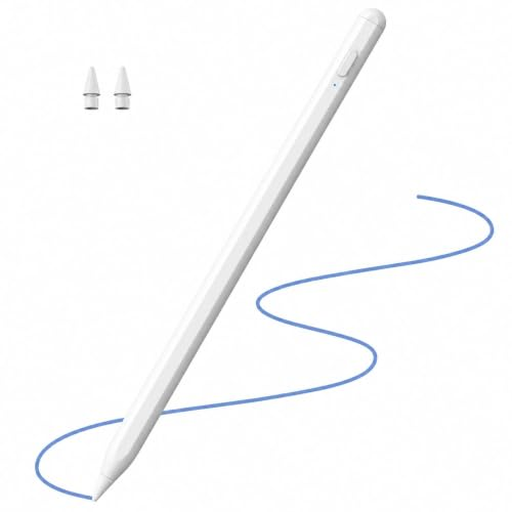
ZSPEED Wireless Charging Stylus Pen for iPad
For drawing and shading on the iPad models listed in the product title. The product description mentions Palm Rejection and Tilt Sensitivity.
The title lists iPad Pro 11-inch (1st to 4th generation), iPad Pro 12.9-inch (3rd to 6th generation), iPad Air 4 and 5, and iPad mini. The description mentions magnetic charging and replacement tips.
View at Joybuy
 No image available
Stylus for Apple iPad, 2X Fast Charging
For drawing on compatible iPads. The product description mentions Palm Rejection and Tilt support.
The title lists iPad models from 2018–2026. For charging, the description specifies a 5 V USB adapter and recommends disconnecting the stylus once fully charged. Keep it away from heat and moisture.
View at Joybuy
 No image available
Active Stylus Pen with Dual-Touch Function
For drawing or writing on compatible touchscreens. The product description also lists touch navigation as a use.
The product title lists iOS and Android touchscreens and a rechargeable design. Check that it supports your exact device.
View at Joybuy
 No image available
iPad Stylus with USB-C Charging Port
For drawing and sketching on selected compatible iPad models. The product description mentions Tilt Detection and Palm Rejection.
The title lists USB-C charging and an LED battery indicator. According to the description, the magnetic attachment is for storage only; wireless charging isn’t supported. Check compatibility with your exact iPad model.
View at Joybuy
Frequently asked questions
Is a compatible stylus all I need to use my tablet as a second screen?
No. Sidecar requires a compatible Mac and iPad model, and the same Apple Account on both, as described by Apple Support. Samsung Germany documents Second Screen with stylus input for the Galaxy Tab S11 Ultra and a Windows computer. Check screen functionality and stylus support separately.
Will all the layers be preserved when I insert a PSD into Procreate?
Not if you insert the PSD into an existing image: according to the Procreate handbook, it’s added as a flattened image. To preserve the layers, the handbook recommends importing it through the Gallery.
How do I connect and charge an Apple Pencil with USB-C?
Apple explains that you can pair and charge it by connecting the Apple Pencil to a compatible iPad with a USB-C cable. First, check Apple’s compatibility list for your iPad model.
Which accessories should I check before buying?
Check what’s included with the specific version. The main device alone doesn’t include a pen in Wacom’s documented One configurator. With a Surface Slim Pen, the charging method and accessories you need may depend on your existing device and accessories.
What return and warranty rights apply when buying online?
Consumers buying online in the EU generally have a 14-day right to cancel from the date they receive the goods, subject to legal exceptions, as explained by Your Europe, the European Union’s consumer portal. The portal also describes a statutory minimum guarantee of two years from receipt. A voluntary manufacturer’s warranty doesn’t replace these rights.


