What should you look for when buying?
Start by checking stylus compatibility and how you’ll connect to the classroom display. Then consider app features and what’s involved in setting up your complete workspace.
| Priority |
What to check before buying |
Who is it most relevant for? |
| Compatibility with your existing device |
Compare the exact tablet model and stylus version with the information provided by Apple Support, Samsung Germany or the stylus brand. |
If I want to keep using my tablet, the stylus needs to be an exact match. Around 29% of consumers put compatibility first. |
| How you’ll use two screens |
Decide which device will run the geometry app and whether you want to mirror or extend the display. Apple Support and Samsung Germany describe different device combinations and requirements for this. |
If I want to construct on one screen and show something else on the other, I need a mode that works with my devices. Around 29% of consumers prioritise a two-screen setup. |
| Constructing and explaining geometry |
Check that the app you plan to use has the construction and annotation features you need. GeoGebra describes tools for geometric objects; STAEDTLER notes that pressure-sensitive line variation depends on the app. |
If I want to construct and label figures in class, the app and stylus input need to suit the way I work. Around 24% of consumers make this their priority. |
| Complete setup and ongoing use |
For the exact model, check how it charges, which connection accessories you need and whether the nibs are replaceable. Apple describes USB-C charging for the Apple Pencil (USB-C); STAEDTLER says the Noris digital classic doesn’t need charging or pairing. |
If I want to set up a complete teaching workspace, I need to know which devices and accessories are involved. Around 18% of consumers pay particular attention to the setup and ongoing requirements. |
Joybuy products
The Joybuy options below include styluses for tablet use. Before choosing one, check the stated device compatibility and make sure it fits the screen setup you need.
 No image available
Stylus for iPad, USB-C, 2018–2026
May be suitable for an iPad you already own; check your exact iPad model against the stylus compatibility information before buying.
It’s listed for iPad models from 2018 to 2026, and the product name mentions USB-C fast charging.
View at Joybuy
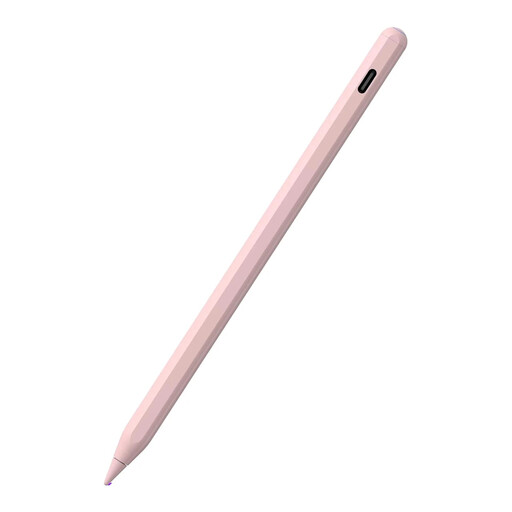 No image available
ZSPEED Stylus for iPad, pink
Described as an option for writing and sketching on an iPad; check whether your exact model is included.
Listed models include the iPad Pro 11″ generations 1 to 4, iPad Pro 12.9″ generations 3 to 6, iPad Air 4/5 and iPad mini 5/6. According to the product information, not all compatible iPad models support magnetic charging.
View at Joybuy
 No image available
Active Stylus Pen for iOS and Android, Dual Touch
Could be worth considering for writing and drawing on the touchscreens named in the product title; confirm compatibility with your specific device.
The product name mentions a dual-touch function and a rechargeable design.
View at Joybuy
 No image available
Stylus for iPad with USB-C charging port
Available for selected iPad models; check that your exact device is supported before buying.
The product name mentions a USB-C charging port, tilt recognition, palm rejection, magnetic attachment and an LED battery indicator.
View at Joybuy
 No image available
VoxorAI HL-U05 White Pen
Offered as a stylus for the systems and device families named in the product title; check compatibility with your specific tablet.
The product description says setup involves downloading an app via QR code and pairing through the app.
View at Joybuy
Frequently asked questions
Can I use any tablet stylus to write on my iPad or Galaxy Tab?
No. Compatibility depends on the exact tablet model and stylus version. Apple Support lists compatible Pencil models by iPad, while Samsung assigns replacement styluses to specific Tab series. Check the full model names before choosing.
How can I show my geometry construction on a second screen?
If you’re working on an iPad, Apple Support explains how to connect it to an external display or projector using a suitable cable or adapter. If you want to use a tablet as a second computer screen, options include Sidecar for compatible Mac and iPad combinations, or Samsung’s Second Screen for supported Galaxy Tab and Windows setups. First, check which option works with your teaching setup and devices.
Do I need to plan for charging accessories or replacement nibs?
It depends on the model. The Apple Pencil (USB-C) pairs and charges via USB-C; STAEDTLER describes the Noris digital classic as not needing charging or pairing, and lists replaceable nibs. For other models, check the charging method and what’s included.
Can I use an online geometry platform in class with pupils’ personal data?
There isn’t a blanket yes-or-no answer for every service and type of data processing. In guidance published on 26 April 2018, the Data Protection Conference addresses online learning platforms in school lessons. Discuss your planned use and obtain approval from the relevant school or education authority.


