Start by checking the exact tablet model and the stylus technology it supports – a fine tip alone doesn’t guarantee compatibility. If you’re creating your own lettering, check that pressure or tilt input works in the design app you plan to use. A simpler compatible stylus may be enough for clean, consistent outlines. At a shared desk, charging, pairing and storage matter too, while bleed and print margins are set up in your design software.
Finding the right stylus for your needs
Lettering and illustration creators
If you create your own lettering or illustrations, check not only that the stylus works with your tablet, but also that it and your app support the line variation you want. Apple describes pressure, tilt and rotation features for Pencil Pro; Samsung lists pressure levels for the S Pen EJ-PT730 on the Galaxy Tab S7 FE.
Design teams sharing a desk
If you take turns designing, charging requirements, pairing and having a handy place to put the stylus can make it easier to switch between sessions. STAEDTLER describes the Noris digital as requiring neither a battery nor pairing; other models have their own charging and storage requirements.
Template editors
If you mostly edit text, clean outlines and annotations, pressure sensitivity may matter less than finding a stylus that’s compatible with your device. For printing, check the app, export settings and printer’s requirements separately.
What to look for when choosing
First, check your tablet against the full stylus model. Then decide which input features will help with your lettering and how charging and print preparation fit into your workflow.
| What matters |
What to check before buying |
Who is this most important to? |
| Compatibility |
Check your exact tablet model and software version against the compatibility list for the full stylus model. STAEDTLER requires an EMR display for the Noris digital; Wacom lists compatible Windows devices with AES or MPP for the Bamboo Ink Plus. |
If I’m looking for a stylus for a tablet I already own, I want to make sure it will work at all. Around 36% of consumers say device compatibility is their main concern. |
| Variable strokes |
Check whether the specific model supports pressure and tilt input, and whether your drawing app supports the feature you want. Logitech describes the Crayon 914-000034 as not pressure-sensitive. |
When creating lettering, I want to vary my strokes deliberately rather than relying on a fine tip alone. Around 29% of consumers make variable lettering their main consideration when choosing a stylus. |
| Sharing |
Check the charging port, pairing process and storage options for the exact model. STAEDTLER describes the Noris digital as requiring neither a battery nor pairing; the Logitech Crayon model 914-000034 has a Lightning charging port. |
If we take turns using the stylus, I want to be able to pick it up again quickly after a break and put it away neatly. Around 21% of consumers say easy handovers at a shared desk are their main concern. |
| Print preparation |
Get the printer’s requirements and check bleed and export settings in the design software you plan to use. Adobe explains bleed for designs that extend to the edge of the page; it isn’t a stylus feature. |
For my invitation, what matters is being able to export the finished design as a suitable print file. Around 14% of consumers say the move from design to print file is their main concern. |
Common assumptions to avoid
-
Assuming a fine tip means pressure sensitivity
A fine tip doesn’t tell you whether a stylus responds to lighter or heavier pressure. Logitech describes the Crayon 914-000034 as not pressure-sensitive, while Apple and Samsung list pressure features for certain models.
First, consider whether you need pressure variation or whether fixed lines, or lines that change with tilt, will do the job.
-
Assuming similarly named versions are identical
Differences in model number, charging port and display technology can determine whether a stylus works with your tablet. The STAEDTLER Noris digital requires an EMR display, and Crayon models also differ.
Check the full model number, connector and display technology rather than relying on the product family name alone.
-
Expecting the stylus to handle all your print preparation
A compatible stylus won’t automatically create a print-ready file. For designs that extend to the edge of the page, bleed and export settings need to be prepared in your design software in line with the printer’s requirements.
Get the printer’s specifications and check the app, export settings and bleed separately from your choice of stylus.
Brands to consider
Apple
Apple Pencil Pro is designed for certain iPads and offers pressure, tilt and rotation features for drawing.
- Apple lists these features, along with magnetic pairing and charging, for Pencil Pro.
- Compatibility is limited to certain iPads and the required iPadOS version. Check separately whether your particular design app supports these features.
Samsung
The S Pen replacement stylus EJ-PT730BBEGEU is designed for the Galaxy Tab S7 FE.
- Samsung lists 4,096 pressure levels for this model and says it attaches magnetically to the Tab S7 FE.
- This doesn’t mean the same replacement stylus works with every Galaxy Tab model.
Logitech
The Crayon is an iPad stylus for sketching and annotations; model number 914-000034 identifies the Lightning version.
- Logitech describes tilt input and use without a complicated pairing process.
- The instructions don’t list pressure sensitivity for this version. Factor charging and tip wear into your plans for sharing it.
STAEDTLER
The Noris digital and Noris digital jumbo are designed for compatible displays with an EMR digitiser.
- STAEDTLER describes the styluses as requiring neither a battery nor pairing, and as supporting pressure-sensitive input.
- Your specific display must support EMR. Pressure response and the jumbo’s digital eraser function also depend on the app you use.
Wacom
The Bamboo Ink Plus is an option for compatible Windows tablets with AES or MPP stylus input.
- Wacom lists both stylus protocols as requirements for compatible devices.
- Functionality depends on the hardware and system software; Wacom says Apple products aren’t compatible.
Joybuy products for different tablets
The Joybuy styluses below are designed for different tablet systems and input methods. Before buying, check your exact device model against the information for each stylus.
 No image available
Stylus for Android and HarmonyOS touchscreens
The product details list drawing and note-taking as possible uses, as well as double-tap controls without Bluetooth pairing.
According to the product details, it isn’t designed for iPad, Microsoft devices or some Lenovo tablets.
Joybuy
 No image available
ZSPEED stylus for selected iPads
The product description lists tilt input for drawing and shading, as well as palm rejection.
The listed version has a 1.0 mm tip and supports magnetic pairing and charging. Compatibility and charging depend on the iPad models supported.
Joybuy
 No image available
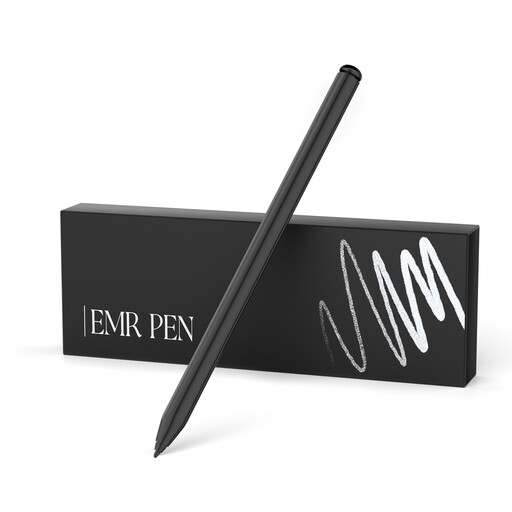
EMR stylus for reMarkable 1 and 2, and Kindle Scribe
For pressure-sensitive strokes on a compatible device, the description lists drawing and sketching as possible uses.
It lists 4,096 pressure levels, palm rejection and replacement tips; according to the description, it doesn’t need charging. It isn’t compatible with reMarkable Paper Pro or other devices.
Joybuy
 No image available
Stylus for selected Microsoft Surface devices
The product description lists sketching and drawing as possible uses, along with pressure and tilt input.
It lists 4,096 pressure levels, palm rejection and magnetic attachment. It isn’t compatible with Surface Laptop Go 1/2/3 or Surface Laptop SE.
Joybuy
 No image available
Stylus with USB-C charging for selected iPads
The product description lists drawing and illustration as possible uses, along with tilt input and palm rejection.
According to the description, magnetic attachment is for storage and doesn’t support wireless charging. Check the listed iPad models for compatibility.
Joybuy
Frequently asked questions
Will any tablet stylus work with any tablet?
No, the stylus needs to match the exact device version. Apple lists compatible iPads by Pencil generation, STAEDTLER requires an EMR display for the Noris digital, and Wacom lists compatible Windows devices with AES or MPP for the Bamboo Ink Plus.
Does the stylus need charging or pairing before we can use it together?
It depends on the model. STAEDTLER describes the Noris digital as requiring neither a battery nor pairing; the Logitech Crayon model 914-000034 has a Lightning charging port and, according to the instructions, doesn’t need pairing. Check the full model before setting aside a place to charge it.
How do I prepare a full-bleed invitation for printing?
Set up bleed in your design software and follow your printer’s requirements. Adobe explains that bleed helps prevent white edges after trimming designs that extend to the edge of the page; the stylus doesn’t set this up for you.
What are my rights when buying online in Germany if I need to return an item or it’s faulty?
When buying online from a retailer, consumers generally have a 14-day right to cancel from the day they receive the goods; exceptions and possible return costs may apply. If an item is faulty, your statutory rights are against the seller. A manufacturer’s guarantee is separate and is an additional voluntary benefit.


