Team planners working in different locations
You want to open tasks and files between client appointments, then share your changes with the team. Check that connectivity and access at your work locations suit the way your team works.


A tablet is a good choice for planning as a team between client appointments only if the team app you actually use supports the files and editing steps you need. Test your workflow with a typical file, including collaborative editing, syncing after a connection interruption and any offline work. Then choose between easier portability, more screen space or a suitable keyboard and stylus; if you handle client data, your planned workflow must also be secure.
You want to open tasks and files between client appointments, then share your changes with the team. Check that connectivity and access at your work locations suit the way your team works.
If you’re assigning tasks, editing documents or commenting on plans, you’ll need a keyboard or stylus that works with your app. Also check whether the accessories you need are included with your chosen version.
If you process personal information, both the device and your mobile working practices need to meet your organisation’s requirements. Germany’s Federal Office for Information Security points out that mobile workspaces may not have the same IT security infrastructure as office premises.
First, test your team’s files and apps using the workflow you intend to follow. Germany’s Federal Office for Information Security notes that mobile working involves different security conditions from working in an office.
| Consideration | What to check before buying | Who is it most important for? |
|---|---|---|
| Team files and collaborative workflows | Open a typical file using your team account, edit and share it, then check that it syncs after a connection interruption. | I want to edit files with my team and reliably sync changes later. Around 31% of consumers put access to team files first. |
| Portability and access on the go | Compare the weight of the exact device version, including accessories; check whether Wi-Fi, mobile data or an offline workflow suits the places you work. | When there’s little time between appointments, I want a tablet that’s easy to take with me and lets me access my files at the work location. Around 25% of consumers prioritise portability and access. |
| Text input and screen space | Check stylus and keyboard compatibility, as well as what’s included; try a typical task in the app you plan to use. | I need input that works with my app for assigning tasks, adding comments and updating plans. Around 25% of consumers put editing and input first. |
| Protecting client data | Check access protection, updates and the approved mobile workflow with the organisation responsible. | When I handle clients’ personal data, my workflow must meet my organisation’s requirements. Around 19% of consumers prioritise protecting this kind of data. |
Stylus support and what’s included in the box are two different things. You may need to buy a compatible stylus separately.
Before relying on handwriting input, check accessory compatibility and what’s included with the exact model version.
More screen space can make it easier to compare documents, but it takes up more room when you’re moving between locations. Apple lists the iPad Air M4 Wi-Fi at 464 g for the 11-inch model and 616 g for the 13-inch model; these figures are for the devices without accessories.
Compare a typical planning view and remember to factor in the kit you’ll actually need to carry.
A mobile data connection doesn’t guarantee reliable reception at every work location or offline functionality in your app.
Test a real team file with the connection interrupted and check how changes sync later. Depending on where you work, you may also need a mobile data plan or an extra charger.
The iPad Air M4 comes in two sizes, so you can choose between easier portability and more screen space.
The Galaxy Tab S11 is an 11-inch option, while the Galaxy Tab S12+ gives you more screen space.
The Surface Pro is a Windows 2-in-1 to consider if your workflow requires Windows or relies mainly on keyboard input.
The Yoga Tab Plus is a large-screen Android option for anyone looking for more screen space.
The Pad 7 and Pad 8 ranges are other options to explore if you need stylus and keyboard input.
The Joybuy models below include a Windows 2-in-1 and Android tablets with keyboard, stylus or mobile data features. Before choosing, check that the team app you need and your planned workflow are compatible with the specific version.
 No image available
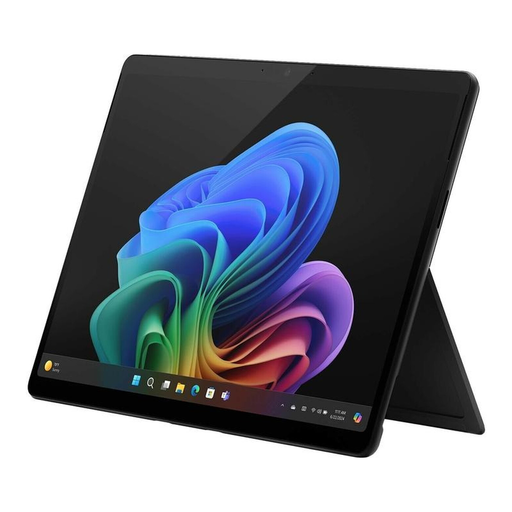
This 2-in-1 is worth considering if your workflow requires Windows 11 Pro; check that it’s compatible with the specific team app you use.
13-inch OLED touchscreen, Core Ultra 7 266V, 16 GB RAM, 512 GB SSD, Wi-Fi 7 and two Thunderbolt 4 USB-C ports.
 No image available
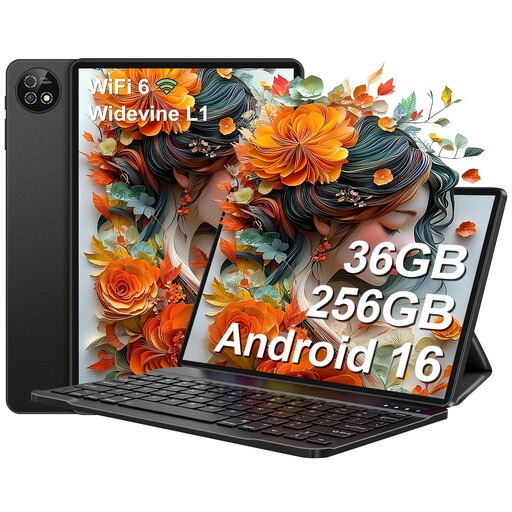
The keyboard set could come in handy for typing on the go, provided your team app works on this Android version.
The title lists 256 GB ROM, support for up to 1 TB of TF storage, Wi-Fi 6 and GPS. Check that the app has the features you need for your planned offline use.
 No image available
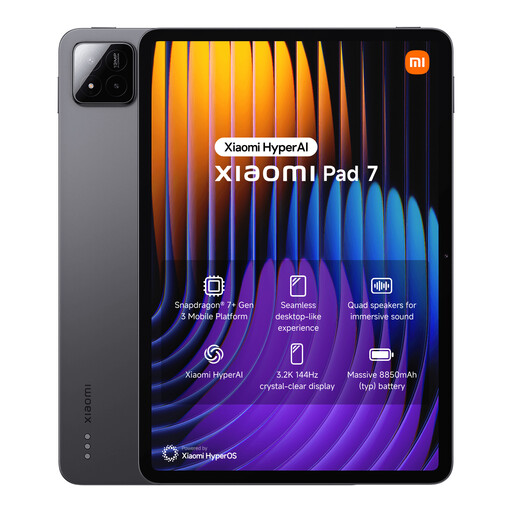
The keyboard listed in the title is useful for updating plans and typing longer texts on the go; check that the team app works as you need it to on this model.
3.2K display with a 144 Hz refresh rate and an 8850 mAh battery.
 No image available
If you need to add handwritten comments and use mobile data on the go, the stylus and Dual SIM 4G LTE could suit your workflow; check app compatibility.
13.4-inch display, 2K resolution, 256 GB storage and a 10,000 mAh battery. The title also lists 20 GB RAM, including 12 GB virtual RAM.
 No image available
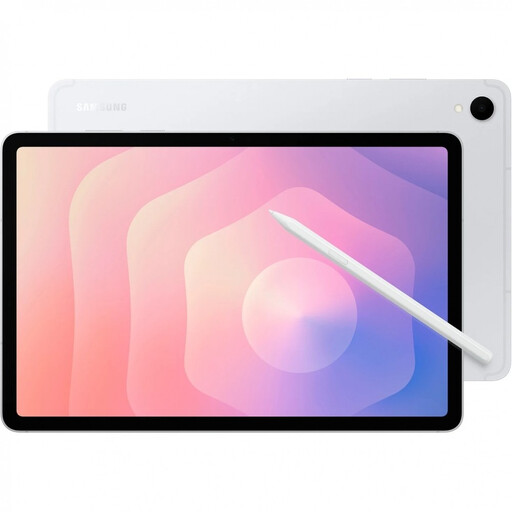
The S Pen mentioned in the product description and 5G could be useful for taking notes and getting online on the go; check that the team app you need works with this version.
11-inch tablet with 12 GB RAM, 128 GB storage and 5G.
No. A mobile data version can’t replace offline functionality in your team app. Before relying on mobile working without a stable connection, test a typical file and check how it syncs later using the app you’ll actually use.
It depends on the model and the version you choose. Samsung lists an S Pen as included with the Galaxy Tab S12+, while Microsoft lists the Surface Keyboard and Slim Pen as sold separately. Check accessory compatibility, what’s included and the input features available in your app.
A model name alone doesn’t mean a device is automatically approved for handling client data. The General Data Protection Regulation protects personal data during processing, and Germany’s Federal Office for Information Security highlights security requirements for mobile working. Check with the organisation responsible to confirm that the device, app and workflow are approved.
Germany’s Federal Office for Information Security recommends updating your operating system and apps promptly, enabling automatic updates or checking for updates regularly. If you use the tablet for work, you must also follow your organisation’s requirements.
Use the specific app and a typical team file to test the entire workflow: open it, edit it with your team, sync changes and, if needed, continue working offline. Also check that the file formats, accessories and access requirements set by your organisation are all suitable.