Teachers with large resource archives
If you’re backing up extensive project folders that have built up over time, you’ll need enough storage and a clear backup routine. The BSI recommends allowing enough storage space for backup copies.


For large teaching archives that rarely change, an external HDD is an obvious choice if it has enough capacity for your planned backup versions. If you regularly transfer large files or carry the drive around, a portable SSD may be a better fit. Whichever drive you choose, make sure the connections are compatible, your backup routine is set up and you’ve tested a restore. Germany’s Federal Office for Information Security (BSI) recommends checking that backups are complete and readable. If your files contain personal data, you’ll also need to check which safeguards are required in your particular school context.
If you’re backing up extensive project folders that have built up over time, you’ll need enough storage and a clear backup routine. The BSI recommends allowing enough storage space for backup copies.
If you regularly copy large working folders, make sure backup times fit into your workflow. Manufacturer speed claims shouldn’t be taken as a substitute for checking how the drive performs with your devices and files.
If folders may contain personal information, it’s important to consider not just the drive, but also which safeguards and data-handling processes the responsible authority has set for your school context.
When choosing a drive for large teaching folders, consider your actual storage needs, how often you copy files, how you handle sensitive content and how you’ll restore your data. The BSI recommends checking occasionally that backups are complete and readable.
| What matters | What to check before buying | Who will find this especially important? |
|---|---|---|
| Space for large archives | Work out how much space your folders and planned backup versions will need, then choose a suitable capacity. | As my resource archive grows, I want to allow space for several backup versions too. Around 33% of consumers put having enough storage for large folders first. |
| Copying time | Check that the connection and cable work with your computer; don’t assume advertised maximum speeds are guaranteed backup speeds. | When files change frequently, I want to back up large folders without losing track of long copying times. Around 27% of consumers prioritise waiting time when copying files repeatedly. |
| Protecting sensitive content | Check with the responsible authority which uses and safeguards are required; set up encryption appropriately if needed. | If project folders may contain personal information, I want to check the safeguards required in my school context first. Around 20% of consumers put protecting this kind of content first. |
| Restoring files | Check your operating system, backup method and connection; test backing up and restoring a project folder. | I want to know before a failure whether the folders I need have actually been backed up and can be restored. Around 20% of consumers prioritise reliable data recovery. |
Otherwise, missing project folders or unreadable files may not come to light until you need them.
Make a list of the folders you need to back up, then test restoring one file and a whole project folder.
Setting things up and carrying out regular restore tests takes extra time.
The speed of up to 1,050 MB/s quoted by Samsung for the T7 Shield isn’t a measurement of a complete backup using your folders and computer.
Check that the connection and cable work with your computer, and consider how often you actually transfer large files.
A product feature doesn’t determine which data-handling processes and safeguards are required in your particular school context.
If your files contain personal information, check the requirements with the responsible authority and set up any required encryption appropriately.
Agreeing the requirements, setting things up and managing access can all take extra time.
WD Elements Portable is a portable HDD range for backups that need plenty of storage.
Canvio Basics is a portable HDD range for larger collections of teaching resources.
Expansion Portable is a USB-powered HDD option for a backup drive you can carry with you.
The Portable SSD T7 Shield 2 TB is an SSD option for frequent transfers and carrying project folders around.
The X9 Portable SSD 2 TB is a compact SSD option for project folders.
The following Joybuy listings are external WD HDDs for large folders: portable models for carrying around and desktop drives for stationary archives.
 Image unavailable
For large or growing project archives when a portable HDD fits your backup routine.
5 TB; USB-C; USB 3.2 Gen 1; 2.5 inches; 240 g; described as compatible with Windows and Mac.
Image unavailable
A portable HDD option for backing up a large resource archive and carrying the drive around.
4 TB; USB-C; USB 3.2 Gen 1; 2.5 inches; 240 g; described as compatible with Windows and Mac.
 Image unavailable
For a portable backup, if 2 TB is enough for the project folders you’ve chosen.
2 TB; USB-C; USB 3.2 Gen 1; 2.5 inches; exFAT; described as USB-powered.
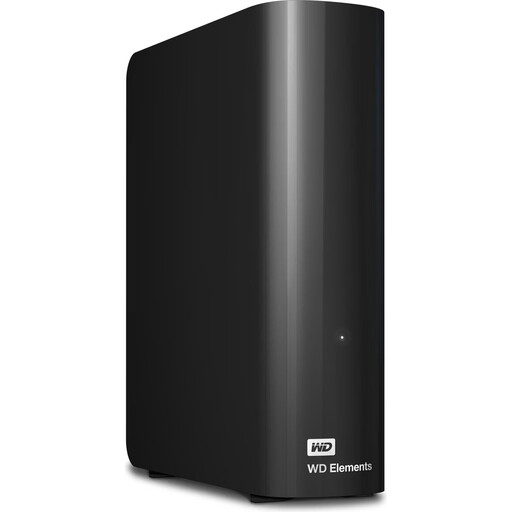 Image unavailable
For a large archive that you want to back up on a stationary external desktop drive.
24 TB; USB 3.2 Gen 1; described as including a USB-A cable and power adapter. The included power adapter is required for use.
 Image unavailable
For a larger stationary archive when the drive will stay in one place for backups.
8 TB; USB 3.0; described as formatted in NTFS and designed for Windows. Requires an external power adapter; the description states that reformatting is required for macOS.
Copying files once isn’t a substitute for a regular backup routine. Check occasionally that the folders you need are all there and that the files can be read; the BSI recommends these checks.
Microsoft explains that you can add folders in other locations to an existing or new library for File History. Afterwards, check that the folders are included in a backup and can be restored.
Apple lists an external storage device connected to a compatible Mac port as a possible backup destination. Check the connection and setup on your Mac; Apple also explains how to encrypt a locally connected backup volume.
The guidance referred to here doesn’t set a blanket requirement for every teaching folder. If personal data is being processed, Article 32 of the GDPR requires technical and organisational measures appropriate to the risk. The responsible authority should clarify which measures are required and whether an external drive can be used in your particular school context.
Check the terms for the specific drive and country. Seagate notes that the data recovery services mentioned in its specifications aren’t available everywhere; an offer of this kind is no substitute for a backup you can check.