What to look for when buying
First, decide whether image checking, timeline space or switching between computers is the biggest constraint on your workflow. Then check that the connections and screen position suit your specific workspace.
| Buying priority |
What to check before buying |
Who is this important to? |
| Image detail and colour checking |
Native resolution and colour mode for your planned SDR output format; also consider your intended calibration process. |
When I assess fine image detail and colour grading, I want to be able to set up the preview and SDR output appropriately. Around 29% of consumers prioritise image detail and colour checking. |
| Space for editing panels |
Check the window layout, aspect ratio and pixel count alongside text scaling and your preferred preview size. |
For longer lessons, I want to arrange video, audio and subtitle tracks side by side without losing sight of the preview size. Around 29% of consumers prioritise timeline space. |
| Switching between computers and peripherals |
Check the video output, cable and USB connection for each computer; only consider KVM if you really need to switch between computers and shared devices. |
When several computers share the same workspace, I only want to switch peripherals between them if my setup requires it. Around 21% of consumers consider switching between computers their top buying priority. |
| Adjustable position for different users |
Check the adjustment range and desk space; if you plan to use a different mount, check the mounting specification of the exact model. |
When different people work at the same desk, I want to be able to adjust the screen position. For around 21% of consumers, adjustability is the main priority. |
Brands and model ranges to consider
The model ranges listed here illustrate different approaches to features; their inclusion is not a statement about availability or a recommendation for every team.
BenQ
The DesignVue range includes the PD2705U, a 27-inch 4K example with a Rec.709 mode, USB-C and KVM for an editing workspace where these features are needed.
- BenQ lists 99% Rec.709, a factory calibration report and 65 W USB-C Power Delivery for the PD2705U.
- These manufacturer specifications do not prove the colour accuracy of every individual unit, or that the charging power is sufficient for a particular laptop.
ASUS
The ProArt PA279CRV is a 27-inch 4K example with several colour modes, plus documented connection and adjustment options.
- ASUS lists a Rec.709 mode, 96 W USB-C Power Delivery and 130 mm of height adjustment among the PA279CRV’s features.
- According to CHIP’s review, this particular model has neither a KVM switch nor an Ethernet port; its recommendation is for image editing, not specifically teaching videos.
LG
The UltraWide 34U650A-B is a 21:9 example for teams who want to arrange editing panels side by side.
- LG lists this model as 34 inches, with 3,440 × 1,440 pixels and factory colour calibration.
- Its vertical pixel count is lower than that of 4K UHD, so check the preview size you want. Factory calibration does not prove that the entire workspace is accurate.
Dell
The U2725QE is a 27-inch 4K Thunderbolt hub example for a workspace where connections and integration with a compatible computer matter.
- Dell lists IPS Black technology, 4K UHD and an integrated USB hub for this model.
- These features apply to the model listed and cannot be assumed to apply to other UltraSharp monitors. Check your computer connection and the functions you need.
EIZO
ColorEdge models such as the CS2740 and CG2700X are designed for workflows where colour checking and calibration are explicit requirements.
- EIZO documents hardware calibration on the CS2740 and a built-in calibration sensor on the CG2700X.
- PRAD places its list of 27-inch graphics monitors in the professional high-end segment. These features are therefore not a universal minimum requirement for teaching videos.
Joybuy products
This selection includes wide displays for timelines and panels, as well as models with 4K resolution or features for a shared editing workspace.
 No image available
INNOCN 40C1U, 40-inch 5K ultrawide monitor
For teams who want to arrange timelines and panels on a wide screen.
5K at 5,120 × 2,160 pixels, IPS, 100 Hz and 21:9; also features USB-C with PD65W, PIP/PBP and a height-adjustable stand.
View at Joybuy
 No image available
INNOCN CB27U1, 27-inch 4K UHD monitor
For teams who want to assess image detail in a 4K preview and adjust the screen position.
3,840 × 2,160 pixels, IPS and 120 Hz; USB-C with 90 W PD, PIP/PBP and a height-adjustable stand.
View at Joybuy
 No image available
KTC M27P6, 27-inch 4K Mini LED monitor
For teams considering 4K resolution and KVM for switching between computers.
The title lists 4K at 160 Hz or FHD at 320 Hz, Type-C with 65 W, KVM and a height-adjustable stand.
View at Joybuy
 No image available
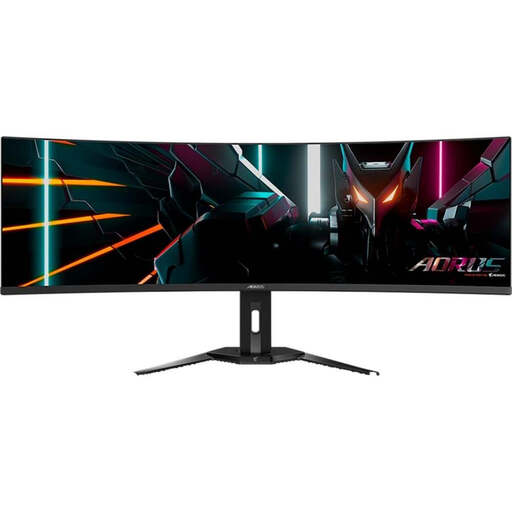
Gigabyte AORUS CO49DQ, curved OLED monitor
For teams weighing up a wide layout for editing panels and a KVM function.
The listed resolution is 5,120 × 1,440 pixels; the title also mentions KVM, PIP/PBP and 144 Hz. Its vertical pixel count does not match the 2,160 pixels of a 4K UHD preview.
View at Joybuy
 No image available
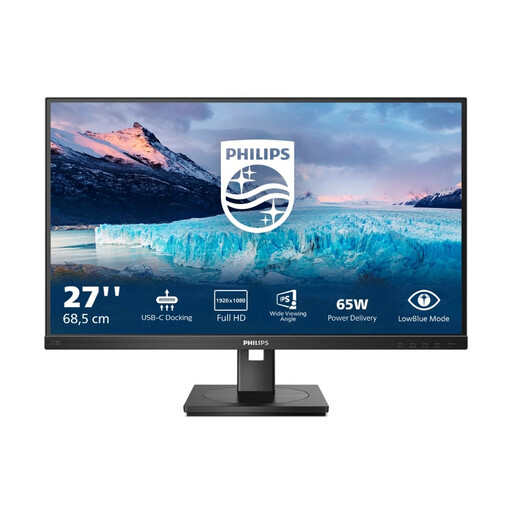
Philips 273S1, 27-inch Full HD IPS monitor with USB-C docking
For a shared workspace where USB-C docking and an adjustable screen position are useful.
1,920 × 1,080 pixels and 75 Hz; the title lists USB-C with 65 W, RJ45, USB hub, HDMI, DisplayPort and a height-adjustable stand. Full HD is not native 4K UHD resolution.
View at Joybuy
Frequently asked questions
Do I need an HDR monitor for every teaching video?
No, not just because of the type of video. First decide on your output format and colour management: Adobe distinguishes, among others, Rec.709 for SDR and HLG and PQ outputs. An HDR specification on its own does not tell you whether your particular preview is set up correctly.
How do I set up a second preview if I already have an editing monitor?
In Adobe Premiere, you can send the programme output to a second connected monitor using the playback preferences and ‘Enable Mercury Transmit’. Check that your computer supports the second output you want; these instructions apply to Premiere and not automatically to all editing software.
Is factory calibration enough if several people edit videos?
It can be a starting point, but it does not guarantee the display will look the same under every lighting condition and setting. If you need to make reliable colour decisions, keep the colour mode and ambient light consistent across the team, and consider taking measurements with a colorimeter; Adobe describes a colorimeter as a way to check colour objectively.
What ongoing costs and rights should I consider when buying?
Compare power consumption using the energy label for the specific monitor model; the European Union refers to EPREL for information on electronic displays. If a product is faulty, statutory rights against the seller should be distinguished from a voluntary guarantee. Whether a purchase is made as a consumer or a business is relevant when determining which rights apply.
Are there specific workplace rules in Germany for a shared editing workspace?
If the workspace is a display screen workstation in a workplace or a covered teleworking workstation, ASR A6 on display screen work is relevant to how the employer sets it up. The rule was drawn up by the Committee for Workplaces and is published by the Federal Institute for Occupational Safety and Health. The term ‘shared workspace’ alone does not mean these conditions apply to a purely private setup.


