Comparing plans at a fixed desk
If you keep two versions of a drawing open side by side, make sure there’s enough room to view both. BenQ and EIZO offer 31.5-inch 4K models; check in advance that the monitor and stand will fit on your desk.


If you regularly compare two technical drawings side by side and have enough desk space, a 31.5-inch 4K monitor is a sensible starting point. If space is limited, consider a 27-inch model. To charge a laptop through the same connection, its port, the monitor’s video input and the power delivery available all need to be compatible – and the monitor will still need its own mains connection.
If you keep two versions of a drawing open side by side, make sure there’s enough room to view both. BenQ and EIZO offer 31.5-inch 4K models; check in advance that the monitor and stand will fit on your desk.
If you want to send the video signal and charge your laptop through a single connection, your laptop, the monitor port and the cable all need to support this. BenQ specifies 90 W Power Delivery for the PD3205U, while EIZO specifies up to 94 W for the EV3240X.
If you check lines and annotations on a smaller desk, compare 27-inch 4K models at the scaling setting you actually use. Microsoft explains how to adjust resolution and scaling in Windows.
First compare the usable screen space for the drawings you work with, then check the laptop connection and readability at your preferred scaling. Finally, make sure the monitor and stand will fit in the space you have in mind.
Suitable if: you want to keep two plans, or one plan and its toolbars, visible at the same time and have enough desk space.
The trade-off: The larger screen needs more space, and a single-cable connection will only work with a compatible laptop and cable.
Suitable if: desk space is limited and you can read the screen comfortably at your chosen scaling. Dell describes the U2725QE as a 27-inch 4K Thunderbolt hub monitor.
The trade-off: The physical screen area is smaller than on a 31.5-inch model; higher scaling can mean less content is visible at once.
Suitable if: a more compact model with the ports your laptop needs will do, and you don’t need an extensive docking hub.
The trade-off: Check the charging power, other ports and screen-splitting features of the specific model; the Dell U2725QE’s features don’t automatically apply to the separate S2725QC.
| Buying priority | What to check | Who is this particularly important to? |
|---|---|---|
| Comparing two drawings | Open two typical files side by side at your usual zoom level and check the monitor width and stand against your desk space. | If I’m checking two versions of a plan at the same time, I want to be able to read both views, including the annotations. Around 29% of consumers put comparing plans side by side first. |
| Connecting a laptop with one cable | Check the laptop port’s video output, charging needs, the monitor’s Power Delivery output and whether the cable is suitable. | If you want to connect your laptop and charge it through one cable when sockets are limited, check that the devices are compatible. Around 29% of consumers prioritise connecting their laptop this way. |
| Reading lines and annotations | View a typical drawing from your usual working distance and at your planned operating system scaling. | If dimensions and fine lines need to be easy to make out, how they look at your chosen scaling matters. Around 24% of consumers put the readability of drawing details first. |
| Positioning the monitor at your desk | Check the dimensions with the stand, adjustment options and potential reflections where you plan to put it. | If desk space is limited or you need to position the screen for a particular seating position, measure up in advance. Around 18% of consumers prioritise space and screen position. |
Video, data and charging are separate functions. A USB-C port on its own doesn’t tell you whether all of them will work with your laptop.
Check your laptop port, the monitor port intended for this purpose, the stated charging power and the cable. Depending on the combination, you may still need your laptop charger or an additional dock.
The monitor will still need its own mains connection.
Resolution doesn’t determine how large text and controls appear on your desk. Scaling and the physical screen size affect how much content you can comfortably read at once.
Check two typical plans from your usual working distance and at your preferred scaling. Don’t compare 27-inch and 31.5-inch monitors on resolution alone.
A Power Delivery rating describes the power that can be supplied to a connected device, not how much energy the screen uses.
Consider charging power separately from the model-specific EU energy information. The monitor needs its own mains connection and uses electricity.
The PD3205U is a 31.5-inch 4K model with features for design and technical drawing work.
The FlexScan EV3240X is a 31.5-inch 4K office monitor that EIZO lists for CAD use.
Dell offers separate 27-inch 4K models with different connectivity options.
The Series 7 Pro 732pk is a 31.5-inch 4K option with Thunderbolt 4 docking.
The ThinkVision P32p-30 is a 31.5-inch 4K model with Thunderbolt connections.
The models below offer 4K options for larger and more compact workspaces. For USB-C charging, make sure your laptop is compatible and the power output is sufficient.
 No image available
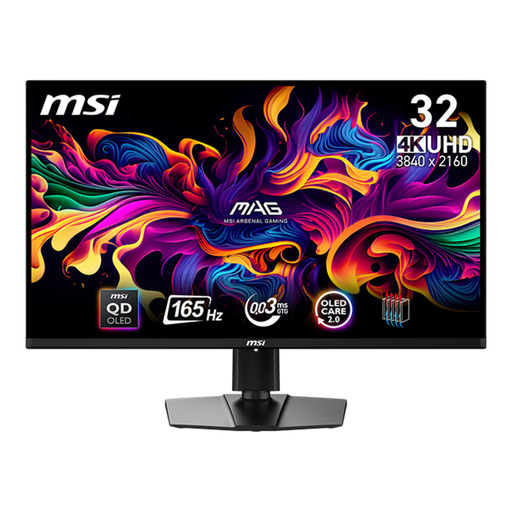
The 32-inch screen may suit you if you want more space to compare plans; measure your available desk space before buying.
Listed in the product title: 4K UHD, 32 inches and USB-C with 90 W Power Delivery. Check that your laptop supports the video connection you need and that the charging power is sufficient.
 No image available
The stated 31.5-inch screen size is an option if you want more physical space for comparing drawings; allow for the space taken up by the stand.
Listed in the product title: 31.5 inches, 3840 × 2160 pixels and 4K Ultra HD. Check the ports on the specific model if you want to connect your laptop and charge it through one cable.
 No image available
The 27-inch screen may be a good fit if desk space is limited and your drawings remain easy to read at your chosen scaling.
Listed in the product title: 4K UHD, USB-C with 90 W Power Delivery, and PIP and PBP screen-splitting features. Check that the screen-splitting options suit your computers and how you compare drawings.
 No image available
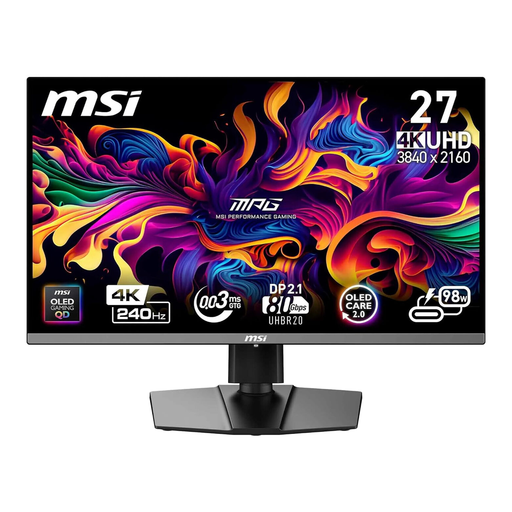
The more compact screen may suit a workspace with limited room; check how readable your drawings are at the scaling you plan to use.
Listed in the product title: 26.5 inches, 4K UHD and USB-C Power Delivery at 98 W. Check that the charging power meets your laptop’s needs.
 No image available
The 27-inch size offers a more compact option for a smaller workspace; check how your drawings look at the scaling you want to use.
Listed in the product title: 4K MiniLED, Type-C with 65 W and KVM. Compare the stated charging power with your laptop’s requirements and check that the connectivity options suit your setup.
No, the monitor still needs its own mains connection. With a compatible laptop, it can receive video signals and charge the laptop via Power Delivery. Check your laptop’s charging needs against the output of the specific monitor port.
First, check the scaling in Windows display settings. Microsoft generally recommends the resolution marked as native; using a lower output resolution can make text look less sharp.
Check the monitor’s dimensions, including the stand, its adjustment options and any potential reflections where you plan to put it. The German ASR A6 workplace regulations set out requirements for workplace screen equipment and teleworking within their scope; they don’t apply automatically to all private use.
For covered consumer purchases in the EU, Your Europe states that you have at least two years of legal guarantee from the seller. For covered distance purchases, you generally have a 14-day right to cancel from the date of delivery; exceptions and possible return costs may apply.
Compare the EU energy information and product details for the specific model. The Power Delivery rating of a USB-C port describes how much power it can supply to a laptop, not how much electricity the monitor uses.