For terrain maps, QHD is a space-saving option if your GIS interface remains easy to read and you don’t specifically need 4K. A 4K monitor gives you more pixels for checking fine details, while an ultrawide model is useful if you want to fit several windows side by side and have a desk wide enough to accommodate it. For elevation colours and legends, check the colour mode and calibration separately from the resolution.
Who creates terrain maps on screen?
Mapmakers who check fine details
You check hillshading, contour lines and small labels, and make sure the scaling is comfortable to read. The QGIS Documentation describes hillshading as a raster display that uses light and shadow to create a three-dimensional effect.
Map designers with an eye for colour
You adjust elevation colours and legends for sharing or printing, and need a consistent, traceable colour workflow. EIZO lists hardware calibration with ColorNavigator for the ColorEdge CS2740.
GIS users who work with lots of windows
You work with the map view, layers, tables and layout side by side, balancing the available screen space against your desk width and connections. The QGIS Documentation describes map layouts for producing maps and atlases.
What should you look for when choosing a monitor?
27-inch QHD
A good fit if: desk space is limited and you want to work with the map and GIS tools on a single screen. Dell Germany lists a resolution of 2560 × 1440 pixels for the U2724DE.
The trade-off: This is fewer pixels than the 4K models mentioned here. QHD doesn’t determine the quality of a map export later on.
27 to 32-inch 4K
A good fit if: you want to check fine lines, labels or a map layout more closely on screen. ASUS lists a resolution of 3840 × 2160 pixels for the PA279CRV.
The trade-off: More pixels don’t replace suitable scaling. For colour matching, the colour mode and intended output method also need to be right.
Ultrawide screen
A good fit if: you mainly want the map, attribute table and other windows visible side by side, and have enough desk space.
The trade-off: LG lists a resolution of 5120 × 1440 pixels and a width of 1215,1 mm without the stand for the 49WQ95X-W. Its 1440-pixel screen height is less than the 2160 pixels offered by the 4K models mentioned here.
| Priority |
What to check before buying |
Who it matters to |
| Fine details and text |
Resolution, screen size and scaling that’s easy to read in your GIS interface. |
If I need to assess contour lines and small labels, clear detail is my priority. Around 33 % of consumers prioritise checking fine map details. |
| Colour workflow |
Supported colour modes and calibration for the intended output method. |
If you’re adjusting elevation colours and a legend before sharing your map, you need a consistent, traceable colour workflow rather than relying solely on a stated colour gamut. Around 25 % of consumers prioritise colour matching. |
| Multiple windows |
Compare the monitor and stand dimensions, as well as the screen height you need, with your planned window layout. |
If I want to keep the map, layers and layout open at the same time, the available screen space needs to suit my desk. Around 25 % of consumers put having GIS windows open side by side first. |
| Workspace and laptop |
Check video output, power delivery, cables and adjustment options with your specific devices. |
If you need your monitor to work with your laptop’s connections and existing setup, how everything fits together at your workstation matters. Around 17 % prioritise this integration. |
Which mistakes should you avoid?
-
Assuming colour gamut coverage guarantees accurate print colours
A manufacturer’s colour gamut specification or calibration feature alone doesn’t prove that your map will look accurate in your particular output workflow.
Check that the colour mode and calibration method suit the way you intend to use the output.
Calibration and profile checks take time. Depending on your workflow, you may also need a measuring device.
-
Choosing an ultrawide screen based on pixel count alone
According to LG, the 49WQ95X-W is 1215,1 mm wide without its stand and has a screen height of 1440 pixels; the 4K models mentioned here have a screen height of 2160 pixels.
Check your desk width, stand and preferred window layout against your requirements for screen height.
A wide monitor may need more desk space or a suitable mount.
-
Assuming USB-C guarantees full laptop compatibility
A monitor’s connection specifications don’t automatically confirm that video and power will work with every laptop and cable.
Check the video output and power requirements of your specific device combination.
Depending on the connections available, you may need a suitable cable, an adapter or a separate power supply.
Key monitor brands at a glance
ASUS
The ProArt PA279CRV is a 27-inch 4K option for mapmaking where detail and colour matter.
- According to ASUS, this model has an IPS panel, a resolution of 3840 × 2160 pixels and 99 % DCI-P3.
- The colour gamut specification alone doesn’t confirm colour accuracy in your particular output workflow.
BenQ
The RD320UA is a larger 31,5-inch 4K model that BenQ positions primarily for programming, rather than specifically for cartography.
- According to BenQ, this model has an IPS panel with a resolution of 3840 × 2160 pixels and an sRGB mode.
- Check that the monitor and arm fit on your desk and allow you to set it up as you’d like.
Dell
The UltraSharp U2724DE is a 27-inch QHD option for GIS work with a laptop and multiple connections.
- According to Dell, this model offers a resolution of 2560 × 1440 pixels, a Thunderbolt 4 hub and a height-adjustable stand.
- It has fewer pixels than the 4K models mentioned here.
LG
The 27UP850-W is a 27-inch 4K option, while the 49WQ95X-W provides a wide workspace for using multiple windows.
- LG lists an IPS display and USB-C for the 27UP850-W. For the 49WQ95X-W, LG lists a resolution of 5120 × 1440 pixels and a width of 1215,1 mm without the stand.
- These specifications apply to the models listed, not to every LG monitor.
EIZO
The ColorEdge CS2740 is a 27-inch 4K option for workflows where a calibratable colour setup is a priority.
- EIZO lists hardware calibration with ColorNavigator for the CS2740.
- Check the measuring device, colour profiles and output process; calibration features don’t replace these checks.
Joybuy monitors for terrain maps
The Joybuy models below include 4K monitors for detailed work and a wide 5K model for keeping map and tool windows side by side.
 No image available
MSI MAG 274UPDFDE E16M
For checking fine terrain details; make sure the scaling in your GIS interface remains easy to read.
27 inches; UHD; 160 Hz in UHD mode and 320 Hz in FHD mode; Mini-LED; Rapid IPS.
View at Joybuy
 No image available
MSI PRO MP273UPDE E6
A 27-inch 4K option for checking fine contours and map labels; take the scaling in your GIS interface into account.
27 inches; 4K UHD; IPS; 60 Hz.
View at Joybuy
 No image available
Samsung ViewFinity S7 S70H
For checking details on a 27-inch screen; see whether the stated resolution is easy to read with your preferred scaling.
27 inches; 4K UHD; IPS.
View at Joybuy
 No image available
INNOCN 40C1U
For a wide workspace where you can view the map and GIS windows side by side; check the dimensions against your desk.
40 inches; 5K (5120 × 2160); IPS; 100 Hz; 21:9.
View at Joybuy
 No image available
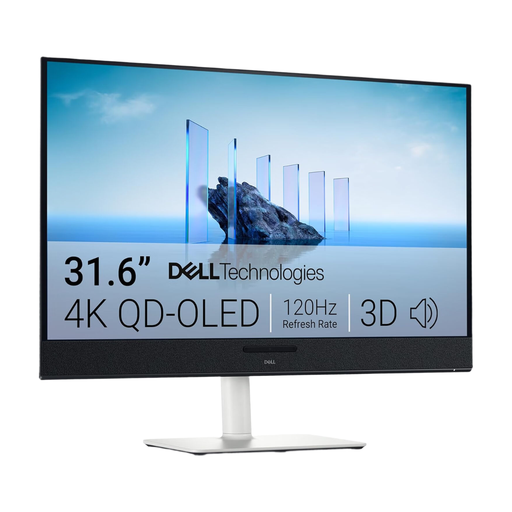
Dell Plus S3225QC
A larger 4K option for checking details; make sure the screen size and scaling suit your map work.
31,6 inches; 3840 × 2160 pixels; 4K UHD; QD-OLED.
View at Joybuy
Frequently asked questions
Do I need a 4K monitor to export a terrain map?
No, you don’t need a 4K monitor to export a map: QGIS can export map layouts as images, PDFs or SVGs. Your monitor’s resolution affects what you see on screen. Check your export settings and the resulting file separately for your intended output method.
What should I check before connecting a USB-C monitor to my laptop?
Compare your specific laptop’s video output and power requirements with the monitor connection’s video and power delivery capabilities. USB-C alone doesn’t confirm that the combination will work.
How should I set up my monitor for extended map work?
Position your screen, lighting and seating to reduce distracting glare and reflections. The ArbStättV applies to teleworking workplaces only within the scope set out in § 1; the BAuA explains that ASR A6 provides more specific guidance within its scope.
How can I check power consumption and my rights when buying a monitor in Germany?
Compare the model’s power consumption using the EU energy label and the information in EPREL. The Verbraucherzentrale distinguishes between statutory rights against the seller for faulty goods and a voluntary manufacturer’s guarantee.


