Start by considering where you’ll position your screen and how you’ll control sunlight. The German Social Accident Insurance (DGUV) distinguishes between direct glare and reflections on the screen, neither of which an anti-glare surface alone will necessarily prevent. Then choose a size, resolution and scaling that work for your map, legend and tools. If you assess colours for a defined output process, make sure the colour mode and calibration fit your workflow too.
Who should consider this choice?
Creating maps by a window
If you edit maps in changing daylight, screen position and managing reflections are important factors to consider. The German Social Accident Insurance distinguishes between direct glare and reflected glare as separate causes.
GIS work with multiple windows
If you need to see the map, legend and tools at the same time, consider screen space, resolution and readability at your preferred scaling together. The specifications for the BenQ PD2705U and ASUS ProArt PA279CRV both list a 27-inch screen and 3840 × 2160 pixels.
Colour for a defined output process
If you assess map colours for a particular output medium, you’ll need a suitable colour mode and a consistent calibration process. EIZO lists an integrated sensor for recalibrating the ColorEdge CG2700X.
What should you look for when buying?
First, check the lighting conditions at your intended workstation. Then decide how much resolution and screen space your map view needs, and whether your workflow involves making critical colour assessments.
| Consideration |
What to check before buying |
Who is it most relevant to? |
| Lighting and reflections |
Check for an anti-glare surface, typical brightness, options for positioning the screen effectively and ways to control sunlight. |
If I work by a bright window, I want to minimise reflections and direct glare as much as possible. Around 36% of consumers have this as their main concern. |
| Map detail and workspace |
Test your usual arrangement of map, legend and tools at the intended scaling; consider the screen size and desk space available. |
If I want to see map details and several work areas at the same time, I need a display that’s easy for me to read. Around 29% of consumers prioritise this. |
| Colour for output |
Decide on the target medium and colour space you need; match the colour mode, profiles and, where needed, calibration to your workflow. |
For my map colours, what matters is assessing them as part of the defined output process, not simply having a high colour-space coverage figure. Around 21% of consumers prioritise this. |
| Laptop and adjustability |
Check that the monitor’s USB-C features meet your laptop’s video output and charging needs; check the stand and available desk space. |
If I work on a laptop, I want suitable connections and a screen that can be positioned properly. Around 14% of consumers focus on this setup. |
Common buying mistakes
-
Focusing only on peak HDR brightness
Peak HDR brightness and typical brightness are different figures. A bright monitor won’t automatically solve direct glare from a window.
Compare typical brightness figures on a like-for-like basis, and factor in screen position and ways to control sunlight.
-
Assuming 4K automatically makes menus easier to read
Native pixel count alone doesn’t tell you how large labels and tools will appear at your chosen scaling, or whether your window layout will fit on screen.
Test a typical map alongside its legend and tools using the scaling you actually intend to use.
-
Assuming a wide colour gamut means a print-ready proof
A colour-gamut coverage figure alone doesn’t describe the colour and calibration process for a particular output medium.
First decide on your target medium, then match the colour mode, profiles and, where needed, calibration to it.
Monitor brands to consider
ASUS
The ProArt PA279CRV is an example of an anti-glare 27-inch 4K monitor with an sRGB mode.
- ASUS lists typical brightness of 350 cd/m² and USB-C Power Delivery of 96 W for this model.
- These manufacturer specifications don’t prove that direct sunlight won’t be an issue at your workstation. Also check the specifications for your region.
BenQ
The DesignVue PD2705U has documented sRGB and CAD/CAM modes for mapping and design work.
- BenQ lists an anti-glare coating, typical brightness of 250 nits and USB-C Power Delivery of 65 W.
- The brightness figure alone can’t tell you how easy the monitor will be to read by your particular window.
EIZO
The ColorEdge CG2700X is worth considering for regular colour-critical mapping and graphics work.
- EIZO lists 4K resolution and an integrated recalibration sensor. On 1 October 2026, PRAD ranked the model first in its list of professional 27-inch graphics monitors; this external ranking is not specifically about GIS work or glare from windows.
- When assessing colour, you also need to consider the output process and lighting conditions.
Dell
The UltraSharp U2725QE is a 27-inch 4K hub monitor to consider if connecting a laptop is important as well as viewing maps.
- Dell lists an anti-glare surface, height adjustment and Thunderbolt hub features.
- Whether the connections are compatible with your computer depends on its specifications. The listed features don’t independently indicate how the monitor will handle reflections by your window.
LG
The UltraFine 27UP850K-W is a 27-inch 4K model with USB-C and an adjustable stand.
- LG lists typical DCI-P3 colour-gamut coverage of 95%.
- A DCI-P3 figure alone doesn’t prove that the monitor is suitable for a particular print process or show how it performs in direct light from a window.
Monitors at Joybuy
The models below offer a range of screen sizes and resolutions for viewing maps. Also check that the surface, stand and connections suit your workstation; a suitable monitor surface is no substitute for controlling sunlight.
 No image available
INNOCN 40C1U, 40-inch 5K ultrawide monitor
The generous ultrawide screen could work well if you want to arrange your map, legend and tools side by side; check that you have enough desk space and that your chosen scaling is easy to read.
40 inches, 5120 × 2160 pixels, 21:9, IPS and 100 Hz. The surface is described as matt; this won’t necessarily prevent direct glare.
USB-C Power Delivery of 65 W and a height-adjustable stand are listed.
View at Joybuy
 No image available
INNOCN CB27U1, 27-inch 4K UHD monitor
The 27-inch display could be a good choice for detailed map views; check how labels and tools look at your preferred scaling.
3840 × 2160 pixels, IPS and 120 Hz. The surface is described as “NON-GLARE”; this is no substitute for good screen positioning and controlling sunlight.
USB-C Power Delivery of 90 W and a height-adjustable stand with tilt and swivel are listed.
View at Joybuy
 No image available
KTC M27P6, 27-inch 4K Mini LED monitor with dual mode
The listed 4K resolution may be useful for detailed map views. Compare how it displays your own GIS windows at your chosen scaling.
3840 × 2160 pixels, dual mode with 4K at 160 Hz or Full HD at 320 Hz, and Mini LED are listed in the product name.
Type-C with 65 W, KVM and a height-adjustable stand with tilt and swivel are also listed.
View at Joybuy
 No image available
Philips 276B9, 27-inch QHD IPS monitor
If QHD suits your map view, check that labels, the legend and tools have enough room at your chosen scaling. Its resolution is lower than 4K, which is worth bearing in mind for fine details.
2560 × 1440 pixels and IPS. The product name lists 350 cd/m².
USB-C Power Delivery of 65 W, a USB hub and a height-adjustable stand are listed.
View at Joybuy
 No image available
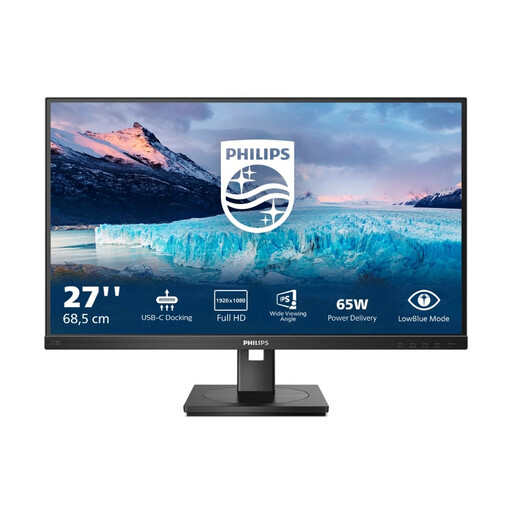
Philips 273S1, 27-inch Full HD IPS USB-C monitor
When choosing a monitor for fine map details and several open tools, bear in mind that its Full HD resolution is lower than that of the 4K models listed here.
1920 × 1080 pixels and IPS. USB-C Power Delivery of 65 W is listed.
According to the product specifications, the height-adjustable stand also tilts, swivels and rotates.
View at Joybuy
Frequently asked questions
Is an anti-glare monitor enough next to a sunny window?
Not necessarily. First check whether you can choose a suitable viewing direction and screen position, and control the amount of light coming in. The German Social Accident Insurance describes anti-glare screens as one measure alongside workstation positioning and controlling sunlight.
What should I check before connecting a laptop via USB-C?
Check that the video output, charging requirements and cable are compatible with the specific monitor’s features. BenQ lists DisplayPort Alt Mode and 65 W Power Delivery for the PD2705U; these specifications don’t automatically apply to every USB-C monitor.
Do I need to calibrate a monitor for terrain maps?
If you assess colours for a defined output process, it’s important to use a colour workflow tailored to it; hardware calibration can be useful. For on-screen maps that don’t need this kind of approval, an integrated sensor isn’t automatically necessary.
How do I compare energy consumption and my rights if something goes wrong?
For specific models, compare the EU energy label and product information sheet rather than using the brightness figure to estimate running costs. If you buy as a consumer from a retailer in the EU, Your Europe says you have a minimum of two years’ legal rights against the seller if the product is faulty; an additional manufacturer’s guarantee doesn’t replace these rights.


