First, check whether the problem lies with your internet connection or with the Wi-Fi signal reaching your meeting room. A faster router alone won’t reliably overcome a wall that blocks the signal. If your internet connection is fast enough, a wired access point or mesh node closer to your workspace could be a more targeted solution. If you can’t run a cable, consider wireless mesh, provided the node itself still has a good connection to the router. When replacing your router, you’ll also need to make sure it’s compatible with your connection type and, where applicable, your existing modem.
Who is this guide for?
Home workers behind thick walls
If the Wi-Fi signal is weak in your meeting room, you’ll need to decide whether moving your router will be enough or whether an additional access point makes sense. ASUS Support, TP-Link and Zoom cover Wi-Fi conditions, mesh connections and video-conferencing requirements.
Households without an Ethernet cable to the workspace
If you need Wi-Fi in a distant room but can’t run a cable, a wirelessly connected mesh node could be an option. The key is to place it somewhere it can still get a usable connection to the main router. ASUS Support and TP-Link offer guidance on this.
Households planning to replace their router
If you also want to improve coverage, check that the new router is compatible with your internet connection and any existing modem. FRITZ!, devolo and Telekom explain the different connection options and ways to extend their devices.
What should you consider when choosing?
Keep your router and check its position
Suitable if: Video calls work near the router but struggle at your workspace. A better position may help, but it won’t solve every problem caused by thick walls.
The trade-off: You may not need a new router, but be sure to test the connection at your actual workspace.
Connect an access point via Ethernet
Suitable if: You can run a network cable beyond the problem wall and need Wi-Fi there.
The trade-off: This removes the wireless link between the units, but you’ll need a route for the cable and may need an additional device.
Use wireless mesh
Suitable if: You can’t run an Ethernet cable but can find a spot where the node gets a usable connection to the main router.
The trade-off: Walls and interference can still affect the wireless link to the mesh node. Advertised coverage figures don’t tell you how well it will work in your home.
Replace your router
Suitable if: Your existing router isn’t compatible with your internet connection or the extension you want.
The trade-off: A DSL router with a built-in modem and an Ethernet router used behind a modem aren’t directly interchangeable.
| Priority |
What to check before buying |
Who is it most relevant to? |
| Coverage in the meeting room |
Check where you plan to place an additional unit and whether it will connect via Ethernet or Wi-Fi. Don’t assume advertised coverage figures will apply to your walls. |
If the Wi-Fi is weak where I take meetings, I want to know whether an access point would be easier to reach there. Around 36% of consumers put meeting-room coverage first. |
| Reliable video calls and upload speed |
Compare the connection near the router with the one at your workspace. For 720p group video in the web app, Zoom recommends an upload speed of 2,6 Mbit/s and a download speed of 1,8 Mbit/s. |
If the picture or sound keeps cutting out, I want to work out whether the problem is Wi-Fi or a bottleneck with my internet connection. Around 29% of consumers prioritise a stable video-call connection and sufficient upload speed. |
| Compatible internet connection |
Make a note of whether you use DSL, cable or fibre, and whether you have a modem or ONT. Check whether the device you choose has a built-in modem or needs an Ethernet connection. |
When replacing my router, I want to avoid buying a device that isn’t compatible with my connection. Around 21% of consumers prioritise connection compatibility. |
| Total cost and maintenance |
Factor in the router, any additional Wi-Fi unit and, where necessary, cabling. Also check the manufacturer’s guidance on firmware updates. |
If I can keep using my existing router, I want to take the cost of extra devices and future maintenance into account. Around 14% of consumers put total cost and maintenance first. |
Which mistakes should you avoid?
-
Assuming an advertised Wi-Fi speed means you’ll get a good signal through walls
Wi-Fi speed figures don’t prove that video calls will work reliably in a distant room. Frequency band, obstacles and router position all affect the wireless signal.
Start by checking the connection where you take meetings, then consider an additional unit or suitable cabling if needed.
Depending on where you place it, you may need to find another location or use a wired connection.
-
Choosing a router without considering your internet connection
Routers differ in whether they have a built-in DSL modem or are designed to connect via Ethernet to a separate modem.
Before choosing, check your connection type and how you plan to connect the router. Fibre or cable connections may require an external modem.
Brands to consider
FRITZ!
FRITZ!Box routers and FRITZ!Repeaters may be worth considering if you want a home network you can extend.
- FRITZ! lists the FRITZ!Box 7690 as a DSL router that can also be used with a fibre modem.
- Instructions are available for setting up the FRITZ!Repeater 1700 as a LAN bridge with a FRITZ!Box.
- These details don’t guarantee Wi-Fi coverage through any particular wall.
TP-Link
The Deco X50 mesh system lets you connect several Wi-Fi units wirelessly or by cable.
- TP-Link lists optional Ethernet backhaul and three Gigabit ports on each Deco X50 unit.
- Advertised coverage isn’t a measurement of your home’s Wi-Fi. Also check how the main router needs to be connected.
Telekom
The Speedport Smart 4 is a router option for compatible connection setups, and can be extended with compatible mesh devices.
- Telekom lists DSL support and use with fibre via an external modem.
- A manufacturer’s claim that a router can cover every room doesn’t prove it will work through your thick walls.
devolo
According to the manufacturer, the WiFi 7 BE6500 can be used as a router, access point or mesh extension.
- The manufacturer lists Ethernet ports, as well as access point and mesh modes.
- According to the manufacturer, the device isn’t suitable for direct DSL or VDSL connections.
Joybuy Wi-Fi and router products
This selection includes wired access points, mesh systems and routers for a home network you can extend. Before buying, check that the connection type, device position and, where needed, PoE power supply are all suitable for your setup.
 No image available
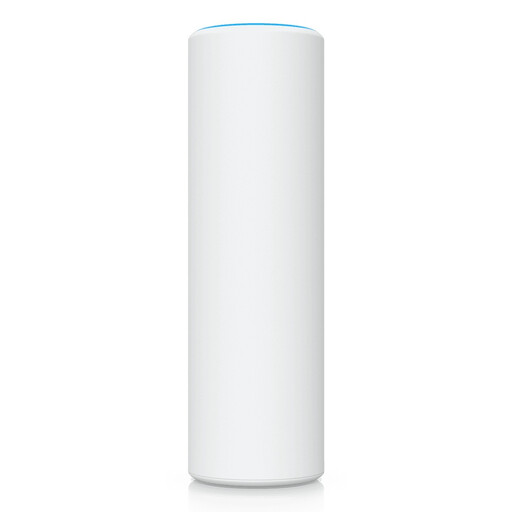
Ubiquiti U7 Mesh 5000 Mbit/s
A wired access point worth considering if you can run a network cable to the meeting room.
The description lists a 2.5 GbE Ethernet uplink, PoE and operation on the 2.4 and 5 GHz bands.
You’ll need a compatible PoE power source.
View at Joybuy
 No image available
TP-Link Deco M4 AC1200, 3-pack
This mesh system is an option if you want to connect several rooms to the same Wi-Fi network.
The description lists router and access point modes, plus two Gigabit ports on each unit.
Check where you’ll place the additional units, especially if they’ll connect to each other wirelessly.
View at Joybuy
 No image available
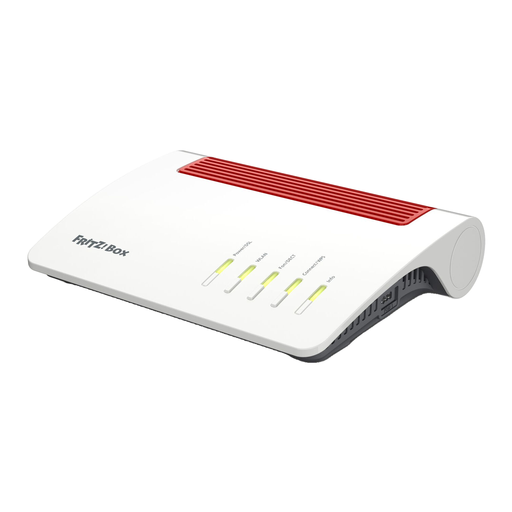
FRITZ!Box 7590 AX Wi-Fi 6
This DSL router with mesh extension is worth considering if it’s compatible with your connection and you want to extend your home network.
The description lists dual-band Wi-Fi, four Gigabit LAN ports, ADSL2+ and VDSL Supervectoring 35b.
For fibre or cable connections, the description specifies using an external modem via WAN.
View at Joybuy
 No image available
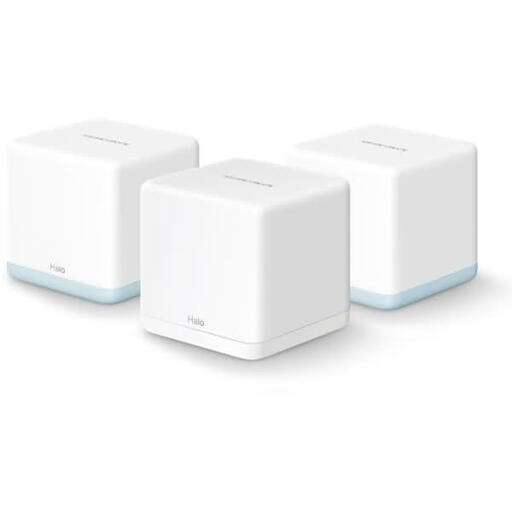
MERCUSYS Halo H1200G AC1200, 3-pack
This three-unit mesh system is designed to provide a home network across several rooms.
The description lists two Ethernet ports on each unit and a single shared network.
If the units connect wirelessly, check that each one will still have a usable connection to the main router from its planned position.
View at Joybuy
 No image available
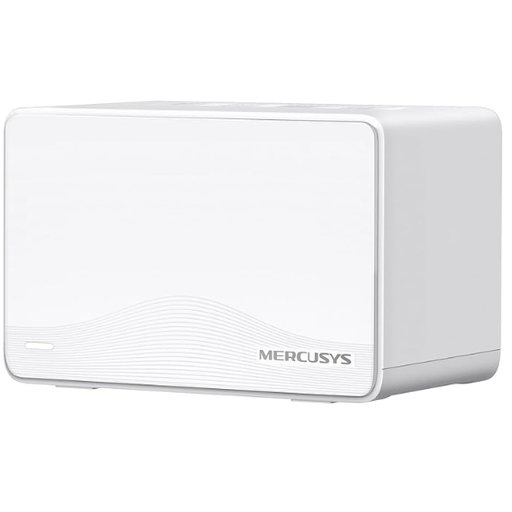
MERCUSYS Halo H25BE Wi-Fi 7 BE3600, 2-pack
This set could be a good option if you’re looking for a two-unit mesh system.
The description lists three Gigabit ports on each unit, along with router and repeater functions.
The instructions recommend placing the second unit within range of the first.
View at Joybuy
Frequently asked questions
How can I check whether Wi-Fi is disrupting my video calls?
Compare the connection where you take meetings with the one near the router, and check your internet upload speed too. Requirements vary depending on the service and video settings. For 720p group video in its web app, Zoom recommends an upload speed of 2,6 Mbit/s.
Where should I put an additional Wi-Fi unit?
If it connects wirelessly, the unit needs a usable connection to the main router where you place it. Check the signal there. If you can run an Ethernet cable beyond the wall, you could instead connect a compatible system using Ethernet backhaul or as a LAN bridge.
Do I have to use my provider’s router for fibre broadband?
No. The Bundesnetzagentur confirms that you’re free to choose your own end device at the network termination point, including for passive optical fibre networks. That doesn’t mean every router will connect directly to your service without a compatible modem or interface.
What should I know about wireless approval and device maintenance?
The CE mark is based on the manufacturer’s declaration of conformity; it isn’t an independent assessment of Wi-Fi performance. Check the details for the specific device sold in Germany, and keep its firmware up to date in line with the manufacturer’s instructions. Permitted wireless channels depend on local regulations.
Will a router with 6 GHz Wi-Fi solve thick-wall problems on its own?
No. The 6 GHz band alone doesn’t guarantee a better connection through thick walls. In its comparison of Wi-Fi bands, ASUS Support describes this band as having the weakest wall penetration. Whether moving your router or adding an access point will help depends on your specific surroundings.


