People working across several floors
You access shared project files from different workstations, so you should start by checking the connection in each of those locations.


First, check the connection at the actual workstation, then decide separately how to provide coverage across the floors and where to store the files. If there’s existing cabling between floors, wired access points are an option. Without cabling, mesh may be suitable if the nodes can maintain a reliable connection with one another. A router with confirmed file-sharing support can provide simple shared storage, but it’s no substitute for checking the transmission path or arranging a separate backup.
You access shared project files from different workstations, so you should start by checking the connection in each of those locations.
You need shared storage, and should consider its connection, file-sharing options and backup separately from your Wi-Fi coverage.
You want to reach floors with weak coverage without replacing your existing router and internet connection unnecessarily.
First decide what kind of connection you need at your workstations. Then work out where your files will be stored and how they’ll be backed up.
| What you need | What to check before buying | Who is this important for? |
|---|---|---|
| Coverage on every floor | Check workstation locations and possible node positions; distinguish between Ethernet backhaul and a wireless connection between nodes. | I want to work reliably at every workstation across all three floors. Around 33% of consumers put coverage across floors first. |
| File transfer and storage | Check the storage location, file-sharing options and connections on the exact model. | I need shared storage and want to know how files will be transferred there from my workplace. Around 27% of consumers prioritise file transfer and storage. |
| Keeping your existing router | Check the connection type and existing device; if you’re adding to your setup, find out which device will act as the router. | I want to keep a working router and add only the network equipment I need. Around 20% of consumers prioritise reusing their equipment and connection compatibility. |
| Access protection and backups | Plan user permissions, firmware updates and a separate backup. | I want to restrict access to shared files and be able to restore important project files. Around 20% of consumers prioritise protection and backups. |
The wireless connection at your workstation, the link between wireless points and the storage device’s connection all form part of the transmission path.
Check the entire connection from your workstation to the file, along with the connections on the exact model.
Depending on your setup, you may need extra cabling or a storage device with a different type of connection.
The coverage you can actually achieve depends on where you place the nodes and the construction of your home.
Plan where the nodes will go and how they’ll connect to one another before you buy.
You may need additional compatible nodes or Ethernet cabling.
A shared working copy isn’t an independent backup in case of data loss. The German Federal Office for Information Security also includes data recovery in its guidance on backup strategies.
Arrange a separate backup for important project files and test that you can restore them.
You may need separate backup storage, as well as time to test file recovery.
In Deco’s access point mode, the main router remains responsible for DHCP; certain router features in the Deco app are then unavailable.
Before you buy, decide which device will act as the router and where you’ll set up any network features you need.
The FRITZ!Box 5690 Pro and 7690 combine router features with mesh. The right connection type and model variant are key.
Deco systems offer a mesh option with multiple wireless points. According to TP-Link, the Deco X50 Pro can also use Ethernet backhaul.
The RT-AX88U Pro is a router with access point and AiMesh modes, as well as a USB port.
The Orbi 770 RBE773 system is a mesh option made up of several units.
This selection includes mesh systems for extending Wi-Fi, DSL routers and wired access points. First decide whether you want to replace your router or connect additional wireless points.
 No image available
For multiple wireless points; check the connection at your planned node locations.
Wi-Fi 7, dual-band, Gigabit Ethernet.
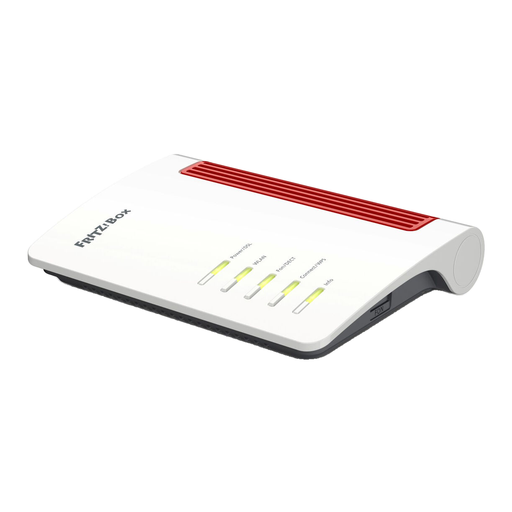 No image available
A router option for a DSL connection if you’re replacing your current router; check that this model is compatible with your connection.
Wi-Fi 6, VDSL Supervectoring 35b up to 300 Mbps, dual-band, 4× Gigabit LAN.
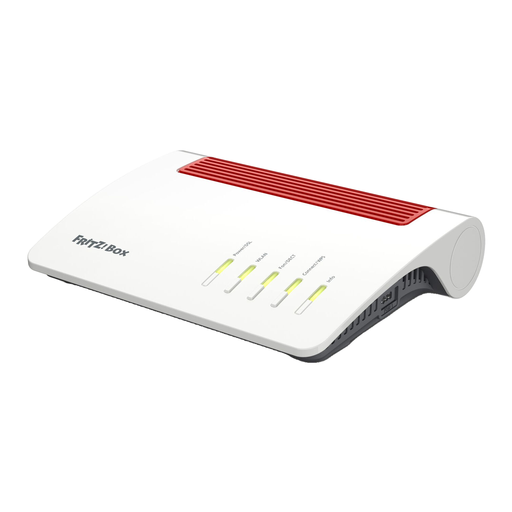 No image available
A DSL router if you’re replacing your current one; check that its specific file-sharing features support your workflow.
Wi-Fi 6, VDSL Supervectoring 35b, dual-band, 4× Gigabit LAN.
Sharing files through a router is no substitute for a separate backup of important project files.
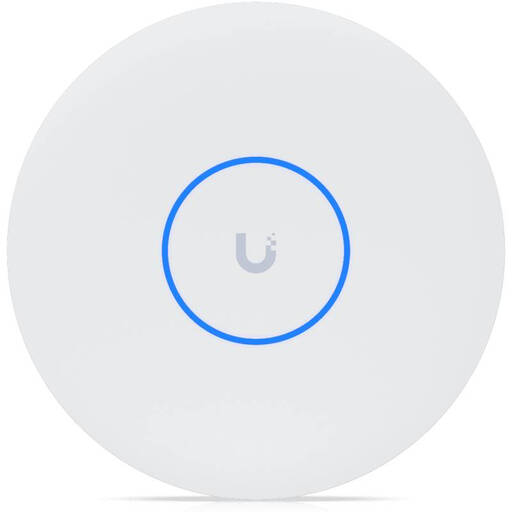 No image available
A wired access point if you have compatible PoE+ power and UniFi Network; according to the product information, both are required for it to work.
Tri-band Wi-Fi 7, 10GbE, PoE+.
A compatible PoE+ switch or injector is required and, according to the description, isn’t included. UniFi Network version 9.0.114 or later is also required.
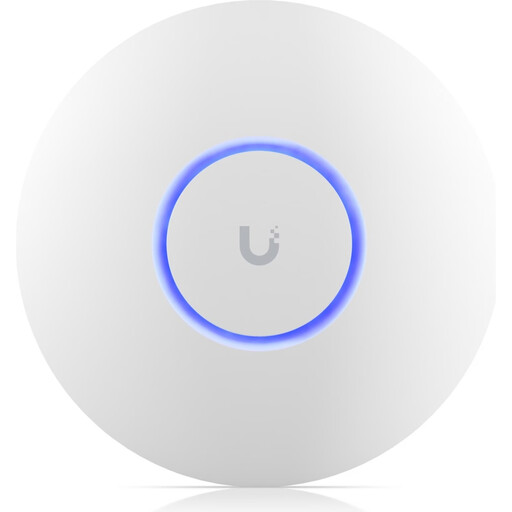 No image available
A wired access point if you’re planning for compatible PoE power and the UniFi Network application.
Wi-Fi 6, Gigabit Ethernet, PoE.
It requires PoE power compliant with 802.3af; setup and management are handled through the UniFi Network application.
Not necessarily. If your main router is working, a compatible system in access point mode can extend your existing network. With Deco, the main router remains responsible for DHCP. Check whether the additional wireless points can connect by cable or maintain a reliable wireless connection.
It depends on the model and its file-sharing features. For the FRITZ!Box 5690 Pro, the manufacturer lists NAS features and USB 3.1; TP-Link lists USB sharing only for selected Deco models. Set appropriate access permissions and back up important files separately.
The German Federal Office for Information Security recommends keeping your router’s firmware up to date and using secure login details. You should also regularly check that you can actually restore backed-up project files.