What should you look for when buying?
Start by listing the inputs you’re missing. Then compare how each option works with your aircraft profiles, and finally check platform compatibility, desk space and mounting requirements.
| Consideration |
What to check before buying |
Who is it most relevant to? |
| Throttle, direction and braking |
Check which rudder and braking controls you already have. Distinguish a brake trigger from separate analogue toe-brake axes. |
If I don’t already have suitable controls for direction and braking, I want to know whether I need a set rather than a standalone quadrant. Around 36% of consumers prioritise having complete taxiing controls. |
| Using your controls at a monitor |
Check which commands you use frequently and whether you can assign them to accessible buttons in your simulator. For MSFS 2024, the Microsoft Flight Simulator team describes an assignable function for toggling visual aids. |
When practising at a monitor, I want to reach frequently used commands without constantly opening on-screen menus. Around 29% of consumers prioritise controls that are easy to reach. |
| Different aircraft types |
Compare the number of levers, lever handles and disengageable detents with the aircraft you mainly practise in and their control assignments. |
If I switch between aircraft types, the levers and detents need to suit each profile. Around 21% of consumers prioritise this flexibility across aircraft. |
| Setup and desk space |
Check your existing devices, platform, desk edge and lever travel. The 273 × 330 mm dimensions given for the Honeycomb Bravo Throttle Quadrant LITE exclude the mounting plate and clamp. |
When adding to an existing setup, desk space and any additional devices I need also matter. Around 14% of consumers prioritise integration with their existing setup. |
Joybuy products for throttle and flight control
This selection includes a yoke system and Thrustmaster joystick setups, which combine throttle and directional control in different ways depending on the model.
 No image available
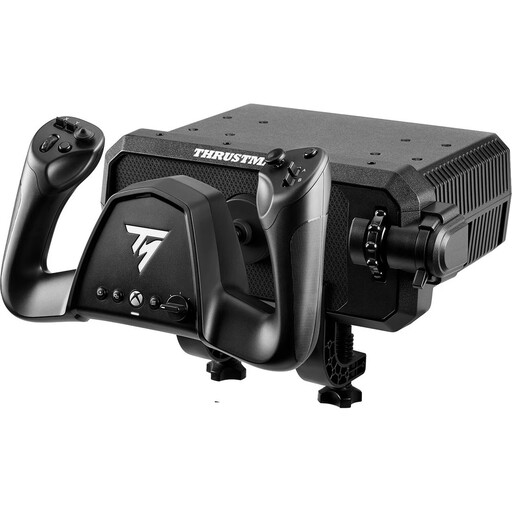
Thrustmaster TCA SKY YOKE Flight Yoke
If you want to combine throttle and rudder control in a yoke system and use controls directly on the device, this model could suit that approach. Check how the controls can be assigned in your simulator.
7 axes; 24 action buttons; 180° rotation; 16-bit resolution; PC and Xbox Series X.
View at Joybuy
 No image available
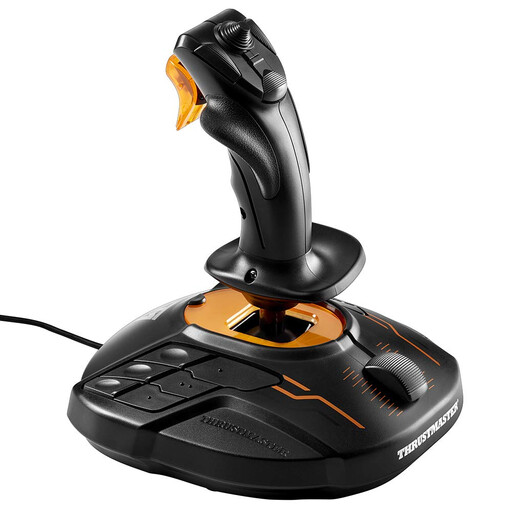
Thrustmaster T-16000M FCS Joystick
If you want to combine throttle and directional control in a joystick setup, this model could be a good fit. Check the axis assignments in your simulator and the aircraft profile you’ve chosen.
View at Joybuy
 No image available
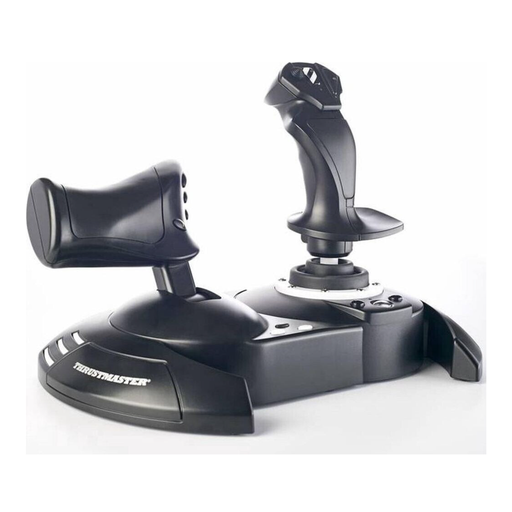
Thrustmaster T.Flight Hotas One
If you want to use a stick and throttle together as a set, this HOTAS model could be a good option. Before buying, check that it’s compatible with your platform and that its controls can be assigned in your simulator.
View at Joybuy
Frequently asked questions
Can I practise virtual taxiing with just a throttle lever?
Only if you already have suitable inputs for directional control and braking. Check how they’re assigned in your simulator and aircraft; a standalone throttle lever doesn’t automatically provide these functions.
How do I set up my controls for use at a monitor?
First, set up throttle, directional control and braking in your simulator. Then assign frequently used supported commands to buttons that are easy to reach. For MSFS 2024, the Microsoft Flight Simulator team describes the assignable “Toggle Visual Assistances Display” function, which can be used to toggle the taxi ribbon, among other things; this does not apply to other simulators.
What should I check after connecting the device?
Check that the simulator recognises the device, the axes are correctly aligned, and the buttons and idle position work with your chosen aircraft. Microsoft advises that flight-control devices for PC should not be assumed to work with Xbox unless the manufacturer says so.
What are my rights when shopping online in Germany?
For a qualifying distance-selling contract with a trader, you generally have 14 days from delivery to withdraw from the purchase; exceptions and possible return costs apply. The EU consumer portal Your Europe also explains that goods bought in the EU are covered by a legal guarantee of at least two years from the seller. This is separate from any voluntary manufacturer’s warranty.
What should I check to make sure the device meets the relevant requirements?
As part of its market surveillance, the German Federal Network Agency checks, among other things, that products carry the correct CE marking, can be identified and include accurate manufacturer details. Check the information for the specific device; a product description alone does not prove that a particular listing meets these requirements.


