Analysing on the same PC
If the game or material you’re permitted to use is already running on your streaming PC, first check whether an OBS game, window or display capture source will do the job. OBS Project documents these capture methods.


A capture card is most useful when the tournament footage comes from an external HDMI source. If it’s already on your streaming PC, first check whether the right OBS source will do the job. For external signals, compare the recording and monitor modes separately, then choose USB or PCIe based on your computer, available connections and whether you need pass-through. The technical ability to record footage doesn’t mean you have permission to publish someone else’s tournament footage. Among other things, this is subject to the conditions set out in §§ 51, 63 and 87 of the German Copyright Act (UrhG), as listed by the Federal Ministry of Justice and the Federal Office of Justice on ‘Gesetze im Internet’.
If the game or material you’re permitted to use is already running on your streaming PC, first check whether an OBS game, window or display capture source will do the job. OBS Project documents these capture methods.
If the footage comes via HDMI from a console or a second PC, you’ll need a suitable way to get it to your recording PC. A separate HDMI output can also feed your monitor. OBS Project describes video capture devices as sources, while manufacturers such as Elgato and AVerMedia specify the connections and modes available on their individual models.
If you’re combining the source audio with your own voice, plan recording, levels and monitoring as separate steps. OBS Project documents audio sources and the audio mixer for this purpose.
Start by working out where the footage is coming from. Then consider how you want to monitor it, the recording mode that will actually be saved, the audio and the connections available at your workstation.
A good fit if: The game or material you’re permitted to use is already displayed on the same PC.
Things to consider: You can first try a suitable game, window or display capture source. It won’t replace an HDMI input for an external source.
A good fit if: You want to send external HDMI footage to your streaming PC and, if needed, view it at the same time on a separate monitor.
Things to consider: Check the USB and HDMI connections, and the recording and pass-through modes separately. Each mode may have different limitations.
A good fit if: Your desktop PC has a suitable free slot for the specific card.
Things to consider: This type of card isn’t a standard USB solution for a laptop. Check the slot requirements in your motherboard manual too.
A good fit if: You want to add the unencrypted HDMI feed from a compatible camera as another video source, and don’t need a separate monitor output on the device.
Things to consider: Check the camera format and hardware version. An HDMI-to-USB connection doesn’t automatically mean console pass-through is supported.
| What you need | What to check before buying | Who it matters most to |
|---|---|---|
| Signal path | Identify the signal source and recording PC; then work out whether you need an HDMI input. | If the footage is already on my streaming PC, I want to know first whether OBS will do the job. Around 29% of consumers are mainly looking to clarify the signal path. |
| Separate monitor | Check the HDMI output and the resolution and frame rate it supports for your monitor. | If you want to view an external source on your own monitor while analysing it, you’ll need a suitable signal path. This is a priority for around 24% of consumers. |
| Recording mode | Compare the recording resolution, frame rate, HDR requirements and software used for the exact model. | If the recorded image quality is important for a later review, base your decision on the recording specifications, not just the monitor mode. Around 18% of consumers prioritise these recording details. |
| Commentary audio | Test the HDMI audio, microphone, OBS levels and monitoring together in a sample recording. | For my analysis, I want the source audio and my voice to come through clearly together. Around 17% of consumers focus on the audio path. |
| Connections and space | Check that you have an available USB or PCIe connection, along with the necessary cables and space between your devices. | If space is limited in my home office, I want to know in advance how the card and cables will fit into my existing setup. This is the main concern for around 12% of consumers. |
A device may pass a 4K signal through to your monitor while limiting recordings to a lower resolution. For example, AVerMedia describes the GC311G2 as offering 4K60 pass-through and 1080p60 recording.
For the exact model, compare the recording and pass-through modes separately, including any conditions that apply.
OBS has its own game, window and display capture sources, so an external HDMI card isn’t automatically necessary for material on the same PC. OBS Project documents these sources.
First, try a suitable OBS source for material you’re permitted to use. Only buy a card if you actually need an external signal path.
These model names refer to devices with different connections and modes. Elgato documents the Cam Link 4K for connecting camera HDMI via USB; AVerMedia lists different recording and pass-through limits for the GC311 and GC311G2.
Check the full model name, HDMI output and the modes you need for your setup.
A capture card doesn’t resolve questions of copyright. Under § 51 UrhG, the extent of a quotation must be justified by the specific purpose of the quotation; § 87 UrhG concerns the rights of broadcasting organisations.
Before publishing, check the rights to the specific material. If you’re relying on quotation rights, consider the purpose and extent of the quotation and the required source attribution under § 63 UrhG. The applicable legal conditions depend on the specific case.
The documented 4K S and Cam Link 4K models support different signal paths: HDMI capture with monitor output, and camera HDMI to USB, respectively.
The manufacturer’s specifications distinguish, among other models, the external GC311 and GC311G2 from the internal PCIe GC573.
The Signal HD60 is documented as an external card for HDMI sources, with an optional monitor output.
The USB Capture HDMI Gen 2 is an HDMI-to-USB solution that, according to Magewell, can also be used with OBS and doesn’t need a separate HDMI monitor output.
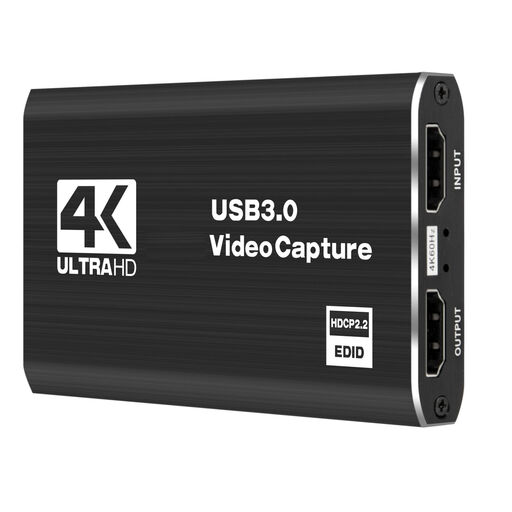
The following products are external USB capture cards for HDMI sources. Compare their recording specifications separately from their input and pass-through capabilities, so you can choose the mode you need for your analysis.
 No image available
For external camera or console signals when 1080p60 recording is all you need.
Recording: 1080p60. The product description also lists 4K/60 input and monitor output; this doesn’t mean it records in 4K.
 No image available
For external HDMI recordings with additional microphone and headphone connections, when 1080p60 is all you need.
HDMI input: up to 4K30. Recording: 1080p60. The product description also lists HDMI pass-through.
 No image available
For external sources when you want a monitor output and 1080p60 recording.
Recording: 1080p60. The product description lists 4K/60 input and monitor output; here, 4K/60 doesn’t refer to recording.
 No image available
For external HDMI recordings with commentary, using a microphone and headphone connection.
Video recording: up to 1080p. HDMI pass-through: 4K. The product specifications distinguish pass-through from recording.
 No image available
For external HDMI sources when 1080p recording and a 4K monitor connection suit your setup.
Video recording: up to 1080p. HDMI pass-through: 4K. The product specifications don’t promise 4K recording.
No. If the game or material you’re using is already displayed on your streaming PC, first try a suitable OBS game, window or display capture source. For an HDMI signal from a console, camera or second PC, you’ll need a suitable external signal path.
Connect the source to the card’s HDMI input, then connect the card to your recording PC. If needed, connect the documented HDMI output to your monitor. In OBS, add a video capture device source, then select the device and a supported resolution and frame rate.
Check the source audio and microphone as separate audio paths in the OBS mixer, check the levels, and listen back to a test recording. OBS Project also distinguishes between audio in the stream and monitoring through an audio monitoring device.
According to Elgato, recording isn’t possible on its devices while the HDMI signal is protected by HDCP. AVerMedia also excludes protected signals for the GC311. Whether you’re allowed to use someone else’s tournament footage publicly is a separate copyright question that a capture card can’t answer.
There’s no simple yes-or-no answer. § 87 UrhG gives broadcasting organisations rights in their broadcasts. § 51 UrhG permits quotations from published works only where their extent is justified by the specific purpose of the quotation. For a permitted public reproduction under § 51, § 63 generally requires the source to be acknowledged, including the author, where possible. The Federal Ministry of Justice and the Federal Office of Justice list these provisions on ‘Gesetze im Internet’. Whether they apply in your particular case depends on the material and how you plan to use it.