If you usually have catalogue entries and source files open at the same time, a wide display is better suited to your workflow. If small print and scans matter more, a 4K monitor with readable scaling is a more natural choice. Choose the connections, setup and, if needed, colour management to suit your computer and output requirements – your catalogue software will still handle linking the files.
Which monitor suits which user?
Collectors who work with lots of source windows
If you compare catalogue details with scans, receipts or reference images, having enough room for clearly readable windows is the first thing to consider. Axiell Deutschland describes how collection items can be linked to additional information, while Philips lists the 346B1C/00 as a 34-inch ultrawide model.
Collectors with highly detailed object photos
Resolution and readable scaling are important things to check when you need to see small print and scan details. If you need to assess colours accurately, you’ll also need to consider colour management and a suitable workflow. The International Color Consortium explains how calibration and profiling work together.
Laptop users at their catalogue workstation
The video connection, any power delivery and the setup need to suit your laptop and desk. Dell lists a hub and up to 90 W power delivery for the U2724DE; Philips and ASUS also list USB-C on their respective models. Check that the features match your particular laptop.
What to consider when buying
When cataloguing a vintage toy collection, your choice mainly depends on whether you need to compare sources side by side, check fine details or connect your computer at your workspace.
| Priority |
What to check before buying |
Who is it important to? |
| Reading catalogues and sources side by side |
Check the display width, aspect ratio and window layout at your preferred text scaling. |
If I compare catalogue entries and receipts side by side, I want to switch between windows less often; around 36% of consumers prioritise comparing sources side by side. |
| Making out small print and scan details |
Check the native resolution and text scaling with typical object photos and scans in your catalogue application. |
If I’m reading fine markings or scan details, I need a sharp image as well as catalogue fields that are easy to read; around 29% of consumers prioritise checking fine details. |
| Connecting and positioning your computer |
Check the video output, signal transmission and, if applicable, charging power against your laptop and cable; also check the stand and desk space. |
If I want to use the monitor with my laptop on a particular desk, the connections and setup need to work together; around 21% of consumers focus mainly on whether the equipment and available space are a good fit. |
| Assessing object colours |
Consider your output requirements, colour mode and the work involved in calibration and profiling. The International Color Consortium describes calibration and profiling as complementary steps for consistent colours. |
If I need to assess colour variations or object photos reliably, the colour workflow matters more than extra window space; around 14% of consumers put colour assessment first. |
Avoid common misconceptions
-
Assuming 4K automatically gives you four comfortably readable work windows
Pixel count alone doesn’t tell you how much space you’ll have for windows while keeping text easy to read. Microsoft generally recommends using the resolution marked as recommended; a lower resolution can make text look blurred.
Compare your catalogue interface and a typical scan at native resolution and at a scaling level that works for you.
-
Assuming USB-C on a monitor gives you full laptop docking functionality
Video transmission, hub features and power delivery depend on the monitor, laptop and cable. Dell lists up to 90 W for the U2724DE and BenQ lists 65 W for the PD2705U. Check your laptop’s requirements against the specific model.
Before deciding, check the video output, the features supported by the connection and the charging power you need.
Depending on the connections you already have, you may also need a suitable cable or a separate dock.
-
Assuming wide colour gamut coverage means you have a complete colour workflow
A colour gamut specification alone doesn’t prove that object photos will look colour-accurate at your configured workstation. The International Color Consortium describes calibration and profiling as complementary steps for consistent colours.
First decide what your output requirements are, then consider colour mode, calibration and profiling to the extent your image work requires them.
Accurate colour assessment may involve extra work to calibrate and profile your display.
Monitor brands to consider
Philips
The B-Line includes monitors for work. The 346B1C/00 is a specific ultrawide example for viewing catalogue and source windows side by side.
- Philips lists a 34-inch display, 3,440 × 1,440 pixels and USB-C for the 346B1C/00.
- Check that the width and curve suit your desk and intended setup. These features apply to this model, not every Philips monitor.
Dell
The UltraSharp hub range includes the U2724DE, a 27-inch QHD option for a laptop-based workspace.
- Dell lists an integrated hub, a height-adjustable stand and up to 90 W power delivery for the U2724DE.
- According to Dell, the resolution is 2,560 × 1,440 pixels. Check that the signal path, cable and charging power suit your laptop.
ASUS
The ProArt PA279CRV is a 27-inch 4K example for checking scans and object photos.
- ASUS lists 3,840 × 2,160 pixels, sRGB and Adobe RGB modes, 96 W USB-C power delivery and height adjustment for the PA279CRV.
- These manufacturer specifications apply to the PA279CRV. For a laptop connection, check that it supports the signal and charging functions you need.
BenQ
The PD2705U is a 27-inch 4K example for working with catalogue details and photos.
- BenQ lists an sRGB mode, a height-adjustable stand and 65 W USB-C Power Delivery for the PD2705U.
- Check that the stated charging power meets your particular laptop’s requirements. The colour and power specifications are the manufacturer’s figures for this model.
EIZO
The ColorEdge CS2740 is a specialist 27-inch 4K example for catalogue work where checking photo colours is important.
- EIZO lists hardware calibration and sRGB and Adobe RGB presets for the CS2740.
- These features don’t link source files or automatically replace every step of colour management. They don’t imply any additional need if you’re only entering text.
Joybuy monitors for catalogue work
The models below suit two ways of working: arranging several windows on a wide display or checking details on a 4K screen. Compare the connections, desk space required and readability at your preferred scaling.
 No image available
Samsung ViewFinity S7 S70H 27-inch 4K UHD IPS monitor
For checking fine print and scan details; check that your catalogue fields remain easy to read at your chosen scaling.
27 inches, 3,840 × 2,160 pixels, IPS and 99% sRGB; HDMI and DisplayPort. If you need height adjustment, check before buying whether the tilting stand is sufficient.
View at Joybuy
 No image available
INNOCN 40C1U 40-inch 5K ultrawide IPS monitor, black
For arranging catalogue and source windows across a wide screen; make sure you have enough desk space for the 40-inch display.
21:9, 5,120 × 2,160 pixels and IPS; PIP/PBP and 65 W USB-C Power Delivery. Height-adjustable stand.
View at Joybuy
 No image available
INNOCN CB27U1 27-inch 4K UHD IPS monitor, white
For checking scans and arranging several items of content on one screen; PIP and PBP are listed features.
3,840 × 2,160 pixels and IPS; 90 W USB-C Power Delivery. The stand is height-adjustable. Check that the signal transmission and charging requirements suit your laptop.
View at Joybuy
 No image available
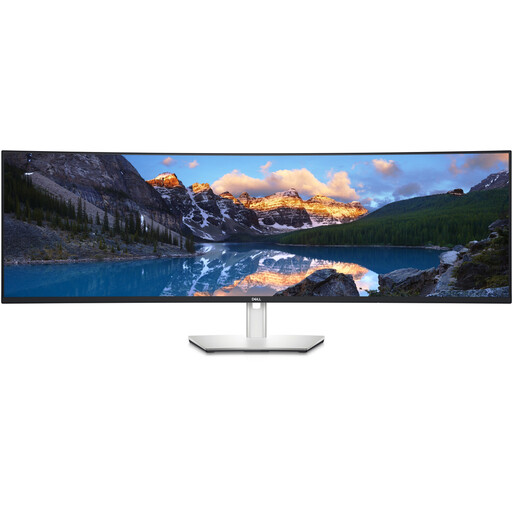
Dell UltraSharp U4924DW 49-inch Dual QHD monitor
For viewing lots of catalogue and source windows at once; take the space needed to set it up into account.
32:9 and 5,120 × 1,440 pixels; 90 W USB-C Power Delivery, USB hub and RJ45. According to the description, the device is 1,214.9 mm wide and weighs 16.3 kg.
View at Joybuy
 No image available
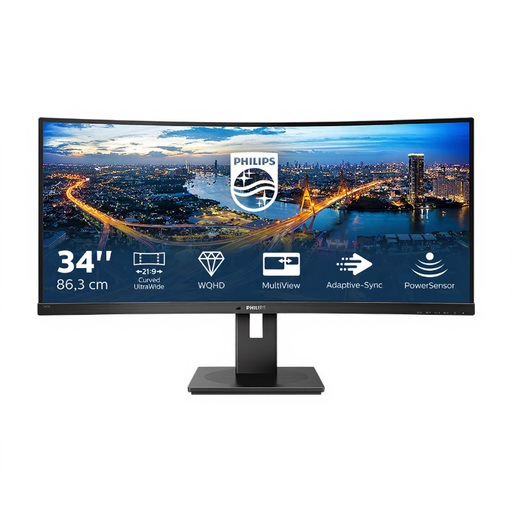
Philips 345B1C 34-inch curved ultrawide monitor
For arranging catalogue entries and source files side by side; take the curved screen and the space available on your desk into account.
21:9, 3,440 × 1,440 pixels and VA; PIP/PBP, USB hub and a height-adjustable stand with 180 mm of adjustment.
View at Joybuy
Frequently asked questions
Can a monitor link source files to catalogue entries by itself?
No. A monitor displays your workspace; your catalogue software handles searching and linking collection information. Axiell Deutschland explains that collection information can be linked to additional details. Check how your software manages file paths or digital objects.
Is 4K always the better choice for reading small labels?
Not necessarily. It also matters whether catalogue fields remain easy to read at your chosen scaling. Microsoft generally recommends using the resolution marked as recommended; try typical scans and your catalogue interface with the settings you actually plan to use.
How do I set up a second screen for catalogue work?
In Windows, you can move detected displays in the display settings to match their physical arrangement. Then check that windows are easy to read on both screens and that your computer is connected to the monitor using a suitable port.
Do I need an Adobe RGB monitor to assess toy colours?
Not necessarily; your choice depends on whether you need to assess colours on screen or for a particular output. The International Color Consortium describes calibration and profiling as steps that work together to produce consistent colours. So check the colour workflow you need, not just a colour gamut specification.
Do German workstation display rules apply to my private collection too?
ASR A6 explicitly excludes the use of display screen equipment in private settings from its scope. If you catalogue your collection at a workplace covered by the rules, you’ll need to consider the applicable requirements separately.


