A stationary trackball can help when checking mobile layouts, provided there’s room for its body and your hand beside your laptop, and its design suits the hand you use. Kensington highlights that you don’t need to move a trackball across the desk to control the cursor. If you make frequent corrections, it’s also worth comparing the scrolling controls and connection options. A trackball is no substitute for testing on a real smartphone, as Chrome for Developers explains in its guidance on device simulation in DevTools.
Who is a trackball suitable for?
Students with limited desk space
If your laptop, keyboard and notes already take up most of the desk, a stationary trackball lets you control the cursor without moving a mouse around. Even so, measure the space needed for the body and your hand. Kensington describes the reduced need for room to move as a feature of trackballs.
People who make lots of layout corrections
When you’re repeatedly switching between views, easy-to-reach scrolling controls and a suitable pointer speed can make a difference. Compare the scroll wheel or scroll ring, and check which buttons and settings your operating system supports.
Left-handed users or those who switch hands
If you use your left hand or want to switch hands, look for a model explicitly designed for both hands, and check that the ball, buttons and scrolling controls are easy to reach. Kensington describes several of its Orbit and Expert Mouse models as ambidextrous.
What should you look for when buying?
First, check how much desk space you have and which hand you prefer to use. Then compare the scrolling controls and connection options with your laptop and the way you work.
| What to consider |
What to check before buying |
Who it matters most to |
| Desk space |
Measure the space beside your laptop, allowing room for the body and palm rest. Logitech Support lists the ERGO M575S dimensions as 134 × 100 × 48 mm. |
If there’s hardly any room beside my laptop and notes, I need space for both the trackball and my hand. Around 36% of consumers say desk space is their main concern. |
| Cursor and scrolling controls |
Try the ball and the scroll wheel or scroll ring. Also check whether you can adjust the pointer speed and set up the buttons you need in your operating system. |
When I’m checking views repeatedly, I want to scroll and target small controls accurately. Around 29% of consumers prioritise a smooth workflow when making corrections. |
| Hand preference and feel |
Check whether the exact model suits your preferred hand, and whether the ball, click areas and scrolling controls are easy to reach. |
If you use your left hand or want to switch hands, you need a design that suits you. Around 21% of consumers put hand preference first. |
| Connection and power |
Check that your laptop has a spare USB-A port or supports Bluetooth. For wireless models, also compare the power supply and what’s included in the box. |
If I need to consider ports, power and a quiet day-to-day setup in a shared room, I want to check the model details in advance. These points are the main priority for around 14% of consumers. |
Common misconceptions
-
Stationary doesn’t automatically mean space-saving
A trackball still needs room for its body and your hand. On a small desk, that can eat into some of the space you gain by not having to move a mouse around.
Measure the available space and compare it with the dimensions of the specific model, including the palm rest if applicable.
-
Orbit models with similar names aren’t interchangeable
Kensington lists a scroll ring for the Orbit K72337EU, while the manufacturer specifies two buttons and a wired connection for the Orbit Optical 64327EU.
Check the full model number and make sure it matches the scrolling controls and connection type you want.
-
A charging port doesn’t mean a cable is included
Logitech says the MX Ergo S charges via USB-C, but notes that the charging cable isn’t included.
Check what’s in the box separately from the wireless connection options.
If you don’t already have a suitable USB-C cable, you’ll need to provide one.
-
Ergonomic claims don’t guarantee personal comfort
A thumb-operated trackball shaped for one hand and an ambidextrous finger-operated trackball require different movements. The Federal Institute for Occupational Safety and Health points out that your overall posture also matters when working at a computer.
Choose a design that suits your hand, gives you easy access to the controls and works with your desk setup. If possible, try it out first.
Brands to consider
Logitech
The ERGO M575S and MX Ergo S are right-handed thumb-operated trackballs designed for a fixed workstation.
- Logitech Support lists Bluetooth Low Energy or a Logi Bolt receiver for the ERGO M575S; the receiver requires a USB-A port. The model uses an AA battery.
- According to Logitech, the MX Ergo S offers tilt and six customisable buttons; the charging cable isn’t included. Manufacturer claims about ergonomic relief don’t prove that every user will experience the same benefits.
Kensington
The range includes ambidextrous finger-operated trackballs with wired or wireless connections, as well as the larger Expert Mouse K72359WW.
- Models differ in their connections and scrolling controls, among other features. The wired Orbit K72337EU has a scroll ring.
- Kensington says the Expert Mouse K72359WW is designed for medium to large hands. TrackballWorks has limited functionality on Mac when used with Bluetooth.
Perixx
The PERIMICE-520 is a wired alternative with a USB-A connection and adjustable tilt.
- Perixx lists the dimensions of this model as 139 × 102 × 50 mm and its cable length as 1.8 m.
- Allow for the cable on a small desk and check that you have a spare USB-A port.
ProtoArc
The EM03 NL is a wireless finger-operated trackball that ProtoArc describes as suitable for switching between several devices.
- ProtoArc lists three connection profiles and adjustable DPI settings.
- Claims about quiet clicks and battery life come from the manufacturer. Also check the actual operating system and software compatibility.
Joybuy products
Trackballs for cursor control at a fixed workstation, where desk space, hand preference and laptop connections all matter.
 No image available
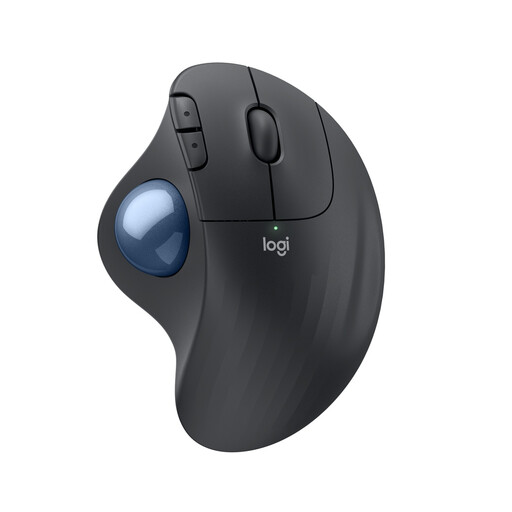
Logitech ERGO M575S – Graphite
This right-handed, thumb-operated trackball controls the cursor without you having to slide the device across the desk.
Product details list five buttons, three of which are customisable, a scroll wheel and an adjustable pointer speed of up to 2000 dpi.
Logitech Support lists Bluetooth Low Energy or a Logi Bolt receiver; the receiver requires a USB-A port. The model uses an AA battery.
View at Joybuy
Frequently asked questions
Can a trackball replace testing on a real smartphone?
No. Chrome for Developers describes Chrome DevTools’ device mode as an approximation of how a mobile device looks and behaves. If performance on real hardware matters, test on a smartphone as well.
What should I check before connecting it to my laptop?
Check whether your laptop supports Bluetooth or has a spare USB-A port. According to Logitech Support, the ERGO M575S supports Bluetooth Low Energy or a Logi Bolt USB-A receiver; Logi Options+ customisation software is listed for Windows and macOS. Other models have their own connection and software requirements.
What can I do if the ball no longer moves smoothly?
Follow the cleaning instructions for your exact model. Logitech Support explains how to push the ball out from the back on a supported trackball. Logitech also recommends switching off peripherals before cleaning and making sure no liquid gets inside.
What rights do I have when buying online in Germany?
When you buy from a business as a consumer in the EU, you’re generally entitled to a minimum of two years of legal protection against faulty goods. For most goods bought online, you’re generally entitled to a 14-day cooling-off period from delivery, subject to legal exceptions. Your Europe explains that these rules don’t apply in the same way to purchases from private individuals.


