If there’s barely any room to move a mouse alongside your keyboard and papers, a stationary trackball could be a suitable alternative. However, you’ll still need enough space for the device and your hand. Choose between thumb and finger control based on whether you usually use the same hand or want to switch hands; also check the scrolling controls, connection and button customisation options. When working on musical notation, keyboard input can still complement pointer control.
Who is a trackball suitable for?
Music arrangers with limited space
If you work on scores between your keyboard and papers, pointer control that doesn’t require room to move a mouse can be useful. Logitech describes the ERGO M575S as a stationary trackball; even so, check that the device and your hand will fit on your desk.
Anyone doing detailed notation work
When selecting small elements and scrolling through longer worksheets, easy-to-reach controls and a suitable pointer speed matter. The MuseScore Studio handbook describes both clicking and entering notes using keyboard commands.
Students who switch hands
If you switch hands or share your workstation, explicitly ambidextrous finger control is an important factor to consider. Kensington describes the Orbit K72337EU and Expert Mouse K72359WW as ambidextrous models; thumb-operated models, by contrast, are designed for use with a particular hand.
What should you look for when buying?
First compare the space available and which hand you want to use; then check that the scrolling controls, connection and power supply suit the way you work.
| What matters |
What to check before buying |
Who will find this important? |
| Desk space |
Measure the free space next to your keyboard and worksheets, then compare it with the device’s dimensions. Logitech lists the ERGO M575S as measuring 134 × 100 × 48 mm. |
If you work between notebooks and your keyboard, the device should stay in place without getting in the way of your papers. Around 40% of consumers put available space first. |
| Pointer control and scrolling |
Check whether you can select small targets accurately and whether a scroll ring or wheel works well for longer worksheets. Extra buttons are only useful if you can assign functions you need to them. |
If you select individual musical elements and navigate longer pages, the controls should suit those tasks. Around 30% of consumers prioritise editing and scrolling. |
| Switching hands and fit |
Check whether the design is ambidextrous and whether the ball and buttons are within reach of your preferred hand. Take note of any hand-size recommendations from the manufacturer. |
If you switch hands between writing and editing, or share the device, an ambidextrous design is especially relevant. Around 20% of consumers focus primarily on switching hands or fit. |
| Connection and power supply |
Check whether your computer supports USB-A or Bluetooth, and whether the battery, receiver or charging cable is compatible with the specific model. |
If you’re weighing up a cable, wireless connection and battery changes, the power supply should suit your workstation. Around 10% of consumers put connection and ongoing upkeep first. |
Common buying pitfalls
-
Assuming stationary means it takes up no space
A trackball doesn’t need clear space to move around like a mouse, but you’ll still need room for the device and your hand.
Measure the space next to your keyboard and work materials, then compare it with the dimensions of the specific model.
-
Mistaking a thumb-operated design for an ambidextrous one
A contoured thumb-operated design and an ambidextrous finger-operated design are different styles. This distinction matters if you regularly switch hands.
For a model described as ambidextrous, check that the ball, buttons and scrolling controls are within reach of either hand.
-
Buying extra buttons as a substitute for your notation workflow
Extra programmable buttons only help if the functions you need are available in the software you use. Keyboard shortcuts can still be an alternative to mouse controls.
Make a note of the tasks you do most often, then check which buttons or scrolling functions you actually need.
-
Overlooking what’s included and how it’s powered
Models differ in whether they use a replaceable battery or need a charging cable. Logitech states that a USB-C cable is not included with the MX Ergo S.
Check the connection, included receiver, battery and charging cable for the specific model. Depending on the model, you may later need a replacement battery or a separate charging cable.
Key brands at a glance
Logitech
The models featured here are aimed at people who prefer to work mainly with the same hand.
- The ERGO M575S uses thumb control and a replaceable AA battery. The MX Ergo S features USB-C charging, a DPI switch button and six customisable buttons, among other features.
- According to Logitech, the MX Ergo S is designed for medium to large hands; the manufacturer states that a USB-C cable is not included. The manufacturer’s ergonomic claims do not prove that it will have a particular effect when working on musical notation.
Kensington
The finger-operated trackballs described here offer ambidextrous options, along with different scrolling and connection features.
- The Orbit K72337EU is wired and has a scroll ring, according to the manufacturer. The wireless Expert Mouse K72359WW offers four customisable buttons and wireless connectivity options.
- The Orbit requires a USB port and has two customisable buttons. Kensington says the Expert Mouse is designed for medium to large hands; claims about comfort and precision are not based on comparative tests for working on musical notation.
Perixx
The wired PERIMICE-520 has an adjustable tilt, giving you another option to consider when comparing designs.
- Perixx lists a removable base with 0, 10 or 20 degrees of tilt, a 1,8 m USB-A cable and six programmable buttons.
- According to the manufacturer, software is required to programme the buttons. Adjustable tilt alone does not prove an individual health benefit or a pain-free posture.
Trackballs to consider at Joybuy
This selection includes a thumb-operated trackball for stationary pointer control at your desk.
 No image available
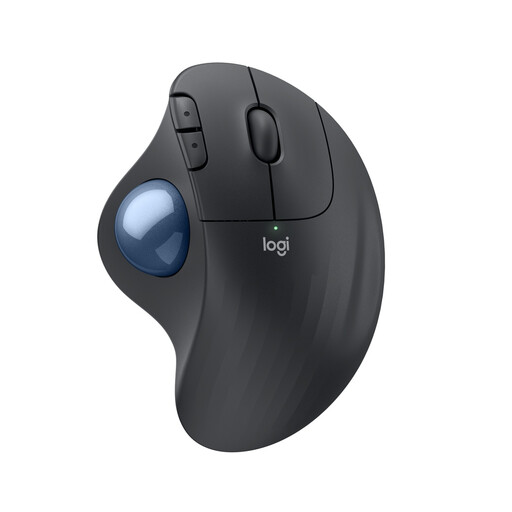
Logitech ERGO M575S Graphite
Thumb control is an option if you want to move the cursor without moving the device across your desk.
Logitech lists the ERGO M575S as measuring 134 × 100 × 48 mm. It connects via Bluetooth or a Logi Bolt USB receiver and uses a replaceable AA battery.
View at Joybuy
Frequently asked questions
Do I actually need a trackball for working on musical notation?
No, a trackball isn’t essential. MuseScore Studio lets you select a starting point and enter notes using either mouse clicks or keyboard commands. A trackball could be worth considering if you find stationary pointer control useful for selecting, correcting and navigating.
How do I set up a trackball with my computer?
It depends on how the particular model connects. The PERIMICE-520 uses USB-A, while the ERGO M575S supports Bluetooth or the Logi Bolt receiver. Logitech lists Logi Options+ for customising button assignments; before buying, check that the software supports your operating system.
What can I do if the ball feels jerky?
First, check the cleaning instructions for your model. Kensington notes that dirt and build-up can affect ball movement and cursor control; clean the ball and its housing according to the manufacturer’s instructions before assuming there’s a fault.
What are my rights if my trackball is faulty?
When you buy from a business seller, your statutory rights apply if the product is faulty. The European Union’s consumer information states that these rights generally last for a minimum of two years from the date you receive the goods, and advises contacting the seller first about faults. An additional manufacturer’s warranty does not limit your statutory rights; check its own terms separately.
Can I put an old trackball in household rubbish in Germany?
No. The German Environment Agency advises that old electrical equipment must be collected separately. Take your trackball to an appropriate collection point and, if possible, remove the batteries before handing it in; dispose of them separately.


