A stationary trackball can free up the space a conventional mouse needs to move around when you’re planning lessons, but the trackball itself still needs room for its body and your hand. Choose yours based mainly on which hand you prefer to use and how much you scroll. Thumb-operated models are shaped for a particular hand position, while ambidextrous finger-operated trackballs may suit you if you switch hands.
Who is a trackball suitable for?
Teachers with limited desk space
If you plan lessons with your keyboard, notes and paper resources close at hand, you won’t need to move the device around your desk to control the pointer. However, the body and your hand still need room. Logitech describes the ERGO M575S as a model for small or crowded workspaces.
Anyone working on lengthy teaching documents
When switching between reference materials, worksheets and longer texts, easy-to-reach scrolling features and buttons can be useful. The features available depend on the model. For example, Logitech lists customisable buttons on the MX Ergo S.
People who switch hands
If you use your left hand, switch between hands or share a device, look for a model that is explicitly described as ambidextrous. Kensington describes the Orbit K72337EU and K70992WW as suitable for use with either hand.
What should you look for when buying?
Thumb-operated trackball
A good fit if: you mainly use one hand and prefer a shaped palm rest.
Consider: the shape and button positions need to suit your hand. According to the manufacturer, some models are designed for medium to large hands.
Finger-operated trackball
A good fit if: you switch hands or would like a scroll ring for reading longer documents.
Consider: a scroll ring and any palm rest need desk space. Wired and wireless versions also differ in their connection and set-up.
| Buying priority |
What to check |
Who is it important to? |
| Desk space |
Measure the available width and depth, including room for your hand; allow for the device body and any rests. |
If there’s little free space beside my keyboard and teaching materials, I want to know whether the device and my hand will still fit. Around 36% of consumers put available desk space first. |
| Document navigation |
Check whether a scroll ring or wheel and easy-to-reach buttons suit the way you work. |
If you often navigate longer worksheets and reference materials, you’ll want scrolling features that suit your needs. Around 29% of consumers prioritise navigating long documents. |
| Hand fit |
Consider which hand you use, how easily you can reach the ball and buttons, and the shape of the palm rest. |
If I use my left hand or switch hands, an ambidextrous model matters; how far I can comfortably reach also counts. Around 21% of consumers put hand fit first. |
| Connection and use |
Check the available ports, wireless connection, power supply and whether you’re allowed to install any required software. |
If you use an existing or managed school device, you’ll want to use the connection and extra features without an unsuitable set-up. Around 14% of consumers prioritise connection and use. |
Common misconceptions when buying a trackball
-
“Stationary” doesn’t automatically mean “fits on any small desk”
A trackball doesn’t need space to move the device around, but its body, your hand and any palm rest still take up room.
Measure the free space beside your keyboard and papers, then compare it with the dimensions of the specific model.
-
Thumb and finger controls aren’t interchangeable
Shaped thumb-operated models and ambidextrous finger-operated devices are designed for different hand positions.
First decide which hand you’ll use and whether you can comfortably reach the ball and buttons. Then choose your scrolling and extra features.
-
Check the software before planning to customise buttons
Manufacturers specify their own software for button customisation. You may not be allowed to install it on a managed school computer.
Before buying, check whether you’re allowed to use the required software, and distinguish between basic operation and extra button functions.
-
Don’t overlook the cable, power supply or warranty terms
Power requirements and what’s included vary between models. Logitech notes that the MX Ergo S doesn’t come with a USB-C charging cable; Kensington lists one AA battery for the wireless Expert Mouse.
Check what’s included, the power source and the warranty terms for the version you choose.
Depending on the model, you may need to buy a charging cable or replacement battery separately.
Key brands at a glance
Logitech
The ERGO M575S and MX Ergo S thumb-operated models offer different body shapes and adjustment options for one-handed use.
- Logitech describes the ERGO M575S as suitable for small or crowded workspaces.
- For the MX Ergo S, Logitech lists a 20° tilt angle and six customisable buttons.
- The MX Ergo S is described as suitable for medium to large hands; according to Logitech, a USB-C charging cable isn’t included. The manufacturer’s comfort claims don’t guarantee the same experience for everyone.
Kensington
The Orbit and Expert Mouse models offer finger-operated alternatives with different scrolling features, connections and body designs.
- Kensington describes the wired Orbit K72337EU and wireless Orbit K70992WW as ambidextrous and equipped with a scroll ring.
- According to Kensington, the wireless Expert Mouse K72359WW also has a scroll ring.
- Kensington describes the Expert Mouse K72359WW as suitable for medium to large hands. Make sure there’s room on your desk for the body and any rests.
Perixx
The PERIMICE-520 is a wired trackball option with an adjustable tilt.
- Perixx lists a base measuring 139 × 102 mm, a tilting scroll wheel and clip-on risers.
- Even though it stays in place, the body still needs desk space. You’ll also need a clear route for the USB-A cable.
Joybuy products
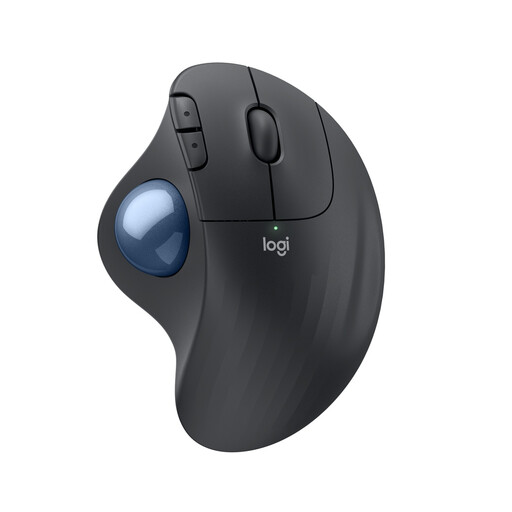
Thumb-operated trackball mouse for navigating documents on a small desk.
 No image available
Logitech ERGO M575S – Graphite
A good choice if you want to control the pointer without moving the device and use a scroll wheel when working with documents.
Logi Options+ is required to customise buttons and shortcuts.
View on Joybuy
Frequently asked questions about trackballs on small desks
Does a trackball need room to move on a small desk?
Not to move the device around to control the pointer. You’ll still need to make room for the body and your hand, as well as any palm rest.
Which type should I choose if I switch hands?
A model explicitly described as ambidextrous may suit you if you use your left hand or switch hands. Also check that you can comfortably reach the ball and buttons; a shaped thumb-operated model isn’t automatically suitable for both hands.
Do I need extra software on a school computer?
Requirements for basic operation and customised button functions vary by model. Kensington lists TrackballWorks for customising the buttons on the Orbit K72337EU; Logitech lists Logi Options+ for customised actions on the MX Ergo S. If you use a managed computer, check whether you’re allowed to install the required software.
What should I check about the power supply and what’s included?
Check whether the specific model is powered by a cable, rechargeable battery or disposable battery, and what accessories are included. Kensington lists one AA battery for the wireless Expert Mouse; according to Logitech, the MX Ergo S doesn’t come with a USB-C charging cable.


