Teachers marking lots of work on screen
If you regularly switch between submissions, assignments and comments, look for controls that make it easy to select and scroll on both displays.


If both screens are connected to one computer, the key is to be able to select and scroll confidently through your documents, with controls that feel comfortable for your hand. A thumb-operated model may suit you if you usually work with the same hand; a specifically ambidextrous finger-operated model may be a better choice if you switch hands. If you’re using two separate computers, you’ll also need to check connectivity, software and any installation permissions you may need. A trackball is no substitute for a suitable posture at your desk.
If you regularly switch between submissions, assignments and comments, look for controls that make it easy to select and scroll on both displays.
A trackball doesn’t need to be moved across the desk. You’ll still need space for the device itself and, if required, a wrist rest.
If you want to work with either hand or share a device, look for a specifically ambidextrous design. Not every contoured thumb-operated model suits both hands.
First, work out whether you’ll be controlling one computer or two. Then compare the ball and scroll controls with the tasks you typically do when marking, and check the fit for your hand, the space available and any software you’ll need.
| Criterion | What to check before buying | Who will find this especially important? |
|---|---|---|
| Selecting and scrolling | Try the ball and scroll controls with typical tasks. The SlimBlade Pro scrolls when you rotate the ball, while thumb-operated models may have a scroll wheel. | When I’m scrolling through long submissions and selecting small comment boxes, precise control matters to me. Around 31% of consumers prioritise selecting and scrolling. |
| Hand fit and posture | Try whether the ball, buttons and scroll controls are comfortably within reach, and consider your arm position too. | If you mark work regularly, choose controls that suit your hand rather than relying on the product description alone. Around 25% of consumers put hand fit first. |
| Desk space | Check there’s room for the device and, if required, a wrist rest alongside your keyboard and papers. | When there’s little room alongside my keyboard and marking papers, I don’t want to have to make extra space for moving the pointer. Around 19% of consumers prioritise the desk space available. |
| Switching hands | Look for a specifically ambidextrous design, and check that the click and scroll controls are within reach from either side. | If I switch between my left and right hand or share the device, ambidextrous controls are essential. Around 13% of consumers prioritise being able to switch hands. |
| Connectivity and switching devices | Distinguish between two screens connected to one PC and two separate computers; check connections, software support and installation permissions. | If you need to switch between devices or use a managed school computer, check connectivity and permissions in advance. Around 12% of consumers look first at connectivity and switching devices. |
Windows lets you arrange two displays connected to one PC; you don’t need a feature for switching between computers.
Before choosing, check how many computers you’ll actually be controlling. If you have two displays connected to one Windows PC, arrange them to match your setup and test how the pointer moves between them.
A multi-computer feature you don’t need can mean extra setup without making it any easier to move between displays.
A product’s shape can’t tell you whether it will suit your hand and working posture. Manufacturers’ claims about ergonomic benefits are no guarantee of how it will work for you personally.
Check that the ball, buttons and scroll controls are within reach for your marking tasks, and consider your posture at your desk. Switching devices alone won’t treat any discomfort.
Customising programmable buttons may require model-specific software. On a managed computer, installation restrictions could prevent you from using the shortcuts you had planned.
Before buying, check that the software supports your model and operating system, and that you have permission to install it on the computer you use.
If you’re not allowed to install the required software, the extra setup won’t just be wasted: you may not be able to use your planned button settings at all.
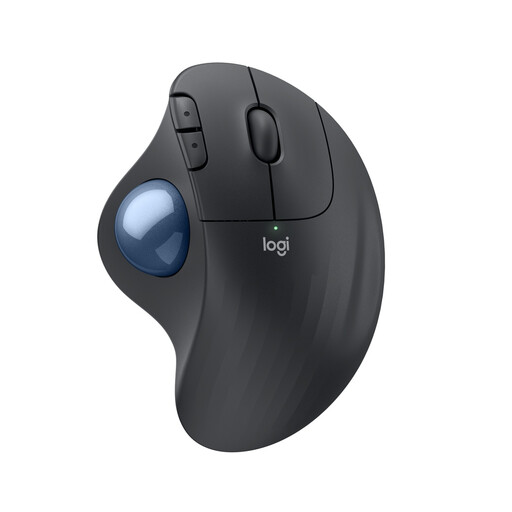
The ERGO M575S and MX Ergo S are thumb-operated models. Logitech says the ERGO M575S has quiet clicks, while the MX Ergo S features a 20° tilt, a DPI button and six customisable buttons, among other things.
The SlimBlade Pro is described as an ambidextrous finger-operated trackball and can connect via Bluetooth, 2.4 GHz wireless or cable.
The PERIMICE-520 is a wired thumb-operated option with a USB-A connection, a 1.8 m cable and a tilting scroll wheel.
For the EX-G PRO, ELECOM lists wired, Bluetooth and 2.4 GHz operation.
For marking digital work with thumb control and a scroll wheel.
 No image available
Thumb control moves the cursor without you having to move your hand across the desk, which can be useful when space is limited.
Five buttons, three of which can be customised; customisation and cursor speed settings require Logi Options+.
The scroll wheel has a middle-click function.
No, you don’t need a multi-computer feature to move the pointer between screens. Arrange the detected displays in Windows to match your actual setup, then test moving the pointer across the screen edge.
It’s only relevant if the displays are connected to separate computers and you want to control both. Logitech says Flow requires Logi Options+ on both computers, different pairing channels and a shared Wi-Fi or Ethernet network. Also check that your specific device is supported and that you have the necessary permissions on your school computer.
Check that your model, operating system and marking software support the button settings you want, and that you’re allowed to install the required software. Logitech lists Logi Options+ for the MX Ergo S; Kensington lists KensingtonWorks for the SlimBlade Pro’s programmable buttons.
Follow the cleaning instructions for your exact model. For the older MX Ergo, Logitech describes removing and wiping the ball and bearings. Don’t assume these steps apply to the MX Ergo S or another device.
For new goods, the statutory warranty against the seller is generally two years; this is separate from any voluntary manufacturer’s guarantee. For sales contracts from 31 July 2026 onwards, the Verbraucherzentrale explains additional requirements to provide information about choosing between repair and replacement, as well as a one-off extension of the deadline if you choose a repair.