Writers working on long drafts
If you often switch between passages in your text and research pages while editing, scrolling and pointer speed are important things to consider.


A trackball could be a good fit for writing and editing a short story if you switch between your draft and research and would rather not move a mouse across your desk. Pay particular attention to scrolling, pointer speed, your preferred hand and how it connects to your computer. Having two screens alone doesn’t mean you need to switch between devices. And a manufacturer’s ergonomic claims can’t guarantee that a particular setup will be comfortable for you.
If you often switch between passages in your text and research pages while editing, scrolling and pointer speed are important things to consider.
When you’re sharing your desk with a keyboard, notes and two screens, pointer control that doesn’t need room to move a mouse can be handy. You’ll still need space for the device itself and your hand.
If you use your left hand or switch between hands, check that the specific model is explicitly described as suitable for both right- and left-handed users.
First, think about how you want to scroll and move the pointer when switching between your draft and research. Then make sure the controls, space requirements and connection suit your workspace.
| What matters | What to look for when buying | Who is this especially important for? |
|---|---|---|
| Navigating text and research | Check the specific model for a scroll wheel or scroll ring, easy-to-reach buttons and adjustable pointer speed. Kensington lists a scroll ring for the Expert Mouse K72359WW and Orbit Wireless K70992WW; Logitech lists a DPI button for the MX Ergo S. | When I’m writing, I often switch between my draft and reference material. I want to scroll through long passages and accurately target small items. Around 40% of consumers are likely to put navigation first. |
| Comfort during longer writing sessions | Consider your preferred hand, ball position, wrist support and how easy the buttons are to reach. Kensington describes the Expert Mouse K72359WW and Orbit models as ambidextrous; Logitech describes the ERGO M575S as a thumb-operated trackball. | When I write for longer periods, I want the ball to suit my hand and preferred way of using it. For around 30% of consumers, ease of use is likely to be the main consideration. |
| Space beside your keyboard and notes | Allow room for the device and wrist support. The Federal Institute for Occupational Safety and Health recommends having enough desk space to arrange your mouse and keyboard flexibly, with support for your hand and arm. | When space is limited, I don’t want to have to leave extra room to move a mouse around, but I still want the trackball to be within comfortable reach. This is likely to be the main consideration for around 20% of consumers. |
| Connection and set-up | Check whether both screens are connected to one computer or to two. Then check which connection options and ports your device supports, along with the operating system and software required for the specific model. | If my main concern is making sure the connection or set-up works with my computer, these are the things I’ll focus on. Around 10% of consumers are likely to prioritise connection and set-up above all else. |
The number of monitors doesn’t tell you how many computers the trackball needs to connect to.
First, check whether both screens are connected to the same computer. Then see which connections and ports your device supports.
Kensington lists a scroll ring for the Orbit Wireless K70992WW, but not for the differently equipped Orbit Optical 64327EU.
Before buying, check the full model number and how scrolling works, especially if you need to move through long texts.
A manufacturer’s claims about a particular shape don’t prove that it will feel comfortable for every hand or desk set-up. The Federal Institute for Occupational Safety and Health also highlights the importance of a suitable arrangement and adequate support.
Check that it suits your hand, that support is within easy reach and that your desk is set up appropriately. A trackball is not a guaranteed treatment.
Button customisation features may depend on your operating system, connection and software. Logitech says the MX Ergo S doesn’t include a charging cable; Kensington notes that TrackballWorks for the Expert Mouse K72359WW has a limitation on Mac when using Bluetooth.
For the exact model, check the accessories included, connection options, operating system and whether you can install the software you need.
The models mentioned are thumb-operated trackballs for stationary pointer control. They differ in features such as tilt and customisable functions.
The finger-operated trackballs mentioned include ambidextrous options with different scrolling and connection features.
The EM03 NL is another finger-operated trackball option for writers considering multi-device connectivity and adjustable pointer speed.
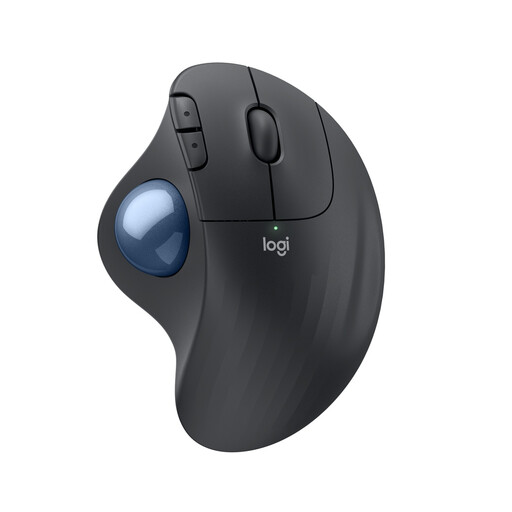
Our product selection includes a thumb-operated trackball for navigating while writing and editing.
 No image available
Stationary thumb control could be a good fit if you want to move the pointer without sliding a mouse across your desk.
Logitech says the model has a scroll wheel and supports Bluetooth Low Energy or a Logi Bolt receiver; the receiver requires a USB-A port.
Logitech lists a replaceable AA battery as the power source. Check that the controls and connection you need suit your workspace.
No, not just because of the number of screens. If both monitors are connected to one computer, the trackball only needs to connect to that computer. Switching between devices only matters if you actually want to move between separate computers. Check the cables and available ports.
Check whether the specific model is explicitly described as suitable for both right- and left-handed users. Kensington lists this feature for the Expert Mouse K72359WW, Orbit Wireless K70992WW and Orbit Optical 64327EU; you can’t assume it applies to other models from the brand.
First, choose a connection supported by both the trackball and your computer. For the ERGO M575S, Logitech lists Bluetooth Low Energy or a Logi Bolt receiver connected to USB-A; Logi Options+ lets you customise programmable functions. Kensington says TrackballWorks for Mac is compatible with the Expert Mouse K72359WW only when using a 2.4 GHz connection.
Compare the power supply and what’s included: according to Logitech, the ERGO M575S uses a replaceable AA battery, while the MX Ergo S, which charges via USB-C, doesn’t include a charging cable. Under section 438 of the German Civil Code (BGB), claims for defects in ordinary goods generally become time-barred two years after delivery. A voluntary manufacturer’s warranty is separate.