Who is a trackball suitable for?

For precise slide editing

If you regularly move text boxes and graphics, choosing a trackball that lets you tailor pointer movement and scrolling to your tasks can be beneficial. Microsoft Support explains that guides in PowerPoint help you align objects and space them evenly.

For long hours at a desk, with posture in mind

For longer sessions, hand size, easily reachable controls and a comfortable posture are all important considerations. The Federal Institute for Occupational Safety and Health recommends leaving enough space for a keyboard, an input device and a hand and arm support, arranged to suit you.

For people with a small or shared desk

If you have limited desk space or want to use the device with either hand, consider its size and whether it’s designed for left- or right-handed use. Kensington describes the Orbit Wireless with Scroll Ring as ambidextrous. A trackball doesn’t need space to move around, but you still need room for the device and your hand.

What should you look for when buying?

What matters when buying What to look for Who it matters most to
Pointer control Check whether you can adjust pointer speed on the device or with compatible software, and whether the scrolling controls suit your slide decks. Guides in PowerPoint can also help with alignment, as Microsoft Support explains. When I’m positioning small text boxes and graphics on slides, I want to move the pointer precisely and scroll quickly as I navigate. Around 36% of consumers prioritise precise pointer control.
Hand position Compare thumb-operated and finger-operated controls, the hand support and the device dimensions. Also make sure your keyboard, input device and arm support can be arranged comfortably. For longer sessions, I want to reach the controls comfortably and rest my hand in a suitable position. Around 29% of consumers prioritise hand position.
Connection and setup Check for available USB-A ports, Bluetooth support and the options for installing any software you need. A wired model and a wireless model have different requirements for your workspace. To use a trackball with my work computer, I need a suitable connection and the option to install any required software. Around 21% of consumers prioritise connection and setup.
Desk space and preferred hand Measure the space beside your keyboard and papers, allowing room for the device and your hand. If you want to use it with either hand, check that the model is specifically designed to be ambidextrous. At a small or shared desk, I want to keep space free for papers or be able to use the device with either hand. Around 14% of consumers prioritise desk space or ambidextrous use.

Common misconceptions

  • “Ergonomic” doesn’t automatically mean pain-free

    Manufacturers’ claims about posture or muscle strain relate to the specific models. They don’t prove that a device will fit you personally or replace a well-designed workspace.

    Check how your hand and arm actually rest, and whether you can reach the controls without adopting an uncomfortable posture. Change position during longer periods of screen work.

  • Extra buttons can always be customised

    The customisation options vary by model. Nulea explicitly states that the M501’s buttons can’t be programmed; other models may require software for customisation.

    Compare the functions you want with the instructions for the specific model and check what you can install on your computer.

  • A trackball will fit on any desk

    You don’t need space to move a mouse around, but you still need room for the trackball, your hand and, where applicable, the cable.

    Measure the free space beside your keyboard and teaching materials. If you’re choosing a wired model, allow for cable routing too.

  • Power and accessories don’t matter

    Power options vary by model: the ERGO M575S uses an AA battery, while the MX Ergo S charges via USB-C. Logitech notes that the MX Ergo S charging cable isn’t included.

    Check what’s in the box and whether you’ll need a battery or a suitable charging cable.

    Depending on the model, you may need to have an AA battery to hand or buy a USB-C charging cable separately.

Key brands at a glance

Logitech

The thumb-operated trackballs described here differ in features such as power options and controls.

  • Logitech lists an AA battery and two wireless connection options for the ERGO M575S.
  • For the MX Ergo S, Logitech lists a tilt function, a DPI button, customisable buttons and USB-C charging.
  • Logitech says the MX Ergo S charging cable isn’t included. Check the fit for your hand and any software requirements before buying.

Kensington

The range includes finger-operated trackballs, including ambidextrous models with different scrolling and configuration options.

  • Kensington describes the Orbit Wireless with Scroll Ring and the Expert Mouse K72359WW as ambidextrous.
  • For the Expert Mouse, Kensington notes that TrackballWorks on Mac is limited to the 2.4 GHz connection. Check the software requirements for the specific model.

Perixx

The wired PERIMICE-520 combines thumb control with a USB-A connection and adjustable tilt.

  • Perixx lists a tilting scroll wheel and a USB-A connection.
  • Perixx says programmable buttons require a driver download. Make sure the USB-A connection and cable routing suit your workspace.

Nulea

The M501 is a thumb-operated trackball with Bluetooth or a USB receiver and a rechargeable battery.

  • Nulea says the M501 can connect to up to three devices.
  • Nulea explicitly states that the M501’s buttons can’t be programmed.

Joybuy products

The following Joybuy products are suited to editing slides with wireless thumb control and cursor navigation.
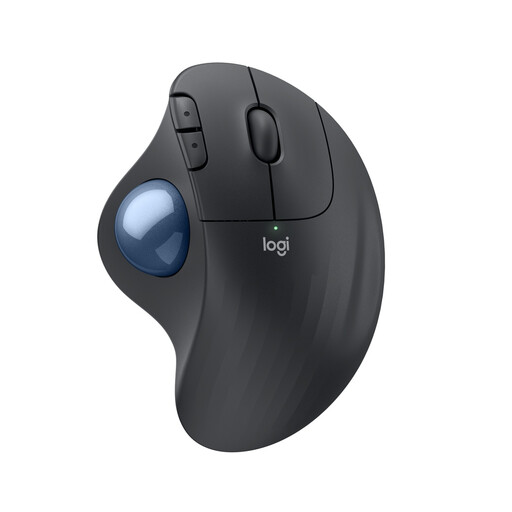
Logitech ERGO M575S Graphite

Logitech ERGO M575S Graphite

Thumb control is designed for precisely positioning slide elements and navigating at your desk. If you want to adjust pointer speed or customise buttons, check whether you can install Logi Options+ on your work computer. You’ll need a free USB port for the Logi Bolt receiver, or you can use the stated Bluetooth option.

View at Joybuy

Frequently asked questions

Does a trackball replace alignment tools when designing slides?

No. If you use PowerPoint, Microsoft Support says its smart guides can help you align objects and space them evenly. Choose a trackball based on whether you can control the pointer comfortably, too.

Do I need to install software for basic use or custom button commands?

It depends on the model and the functions you want. Kensington says the Orbit Optical has USB plug-and-play setup, but button customisation requires TrackballWorks. Logitech lists Logi Options+ for custom button combinations on the MX Ergo S. Check in advance that you can install the software you need on your computer.

What can I do if the ball feels stiff when I move it?

Check the ball and its resting area for debris, and clean the device according to the instructions for your model. Kensington notes that dirt can cause jerky or stiff movement.

What are my rights when buying online from a business seller?

In Germany, distance purchases generally come with a 14-day right to cancel, starting from the day you receive the goods; statutory exceptions and possible return costs apply. Faulty goods are also covered by a statutory guarantee of at least two years against the seller. The European Union explains these consumer rights.

What should I look for in a wireless mouse, and how should I dispose of an old one?

Check the product information and markings for the specific wireless device. Germany’s Federal Network Agency carries out spot checks on electrical and electronic products, including Bluetooth devices. Electrical and electronic waste should be disposed of separately; the Federal Ministry for the Environment explains the take-back obligations for retailers and the conditions that apply.