Which monitor options suit different players?

Players sharing a desk

If you’re setting up a screen in a shared bedroom, the dimensions of the monitor and stand matter, as do the available adjustment options. Also think about how you’ll use audio in the evenings without disturbing the other person.

Players who read maps and menus

If you spend a lot of time looking at route networks, maps and menus, the screen size should suit your desk. QHD and 21:9 are available monitor options; check how the specific game displays its interface before choosing.

Panorama fans with room to spare

If you want more horizontal screen space on a single monitor, measure the space needed for the screen and stand first, and check your PC’s requirements. A 34-inch model is one option, but it doesn’t guarantee that every game will display the format as you’d like.

What should you look for when buying?

Buying priority What to check Who is it important to?
Consideration and desk space Width and depth with the stand; height adjustment and audio connections. If I share a desk, the screen and stand need to fit in the available space, and the audio setup needs to suit my situation in the evening. Around 36% of consumers put consideration and desk space first.
Reading maps and menus Screen size, native resolution and how the specific game displays content. During long sessions with route networks and menus, I want to be able to make out the icons clearly from my seat. Around 29% of consumers prioritise the readability of maps and menus.
Wide screen and PC requirements 21:9 support and the in-game interface; space needed and PC performance. If I want a wide single-screen image, my simulation needs to display the format properly and the monitor needs to fit on my desk. Around 21% of consumers put a wide screen first.
Power use and panel care The EU energy label for the same model; for OLED, care guidance and the specific warranty terms. Regular players want to compare power use and, with OLED, know which care guidance applies to the model. Around 14% of consumers prioritise running costs and panel care.

Which buying pitfalls should you avoid?

  • Assuming screen size tells you how much desk space you need

    The diagonal measurement doesn’t tell you how much room the screen and stand will take up on your desk. The LG 34GP63AP-B is 809 mm wide and 312 mm deep with its stand; the supplied stand for the ASUS VG27AQ3A isn’t height-adjustable.

    Measure the available desk space and compare it with the dimensions of the exact version, including its stand. Also check that you can adjust the height as required.

    Depending on your setup, you may need to buy a compatible mount separately.

  • Assuming 21:9 automatically shows more of the game world

    The monitor’s specifications confirm its aspect ratio, not how a particular game or its interface will be displayed.

    Check how your specific traffic simulation supports ultrawide before setting aside extra desk space for it.

  • Assuming OLED protection features rule out burn-in

    LG notes that burn-in cannot be ruled out completely, even with proper use. MSI describes OLED Care 2.0 as a way to reduce risk, not to eliminate the possibility of damage.

    If menus are often left unchanged for long periods, compare OLED and LCD carefully, and read the care guidance and warranty terms for the specific model.

  • Judging the highest refresh rate without considering the connection

    ASUS lists a maximum of 180 Hz over DisplayPort and up to 144 Hz over HDMI for the VG27AQ3A. So the refresh rate you can achieve also depends on the connection you use.

    Check the resolution and refresh rate supported by the connection and PC you’ll actually use. A higher monitor refresh rate alone doesn’t prove it will benefit your simulation.

Brands worth considering

ASUS

The TUF range includes the VG27AQ3A, a 27-inch QHD LCD option. ROG also includes OLED models with their own care guidance.

  • ASUS lists a maximum of 180 Hz over DisplayPort and 144 Hz over HDMI for the VG27AQ3A; the model also has a headphone socket.
  • The VG27AQ3A’s stand isn’t height-adjustable. ASUS’s pixel-cleaning guidance applies to specific ROG OLED devices, not all ASUS monitors.

LG

UltraGear includes both a 34-inch VA ultrawide model and a 34-inch OLED ultrawide model. Screen format and panel technology are therefore separate considerations.

  • LG lists a resolution of 3440 × 1440 pixels for the 34GP63AP-B, with a width of 809 mm and depth of 312 mm including the stand.
  • LG says the risk of burn-in remains with OLED. Read the warranty terms for the specific model; a general warranty statement is no substitute for them.

Samsung

The Odyssey OLED G81SF is a 27-inch 4K QD-OLED option in a 16:9 format.

  • Samsung lists a resolution of 3840 × 2160 pixels and a maximum refresh rate of 240 Hz for model S27FG814SU.
  • These manufacturer specifications don’t prove that 4K will suit your PC’s performance or your specific traffic simulation.

MSI

The MPG 271QRXDE QD-OLED is a 16:9 WQHD OLED option for buyers also considering a high quoted refresh rate.

  • MSI lists a resolution of 2560 × 1440 pixels and a refresh rate of 360 Hz for the model.
  • The stated refresh rate doesn’t prove it will benefit a specific traffic simulation. MSI describes OLED Care 2.0 as a way to reduce risk, not to rule out burn-in.

Dell Alienware

The AW2725QF is a 27-inch IPS option with two resolution and refresh rate modes.

  • Dell describes switching between 4K at 180 Hz and Full HD at 360 Hz.
  • According to Dell, the model has no built-in audio output. Dual-resolution mode doesn’t prove that the 360 Hz setting is useful for traffic simulations.

Joybuy monitors for your desk

This selection includes 27-inch gaming monitors for your desk, including QHD and Full HD models. Check that the resolution and stand suit your desk and game.

Z-Edge AGEX 27-inch QHD gaming monitor

Z-Edge AGEX 27-inch QHD gaming monitor

An option if you’re looking for a QHD monitor with an adjustable stand.

27 inches; 2560 × 1440 pixels; Fast IPS; 144 Hz; height-adjustable stand.

View at Joybuy
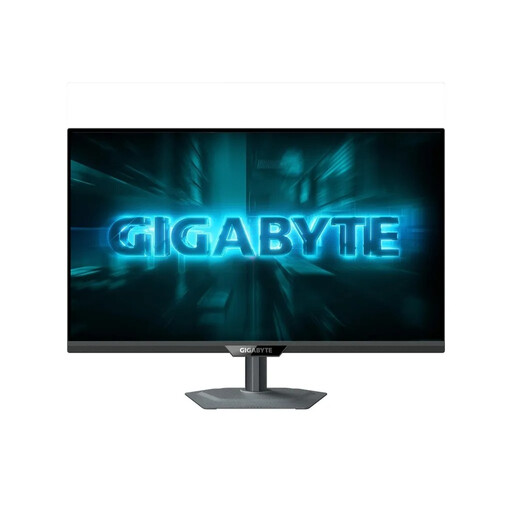
GIGABYTE G27Q2 27-inch QHD gaming monitor

GIGABYTE G27Q2 27-inch QHD gaming monitor

A QHD option for a single desk monitor; check the refresh rate you need for your connection and PC.

2560 × 1440 pixels; SuperSpeed IPS; 200 Hz, with optional overclocking to 210 Hz.

View at Joybuy

INNOCN 2751S PLUS 27-inch QHD Mini LED monitor

INNOCN 2751S PLUS 27-inch QHD monitor

Another 27-inch QHD option; check that the stated refresh rate meets your PC and game’s requirements.

Mini LED; IPS; QHD; 275 Hz; 1152 dimming zones.

View at Joybuy
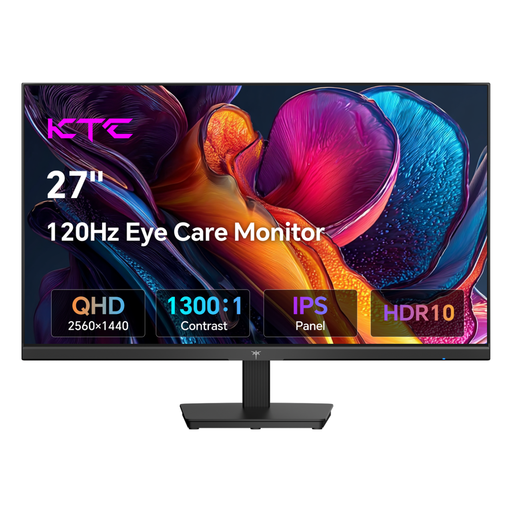
KTC H27D9 27-inch QHD monitor

KTC H27D9 27-inch QHD monitor

A QHD option if you’re considering a VESA mount for your setup.

2560 × 1440 pixels; IPS; 120 Hz.

View at Joybuy
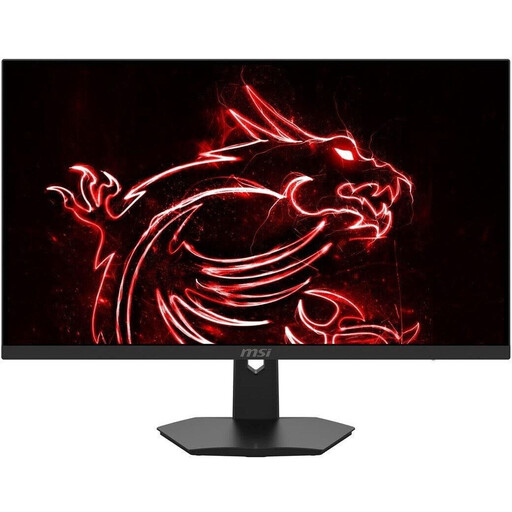
MSI MAG 274FDE 27-inch Full HD gaming monitor

MSI MAG 274FDE 27-inch Full HD gaming monitor

A Full HD option for a 27-inch desk monitor; compare the resolution with the level of detail you want to make out on maps and menus.

IPS; 1920 × 1080 pixels; 180 Hz; height-adjustable stand.

View at Joybuy

Frequently asked questions

How can I check whether a monitor will fit in a shared room?

Measure the available space, including the stand’s depth and room for cables, and compare it with the manufacturer’s dimensions including the stand. The LG 34GP63AP-B measures 809 × 462.9 × 312 mm with its stand. Also check that you can adjust the monitor enough for your seating position.

Will a 21:9 monitor give me a better view in every traffic simulation?

Not necessarily: the aspect ratio alone doesn’t tell you how a particular game will display its scene and interface. Check 21:9 support for your specific game, and bear in mind that a 34-inch model needs more desk width.

Do I need 180 Hz or more for traffic simulations?

No. The monitor’s maximum refresh rate alone doesn’t determine the frame rate in a game. Check your PC, game and connection: ASUS lists different maximum refresh rates for HDMI and DisplayPort on the VG27AQ3A.

What should I bear in mind when using OLED for long sessions with fixed menus?

LG says burn-in can occur after static images have been displayed unchanged for a long time, and that the risk cannot be ruled out completely even with proper use. Read the care guidance and warranty terms for your chosen model; ASUS’s pixel-cleaning guidance specifically applies to affected ROG OLED monitors.

How can I compare the power consumption of two monitors?

Compare the information on the EU energy labels or product specifications for the exact models, and take care not to compare SDR and HDR figures as if they were the same. The European Commission describes an A to G scale for electronic displays. To work out your personal electricity costs, you’ll also need your usage time and electricity tariff.