Who is this guide for?

Library PC users

If you want to read your card on a library computer, check in advance whether external storage devices are allowed and which connection is available at the computer you plan to use. The City of Cologne and Senftenberg City Library publish location-specific rules and guidance on using their PCs.

Users of their own mobile devices

If you’d rather view your photos on your own smartphone, tablet or laptop, you’ll need a reader that’s compatible with both your device and your card. Apple Support explains how to connect external storage devices to an iPhone using a compatible connector or adapter.

People transferring large numbers of photos

If you regularly copy large collections of photos, consider the interfaces on your card, reader and destination device together. The SD Association points out that the performance you can achieve also depends on the interface supported by the host device.

What should you look for when buying?

What to look for What to check Who should pay particular attention
Connection and library PC Whether the device you plan to use has USB-A or USB-C; the library’s rules on external storage devices. If I want to view my photos on a library PC, I check the connection and permitted use in advance. Around 36% of consumers put compatibility with the intended computer first.
Card format and standard The label and standard on the camera card, and the formats explicitly supported by the reader. If I’m not sure whether my card is SD or microSD, or which standard it uses, I carefully check that it’s compatible with the reader. Around 29% of consumers prioritise support for the card they already own.
Handling your photos Whether you need to save your photos on a shared computer, and whether using your own device is a suitable alternative. If my photos show people, I want to choose carefully which device I open and save them on. Around 21% of consumers pay particular attention to how images are handled on shared computers.
Transferring large amounts of data The UHS standard supported by the card and reader, as well as the USB connection on the destination device. Don’t assume that the maximum speed is the actual transfer rate. If I regularly copy lots of photos, I compare the interfaces on the card, reader and device rather than focusing on a single maximum speed. Around 14% of consumers put transfer speed first.

Common buying mistakes

  • Focusing only on the USB connector

    USB-A or USB-C doesn’t tell you whether the reader also supports your SD or microSD card and its standard.

    Check the label on your card against the formats and slots supported by the specific reader.

    Key brands at a glance

    Transcend

    The RDF5 is a USB-A reader for SD and microSD cards, provided your destination device has a USB-A port.

    • Transcend lists USB 3.1 Gen 1 and slots for both card formats.
    • You can’t use an SD and a microSD card in the RDF5 at the same time.

    TP-Link

    The UA430D combines USB-A and USB-C, while the UA440C is a USB-C model with UHS-II support.

    • According to TP-Link, both models support SD and microSD. The UA430D is listed as UHS-I, while the UA440C is listed as UHS-II.
    • The speed quoted for the UA440C is a manufacturer’s claim, not the result of an independent test.

    UGREEN

    According to UGREEN, model 50706 combines USB-A and USB-C with SD and microSD slots.

    • The product details list UHS-I and say both card slots can be used at the same time.
    • Check the exact model number, 50706. A listing with a similar name doesn’t automatically refer to the same version.

    Kingston

    The MobileLite Plus SD Reader is designed for users of SDHC and SDXC cards who want to use UHS-II.

    • Kingston lists UHS-II support and backwards compatibility with UHS-I.
    • This model is listed as an SD reader, not as a corresponding microSD reader.

    SanDisk

    The MobileMate USB 3.0 Reader is a USB-A reader for microSD cards.

    • SanDisk lists a microSD card slot.
    • A standard-sized SD card won’t fit directly into this model.

Card readers at Joybuy

This selection includes card readers and combinations with card readers for SD or TF cards, with a range of USB connections. Before buying, check that the format and connection are compatible with your camera card and the library PC or personal device you plan to use.
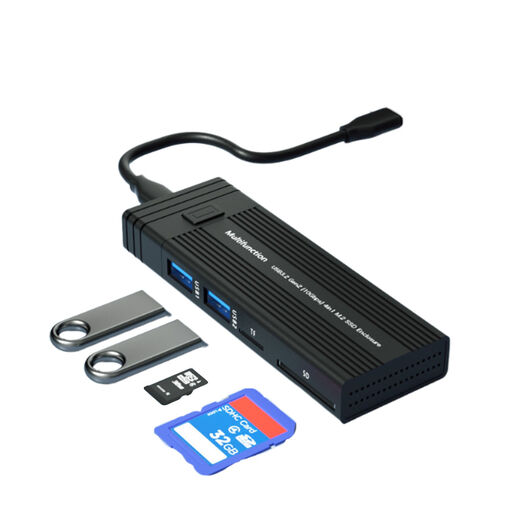
4-in-1 M.2 SSD enclosure with USB hub and card reader

4-in-1 M.2 SSD enclosure with USB hub and card reader

This combination could be a good fit if you need an M.2 SSD enclosure and USB hub as well as an SD and TF card reader.

The title lists support for NVME/SATA, B-Key/B&M-Key and 10 Gbit/s. The product description specifies USB 3.2 Gen 2 for the hub; this doesn’t confirm the card reader’s speed.

View at Joybuy
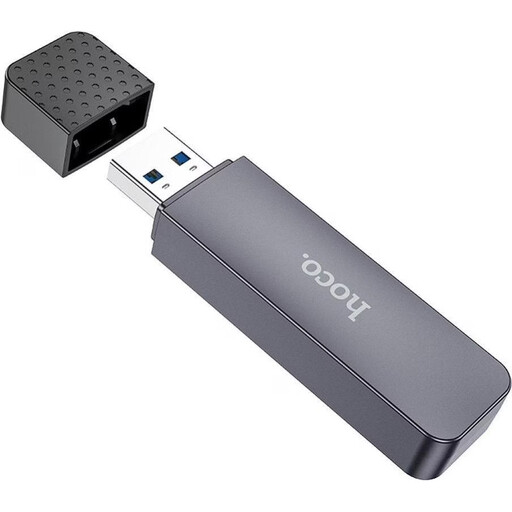
HOCO HB45 Spirit 2-in-1 USB 3.0 card reader with USB-A

HOCO HB45 Spirit 2-in-1 USB 3.0 card reader, USB-A

A possible option if your destination device has USB-A and you’re using the SD and TF cards listed in the description.

The description lists both card formats and simultaneous reading.

View at Joybuy
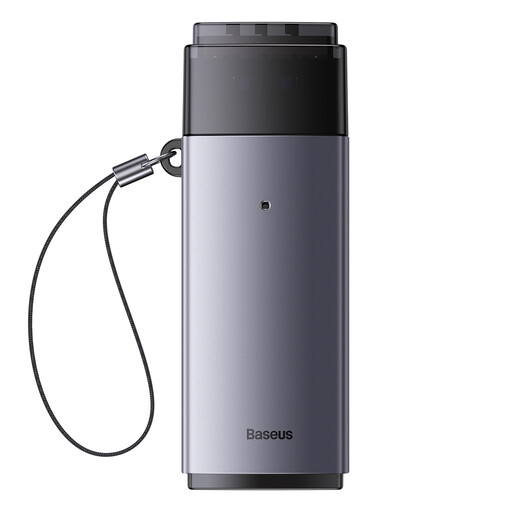
Baseus Lite Series USB-A card reader for SD and TF cards

Baseus Lite Series USB-A card reader for SD/TF

This reader could be suitable if your card is SD or TF and your destination device has a compatible USB-A port.

The product details list a maximum transfer rate of 104 MB/s. This is a manufacturer’s claim, not an independent measurement.

View at Joybuy
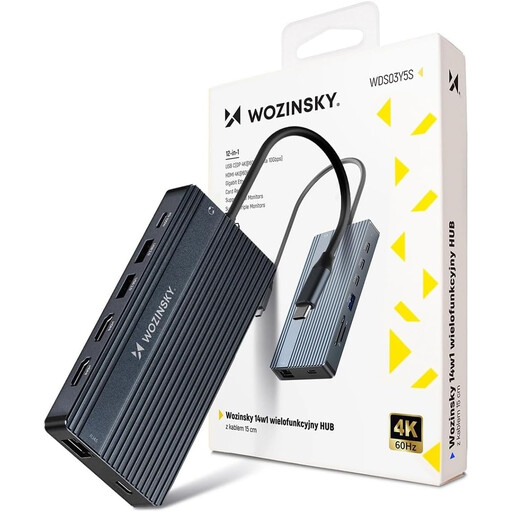
WOZINSKY 14-in-1 USB-C hub with SD and TF card reader

WOZINSKY 14-in-1 USB-C hub with SD and TF card reader

This combination could be a good fit if your personal device uses USB-C and you need extra hub connections as well as a card reader.

The description lists SD and microSD card readers, compatibility with Android and iPadOS, and a 15-cm cable.

View at Joybuy
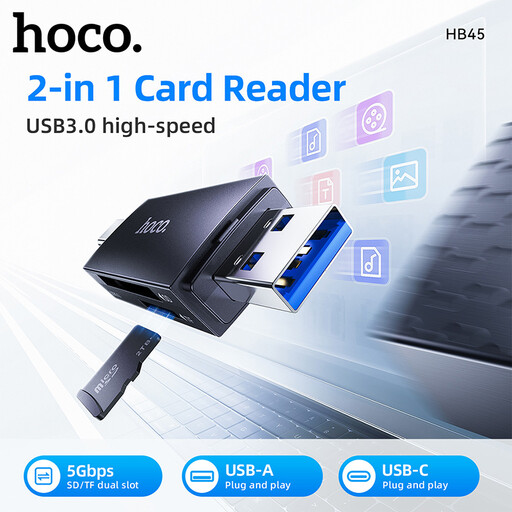
HOCO HB45 Spirit 2-in-1 card reader with USB-A and USB-C

HOCO HB45 Spirit 2-in-1 card reader, USB-A/USB-C

The two connections listed in the title give you an option if you switch between compatible USB-A and USB-C devices.

The product details list a reader for microSD/TF cards. Check that your trail camera card uses this format.

View at Joybuy

Frequently asked questions

Can I use my card reader with any library PC?

Not necessarily. You’ll need to check the available connections and usage rules at the library. Senftenberg City Library explains how USB storage can be used at its workstations, while the City of Cologne sets its own rules for its devices.

Why might a larger camera card not be recognised?

Check the card standard and file system before assuming there’s a fault. The SD Association defines SDHC as cards over 2 to 32 GB using FAT32, and SDXC as cards over 32 GB up to 2 TB using exFAT. Your reader and device must be compatible with the card. Don’t make formatting a card containing photos you need your first troubleshooting step.

How do I remove the card reader after viewing photos on a Windows PC?

Use the Windows safe removal feature before unplugging the reader. Microsoft recommends this to help prevent data loss.

Is it always fine to view trail camera photos on a library PC?

Not necessarily. The library’s rules apply to how you use its PC, and buying a card reader doesn’t determine whether the photos or their subsequent use are permitted. If people can be identified in the images, they may contain personal data. So consider whether you need to save the files on a shared computer.

What are my rights if a card reader is faulty in Germany?

Your statutory rights against the seller are separate from any voluntary manufacturer’s warranty. The Verbraucherzentrale says that for newly purchased goods, the retailer is generally responsible for ensuring the goods are free from defects for two years. The rights available to you depend on the specific fault and purchase.