A group attending together from one room
Several people are joining from a small room. Their contributions should be easy to hear, and the room view should suit the seating arrangement.


If you’re attending a training session on your own using a laptop, first check whether its built-in camera is good enough. A room camera is most worthwhile when several people need to speak together. For a seating arrangement where everyone faces forwards, consider a USB video bar; for people seated around a table, a 360° table camera may be a better fit. Choose the framing, room audio and connection method to suit the space. Digital slides are shared through the conferencing software, not made clearer by a higher camera resolution.
Several people are joining from a small room. Their contributions should be easy to hear, and the room view should suit the seating arrangement.
One person is sitting at a laptop and may need a webcam that can be positioned more easily, rather than a complete room system.
As well as the participants, remote attendees need to be able to see slides, worksheets or a physical whiteboard.
First, establish whether one person or a group will be taking part. For a group, the next things to consider are the seating arrangement, room audio, how training materials will be shared and how the camera will connect to the conference computer.
| What matters | What to check before buying | Who is this most important for? |
|---|---|---|
| Clear speech | Check the distances between seats, microphone placement and speakers. Test the sound from every planned seat. | When people will be asking and answering questions from different parts of the room, clear room audio is essential. That’s why around 29% of consumers put capturing the group’s audio first. |
| Covering all the seats | Compare the seating plan with the camera position and field of view. | If participants are sitting far to the sides or around a table, the view needs to suit the layout. Around 23% of consumers prioritise covering every seat. |
| Showing training materials | Decide whether you’ll share slides digitally or show a physical whiteboard or document. | If you need to show worksheets or a whiteboard, you’ll need a suitable way to share that content as well as the view of the participants. Around 18% of consumers prioritise being able to show training materials. |
| Setting up with the conference computer | Check the USB connection, power supply, cable length, mounting options and software required for the specific model. | If you use different laptops or a fixed room PC, the connection method should work with the equipment you already have. Around 18% of consumers look for a straightforward set-up first. |
| Equipment and ongoing support | Check your existing equipment, what’s included in the box and the warranty terms for the specific offer. | If you want to keep the amount of extra equipment you need to manage to a minimum, take accessories and future set-up requirements into account when choosing. Around 12% of consumers prioritise keeping the equipment to a manageable level. |
A room camera shows people. Digital content and physical materials each need a suitable way to be shared.
Before buying, decide whether you need to share slides digitally, show a whiteboard or do both. Microsoft describes sharing digital content in Teams, as well as separate camera options for physical materials.
Showing a physical whiteboard may require an additional document camera or more time to set everything up.
A front-facing camera and a 360° table camera positioned in the centre capture different layouts. The stated field of view alone is no guarantee that speech will be clear or details easy to make out.
Sketch out the seating plan and decide where to place the camera before comparing models. Check that everyone who needs to be seen will fit within the required frame.
The Logitech MeetUp 2 is described for BYOD or PC-based rooms. The manufacturer specifies that an active USB cable is needed for the single-cable BYOD connection it describes.
Check what’s included with the specific offer and make sure it matches your planned connection method.
Depending on your connection plan, you may need an additional cable. Also check that the planned connection leaves enough room and time for set-up.
The MeetUp 2 is designed for small BYOD or PC-based rooms, while the Brio 300 is a separate webcam for individual use.
The Meeting Owl 3 is designed as a table-based solution for participants seated around a table.
The PanaCast 50 is a video bar designed to provide a wide view from the front, including for people sitting to the sides.
The Studio R30 is described as a USB video bar for small rooms with computer-based meetings.
The UVC34 is described as an integrated USB video bar for small meeting rooms.
These Joybuy products include USB cameras for groups in small rooms and webcams for individuals attending alone. Before choosing, check that the model, connection and seating coverage suit the way you’ll use it.
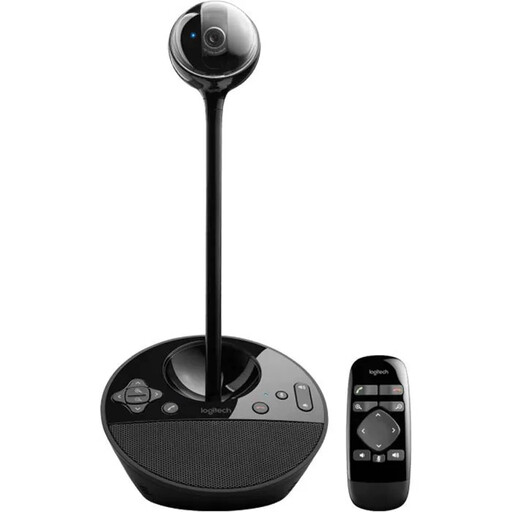 No image available
Described as a conference camera for small groups. Check that the framing and connection method suit your seating arrangement and room equipment.
 No image available
An option for individuals attending at their computer. Check that the planned connection and conferencing software are compatible with your set-up.
Features listed in the product name: 4K UHD and 4000 Series.
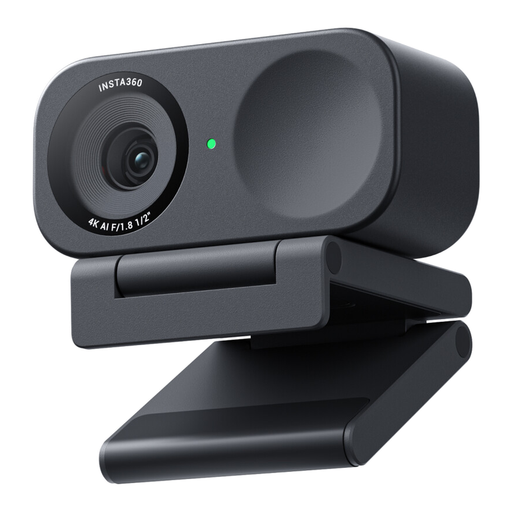 No image available
Designed for one person using a computer; the whiteboard mode may be useful for training materials. Check that it’s compatible with your planned platform and operating system.
Features listed in the product name: 4K webcam and whiteboard mode. According to the description, it’s currently not compatible with ARM-based Windows systems.
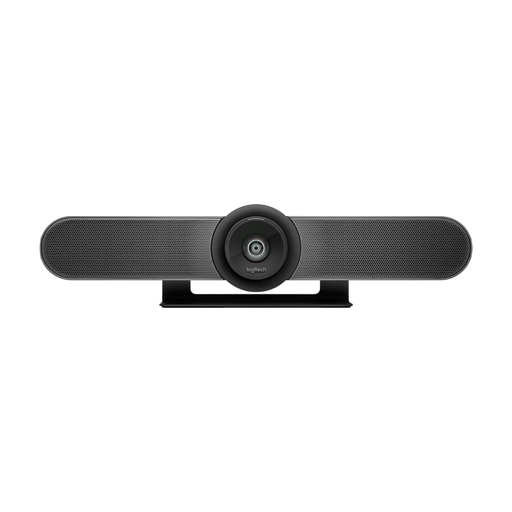 No image available
Designed for small meeting rooms and groups attending together. Choose a mounting position and frame that suit where the group will be sitting.
Features listed in the product name: 4K, built-in microphones and speakers, and motorised pan and tilt.
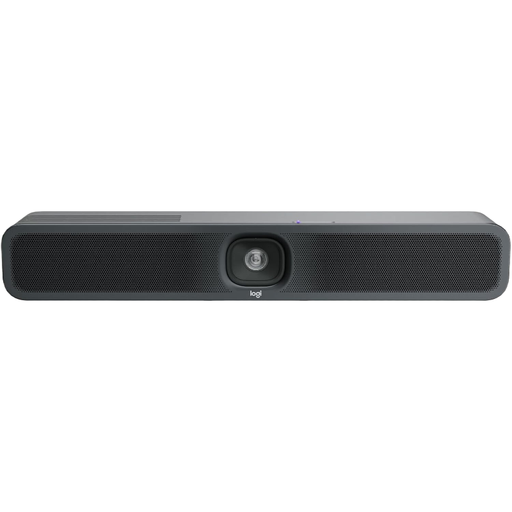 No image available
Designed for a group in a small meeting room. First check whether you’ll be using BYOD or the room’s fixed PC, and which connection method is planned.
Features listed in the product name: 4K, USB, and a built-in microphone and speaker.
If you’re sitting in front of your laptop on your own, first check its built-in camera and audio output. Logitech says that an individual webcam such as the Brio 300 offers USB-C, a microphone and 1080p video; that doesn’t mean it’s suitable for several people speaking in a room.
In Microsoft Teams, you can show digital slides or a window using content sharing. Microsoft describes separate camera options for physical whiteboards and documents. Check the requirements for your computer, application and camera position. If you use another platform, check its available features separately.
With a USB video bar, select the camera, microphone and speakers in your conferencing application, then test from every seat you plan to use. For the Logitech MeetUp 2, check the BYOD or room PC connection, and keep your devices and conferencing software up to date in line with your organisation’s requirements.
No. The Verbraucherzentrale distinguishes a voluntary warranty from statutory claims against the seller. The consumer rights it outlines don’t automatically apply to business-to-business purchases, so check the type of contract, the seller and the specific warranty terms.
There’s no general answer. In its guidance on video conferencing systems dated 23 October 2020, the Datenschutzkonferenz explains the requirements for companies and other organisations when processing personal data. Those responsible must consider the legal basis, transparency and how image and audio data are handled. Recordings need to be assessed separately. Buying a camera doesn’t give you permission to record.